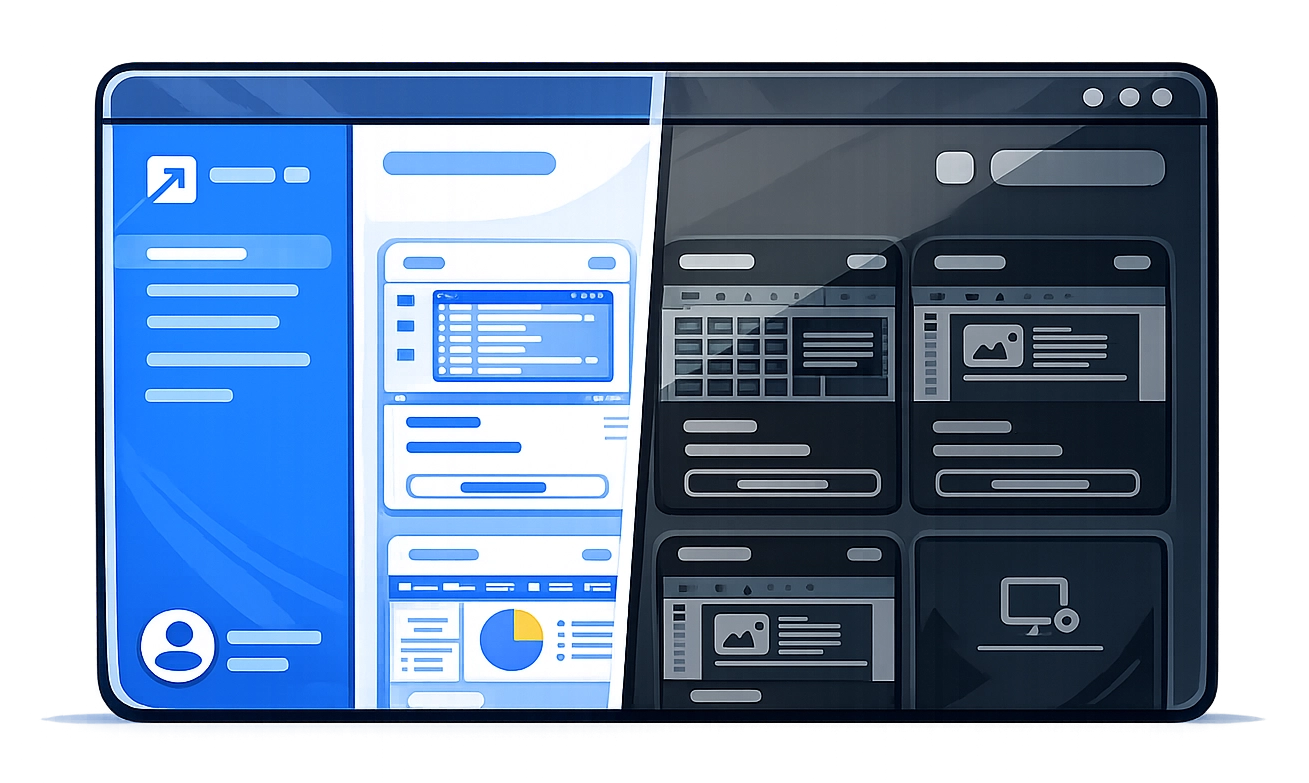
Dark Mode in Getscreen.me: Less Glare, More Focus
If you’re a technician, support engineer, or IT administrator who spends hours inside remote sessions, interface comfort is not a luxury — it’s a productivity factor.
Dark mode in Getscreen.me is more than a visual update. It’s a practical enhancement designed to reduce eye strain, improve focus, and make long remote sessions noticeably more comfortable.
What is dark mode — and why it matters
Dark mode is an alternative interface theme that replaces bright backgrounds with darker tones across the interface.
It is available across:
- Web Dashboard
- Desktop Dashboard
- Mobile Interface
- Chrome Extension
- Remote Connection Window
When enabled, menus, device lists, settings panels, and session controls adopt a darker color palette that reduces glare — especially helpful in low-light environments or during extended work sessions.
Why this matters
Support technicians often spend long hours managing devices, troubleshooting issues, and deploying updates. A darker interface reduces visual fatigue and helps maintain focus throughout the workday.
Where dark mode is available
Dark mode is implemented consistently throughout the product ecosystem.
Web Dashboard
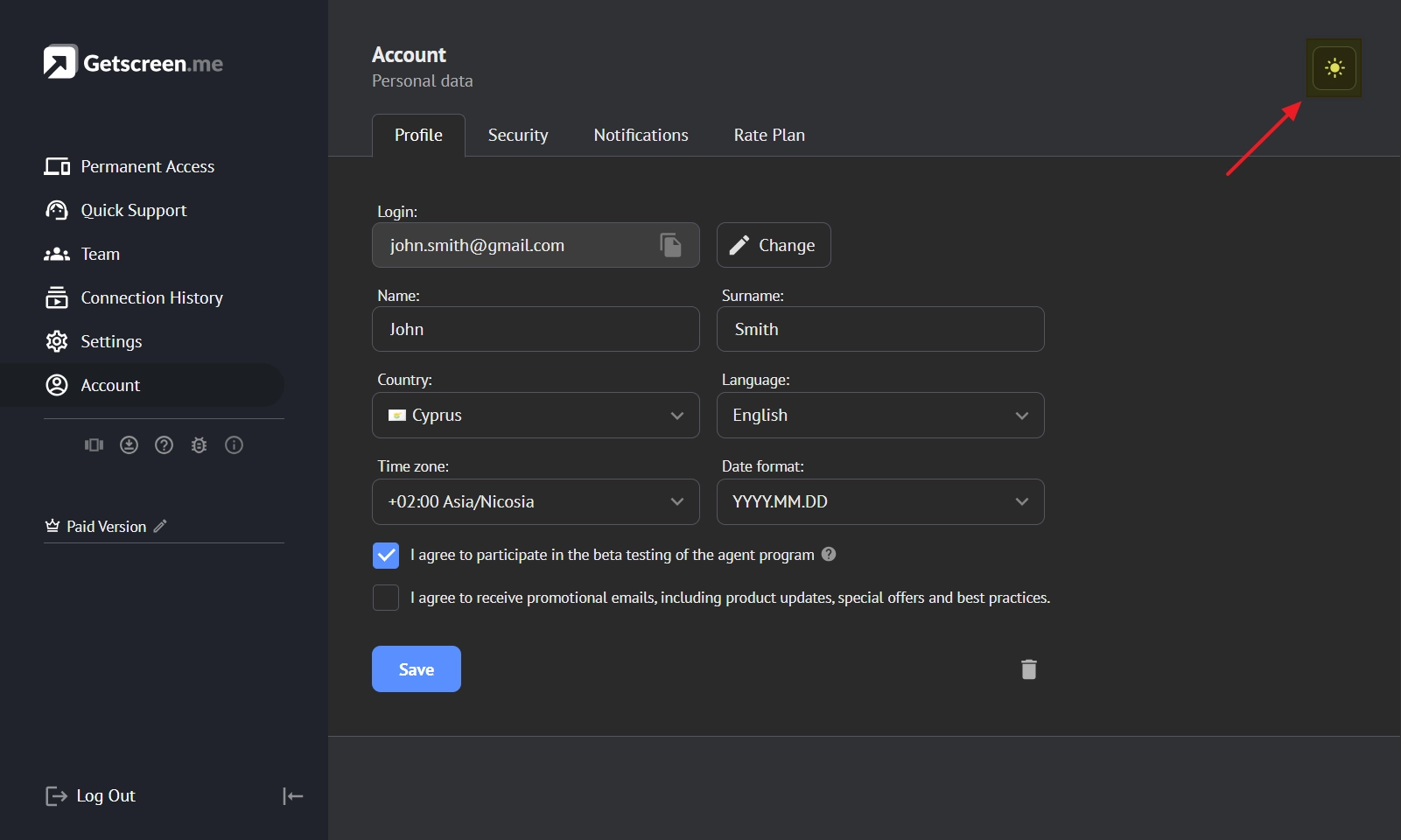
In the browser version of your account, you can enable dark mode on the Profile page under the Account section (top-right corner of the dashboard).
Desktop Dashboard
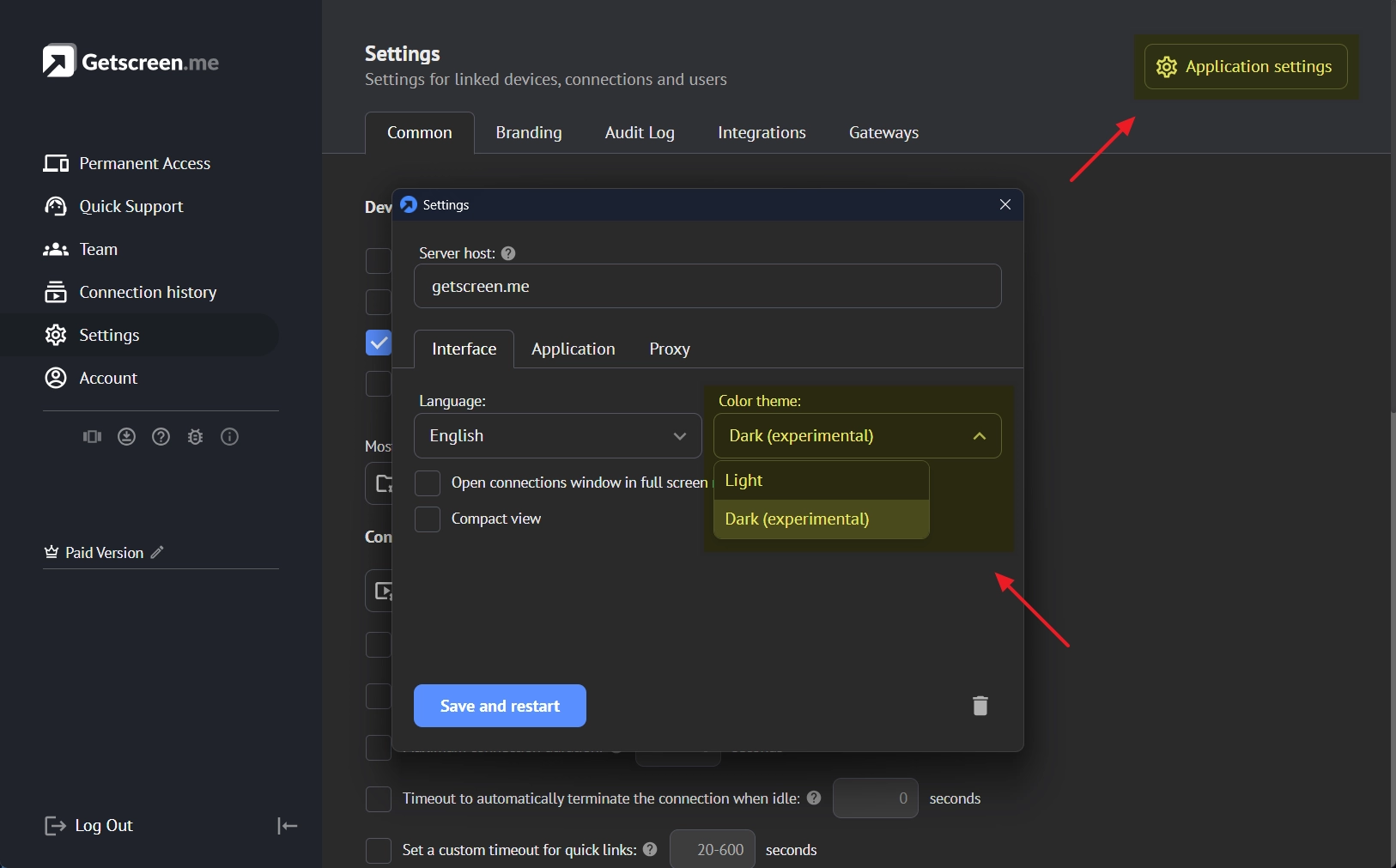
In the native dashboard application, dark mode can be enabled via Application Settings, accessible from the tray icon or Settings menu.
Mobile Interface
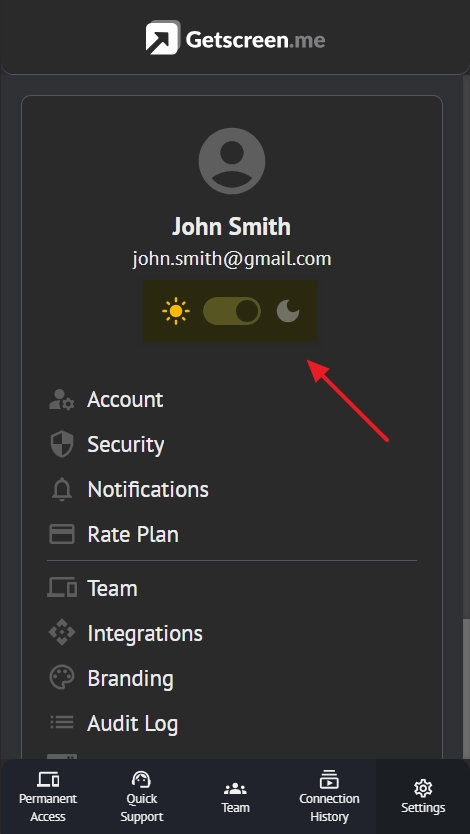
On mobile browsers or apps, dark mode is available in Settings → Account. The mobile layout fully adapts to ensure consistent contrast and readability.
Chrome Extension
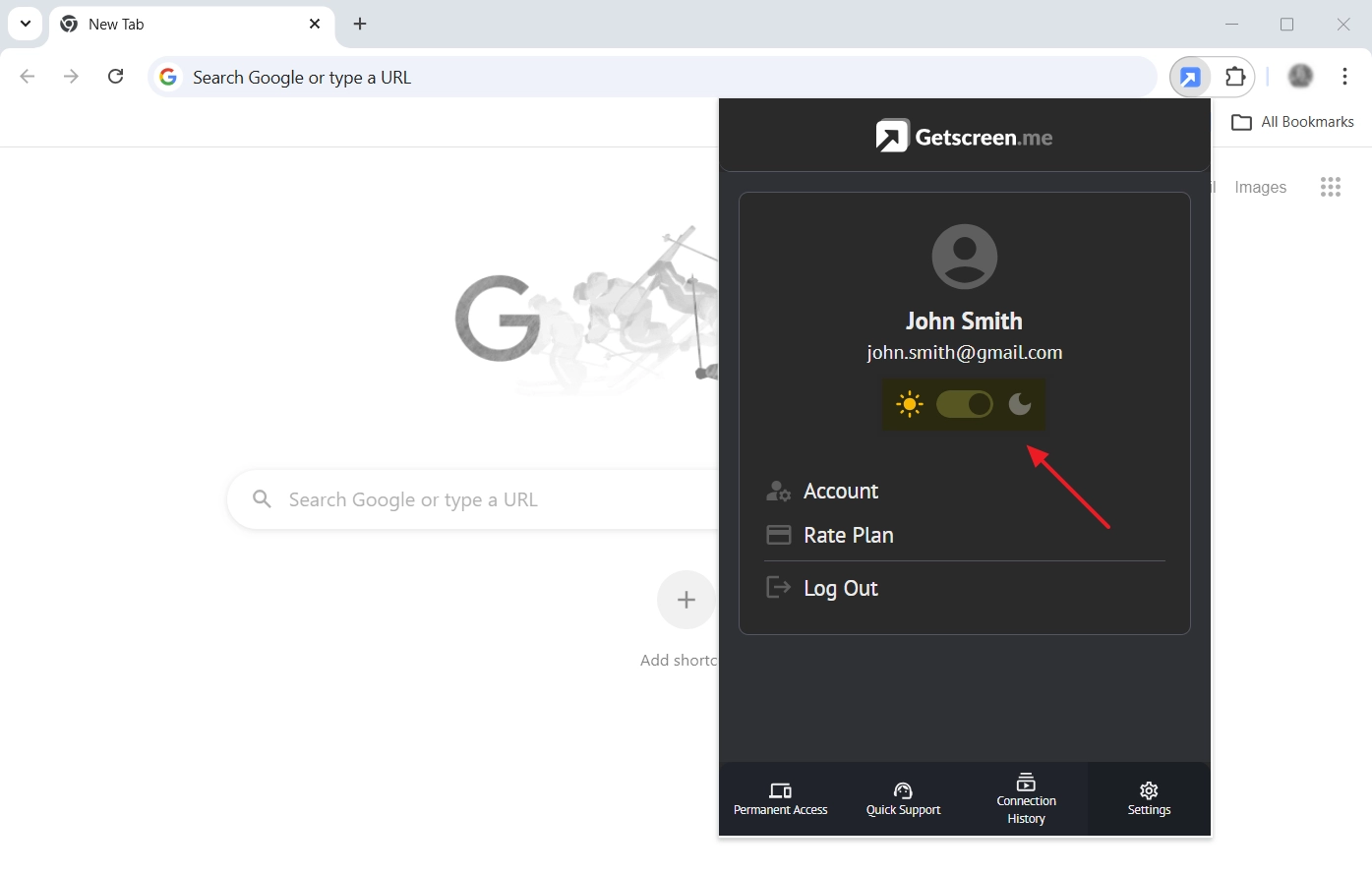
The Chrome extension inherits the same theme configuration as the mobile interface, maintaining a seamless experience across browser-based tools.
Connection Window
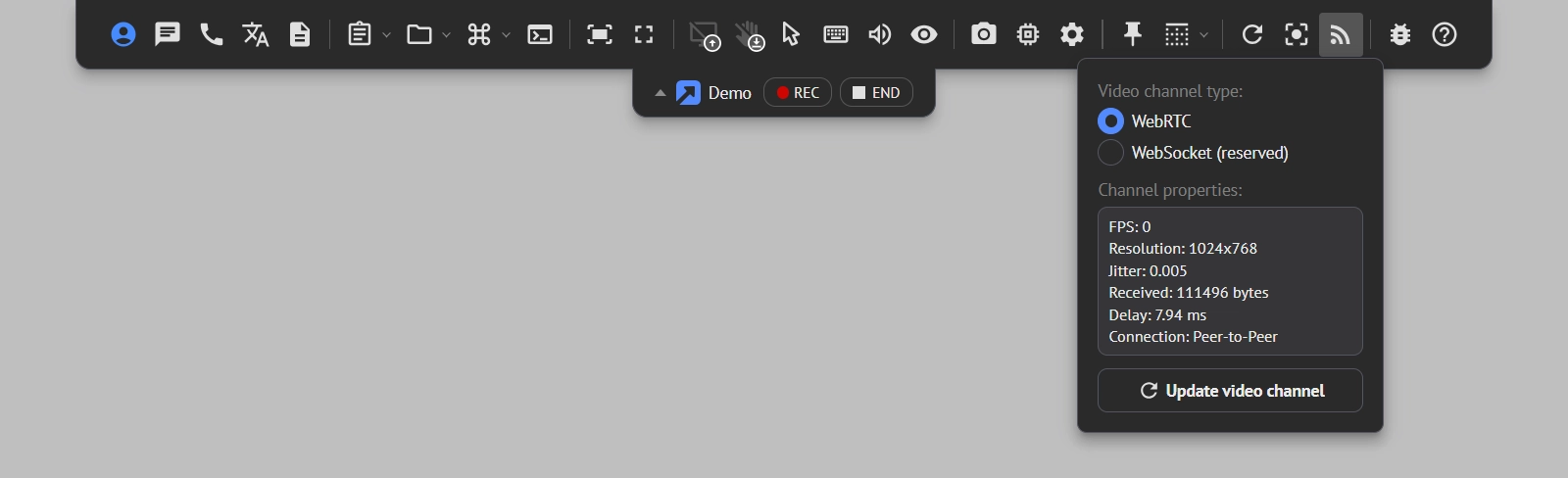
The active remote control session window also supports dark mode.
If you connect via a session link (for example, quick support or permanent access), you can force dark mode by adding the following parameter to the URL ?theme=dark.
Why dark mode improves productivity
-
Reduced Eye Strain
Dark interfaces lower glare and reduce brightness contrast, helping minimize fatigue during long troubleshooting sessions.
-
Comfortable in Low-Light Environments
Server rooms, late-night shifts, and home offices benefit from a darker interface that is easier on the eyes.
-
Improved Focus
With softer contrast and reduced visual noise, attention naturally shifts to the task rather than the interface.
-
Consistent Cross-Platform Experience
Switch between browser, extension, desktop app, and live sessions without visual disruption. The unified theme improves workflow continuity.
Practical use cases
Dark mode is particularly useful in the following scenarios:
- After-hours support operations
- Long troubleshooting sessions
- Onsite demos and technical presentations
- Low-light server environments
- Distributed remote teams
Who benefits most
Dark mode is especially valuable for:
- IT support technicians
- Managed Service Providers (MSPs)
- System administrators
- DevOps engineers
- Remote operations teams
- Night-shift support staff
Even occasional users will appreciate the improved interface comfort during remote sessions.