When Remote Access Becomes Teamwork: Team Settings in Getscreen.me
You’ve got the tools to connect remotely, support users, and resolve issues from anywhere. But as soon as more than one person starts doing that work, questions about consistency and policy arise: how should connections behave, who has access to what, and what security standards should be enforced?
That’s where Team Settings in Getscreen.me come in. This feature allows workspace owners to define how devices behave, how connections are handled, and what rules apply to subordinate technicians — and ensures those rules are applied consistently across the entire team.
🎯 Team Settings: define the rules once, apply them across your workspace.
If you’ve ever managed a support team and thought “I wish this setting applied everywhere”, this is exactly what solves that problem.
In this article, you’ll learn what these workspace-level controls do, why they matter, and how they help you scale remote support operations predictably.
What These Settings Are — And Where To Find Them
These are global workspace rules that apply to every member of your team. They’re located in the Settings section under the Team tab in your dashboard.
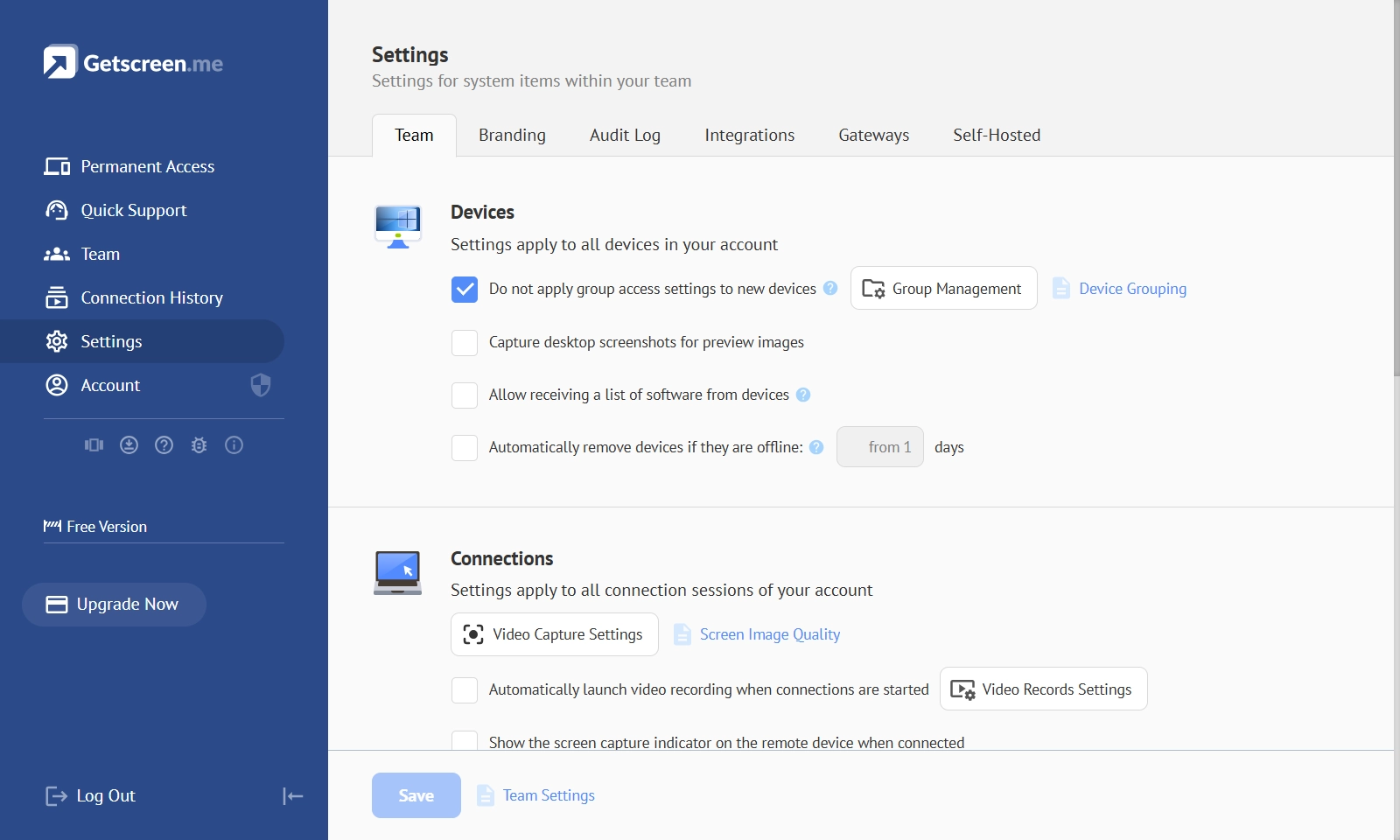
Instead of configuring options individually for each technician or connection, you apply them once at the workspace level and rely on consistent behavior across the entire account.
Broadly, these controls are grouped into three areas:
- Device settings
- Connection behavior settings
- Technician account and security settings
Together, they reflect the three core pillars of team-based remote work: what you manage, how you connect, and who is allowed to do what.
Devices: Control How Managed Machines Behave
When a device is added under Permanent Access, workspace-level configuration determines how it integrates into your environment. For example:
- Whether newly added devices automatically inherit group access rules
- Whether small desktop previews are captured for easier identification
- Whether installed software lists are collected and synchronized for inventory purposes
- Whether devices that remain offline for an extended period are automatically removed
Technicians: Secure and Standardize Access
Centralized configuration also governs how technician accounts behave. This includes security and identity controls such as:
- IP allowlists to restrict login locations
- Enforced two-factor authentication and automatic logout on inactivity
- SSO integration via SAML
- Automatic synchronization with Active Directory (LDAP)
Why Centralized Control Matters in Practice
As soon as you manage multiple technicians, you’re no longer operating ad hoc — you’re running structured team workflows.
At that scale, consistency is essential. Centralized workspace rules shift teams from “What did they configure?” to “This is how it’s configured across the workspace.” By applying policies once at the workspace level, you eliminate surprises, simplify onboarding, and make policy enforcement the default.
For example:
- A support manager can require automatic session recording
- A security lead can enforce two-factor authentication for everyone
- An MSP can define link expiration rules to prevent lingering access
- An operations lead can automatically restrict idle sessions
How To Configure It
This article explains what these workspace controls do and why they matter. For detailed instructions — including the exact location of each option, UI screenshots, and explanations of individual toggles — refer to the official documentation: