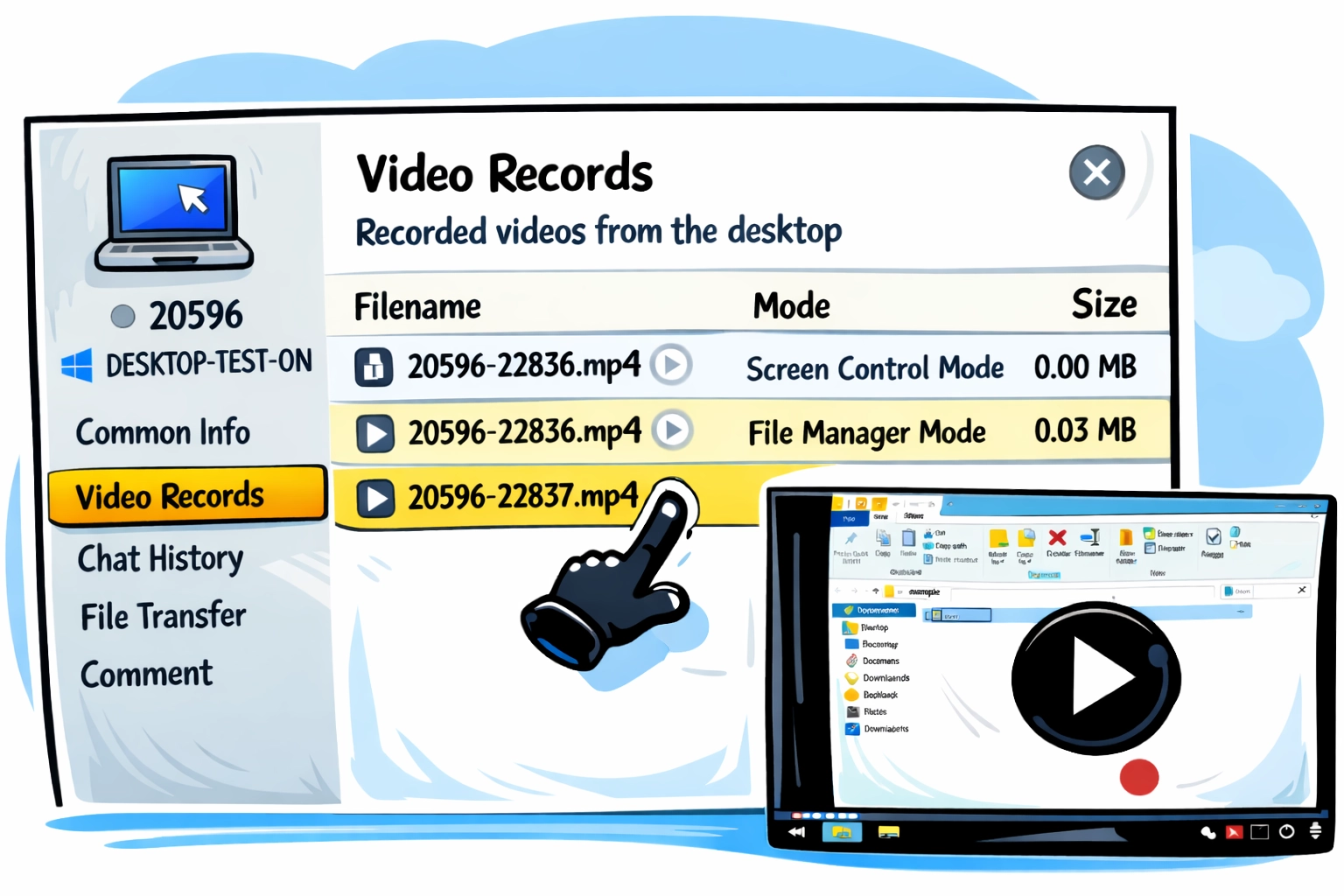
Session Video Recording Feature: Review Activity Anytime
Remote sessions are often short, practical, and a bit chaotic. You connect, fix something, explain a workaround, and move on. Later, someone asks what was changed. Or why a setting looks different. Or how a similar issue was solved last week.
That’s the gap video session recording is designed to close.
Recently, our dev team improved how session recording works, especially for teams that use it regularly — not by turning it into a heavy compliance tool, but by making it flexible, predictable, and easier to adopt at scale.
If you’re new to Getscreen.me, this article walks through what the feature actually does, how it works, and where it fits into day-to-day remote work.
What is the Video Session Secords Feature?
Video session recording lets you record a remote desktop session directly inside Getscreen.me. The recording captures everything happening on the remote screen during the session and saves it as a video tied to that connection.
Recording is available for all three connection types: Screen Control, File Manager, and Terminal Mode.
There’s no need for third-party screen recorders or external tools. The feature is built into the session itself and controlled from within the interface.
The key point is control. You decide when sessions are recorded and how strict the rules are.
Two Ways Recording Can Work: Manual and Automatic
This is where many people get confused, so let’s be precise.
First, recording can be started manually during a session. While connected to a remote device, you can start or pause video recording directly from the session controls. This is useful when you only want to capture a specific part of the session, not everything from start to finish.

Second, recording can be enforced automatically. In the settings, you can enable automatic video recording so that every session starts recording as soon as the connection begins. This is especially relevant for teams, MSPs, or environments where consistency matters more than individual choice.
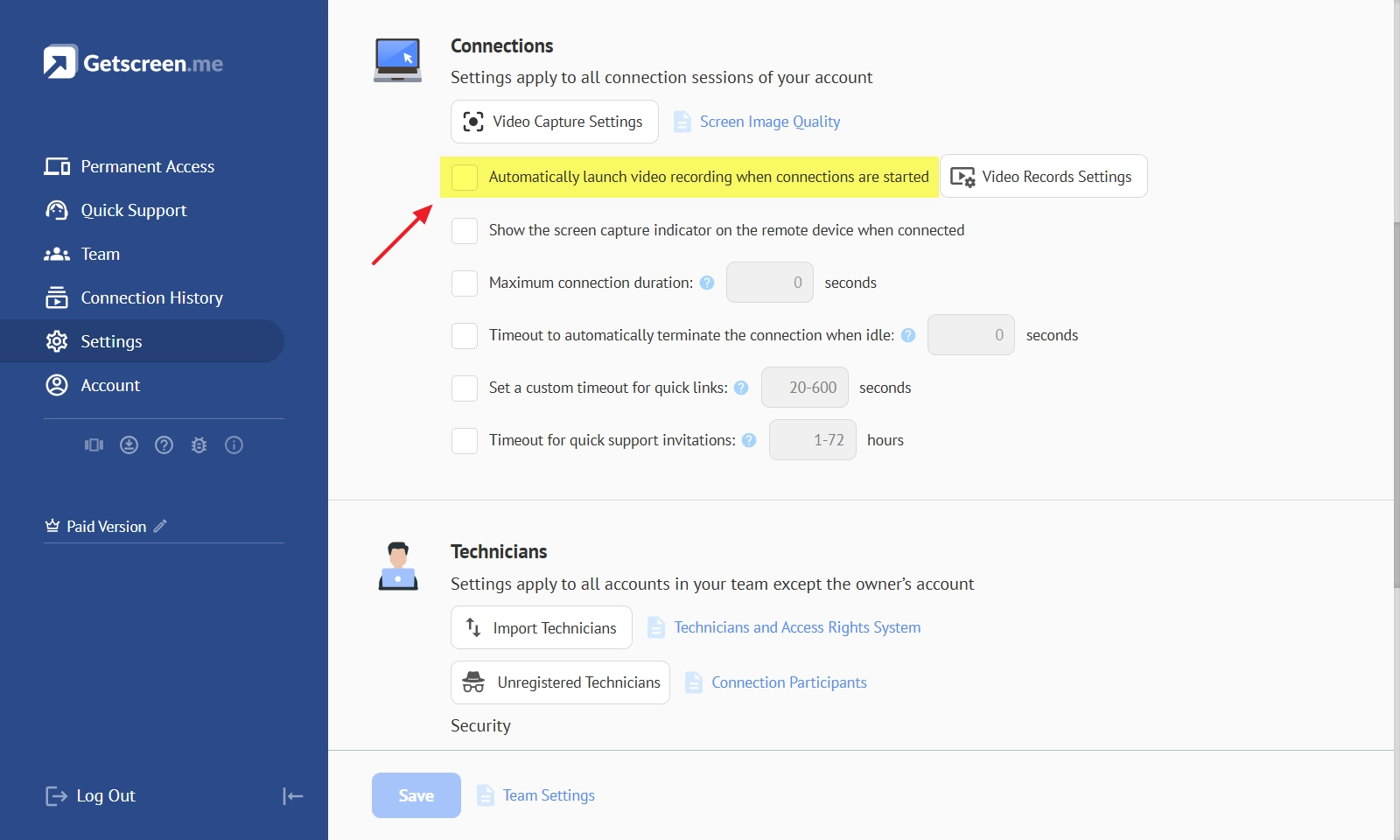
Automatic recording doesn’t happen by default. It has to be explicitly enabled in settings. Once turned on, it applies systematically, removing the human factor of forgetting to press Record
Where Video Records Appear in Getscreen.me
After a session ends, the recording is saved and becomes available in your Getscreen.me dashboard under Connection History. Each video is linked to the specific connection or device it belongs to, so there’s no guessing or manual labeling required.
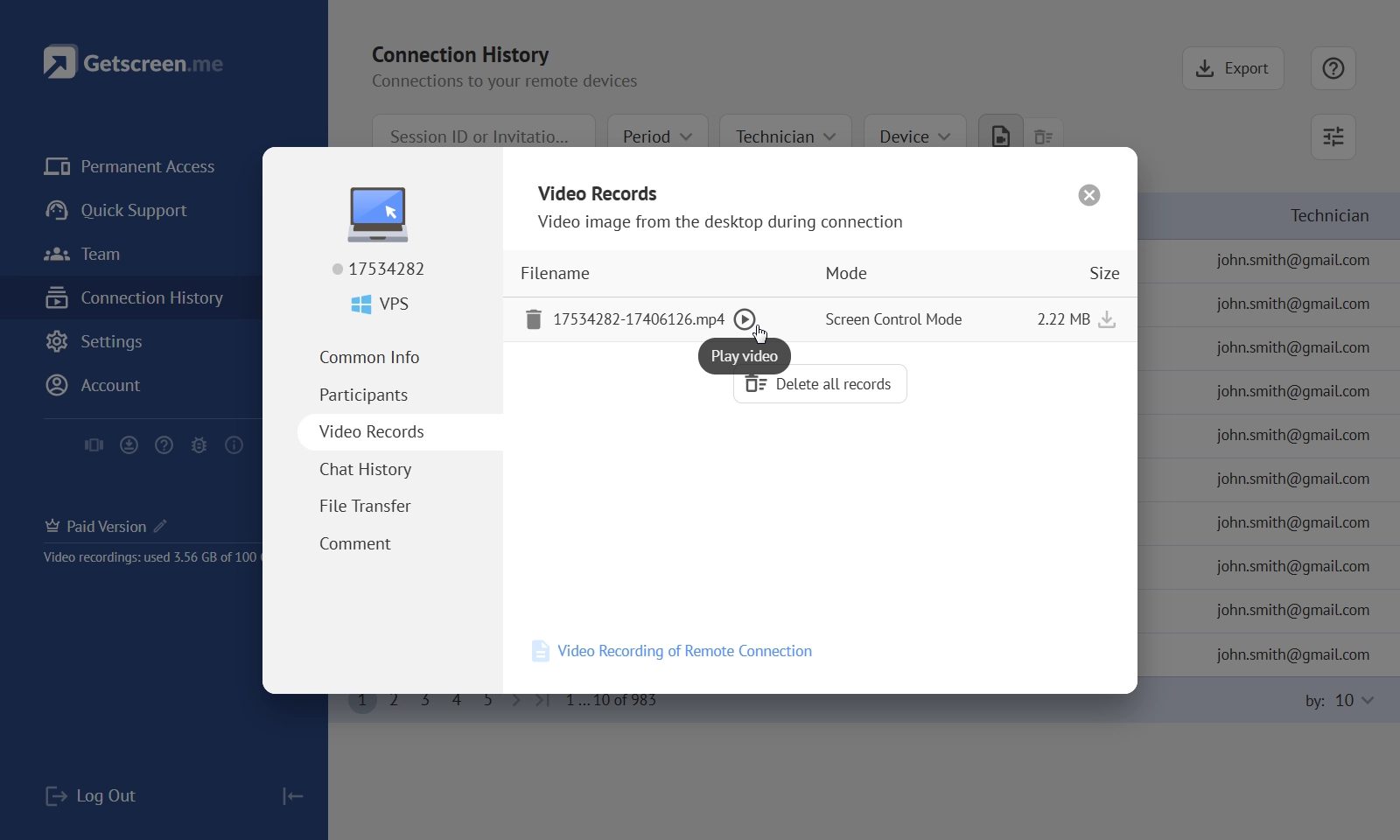
You can:
- See which sessions were recorded
- Play recordings directly in the browser
- Download videos
- Manage storage and access permissions
Everything stays centralized — no external screen recorders or third-party tools needed. From there, you can review the session, rewatch specific moments, or use the recording as reference material. Everything stays inside your account, alongside your existing connections and session history.
When Recording Makes the Most Sense
Not every session needs to be recorded — and that’s fine.
Recording is most useful when sessions involve system changes, configuration work, sensitive environments, or handovers between team members. It also shines in training scenarios, where real sessions become learning material without staging demos.
For quick one-time personal connections, manual recording is often enough. For business workflows, automatic recording tends to be the safer default.
Here’s why this feature matters:
-
Transparency & Accountability
Know exactly what actions were taken during a session — especially important when multiple technicians work with the same devices. -
Security & Compliance
Session recordings help with internal audits, compliance requirements, and incident investigations. -
Training & Knowledge Sharing
Use real support sessions as training material for new team members — no need to recreate scenarios. -
Customer Trust
Recorded sessions can be used to explain what was fixed, prove work completed, or resolve disputes.
The feature is designed to support both approaches without forcing one mindset on everyone.
Privacy and Control Stay in Your Hands
Session recording in Getscreen.me is designed to be controlled, not intrusive. How and when recordings happen depends on your account settings and the type of connection you’re using. You can rely on automatic recording for consistency or start and pause recordings manually when the situation calls for it.
Getscreen.me gives you full control over recordings:
- Recording behavior depends on account and connection settings
- Access to videos is restricted to authorized users
- Videos are stored securely within your account
You decide when, how, and for whom sessions are recorded.
A feature that scales with responsibility
The recent improvements weren’t about adding more buttons. They were about making recording reliable enough to use daily and flexible enough to fit different workflows. As soon as remote access becomes shared work rather than individual help, having a clear visual record stops being optional — it becomes part of how teams stay aligned.
Where Video Session Recording Delivers the Most Value
Session recording becomes especially useful once remote access is part of a shared or professional workflow. Different roles and industries rely on it for different reasons, but the outcome is usually the same: clarity, continuity, and confidence in what was done.
- IT support and helpdesk teams — Review how issues were resolved, reuse successful approaches, and avoid repeating the same troubleshooting steps.
- Managed Service Providers (MSPs) — Keep a clear, verifiable support history across multiple clients and technicians.
- Enterprise IT departments — Support internal security policies, audits, and post-incident reviews with visual evidence.
- SaaS and customer support teams — Validate actions taken during support sessions and explain fixes to customers when needed.
- DevOps and system administrators — Track sensitive changes, configuration work, and infrastructure-related actions.
- Team leads and trainers — Use real sessions to onboard junior specialists and transfer practical knowledge.
If your work involves responsibility, shared access to systems, or client trust, video session recording quickly shifts from a nice to have feature to an operational necessity.
Want the Exact Setup Steps?
This article focuses on how recording fits into real workflows. For exact instructions, settings locations, and behavior details, the documentation covers everything step by step.