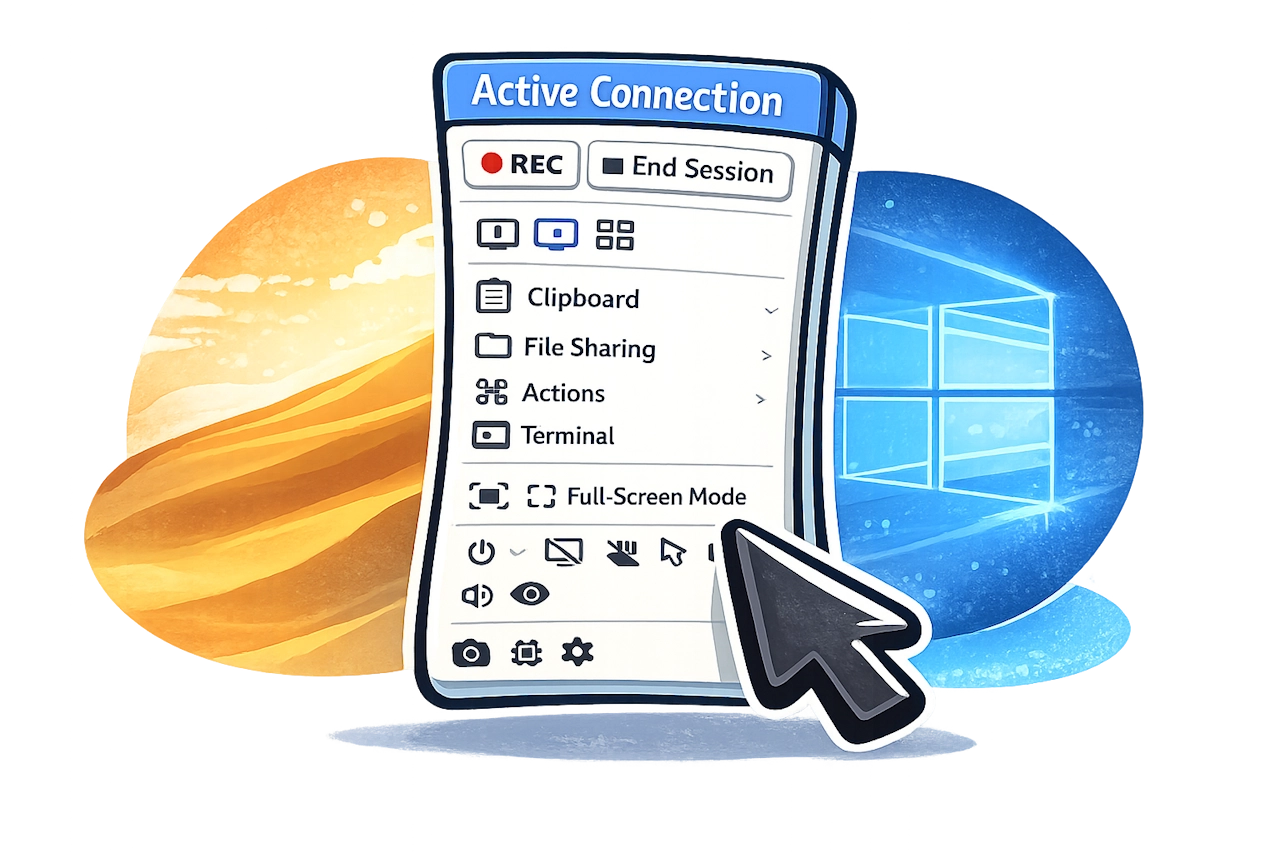
How Teams Use Screen Control in Getscreen.me
Remote access software has become a core business tool. Support teams, DevOps engineers, and internal IT departments rely on screen control to keep systems running. The value does not come from the feature itself, but from how teams apply it in real work.
Getscreen.me approaches screen control as part of a broader workflow. The idea is not just about device connectivity. It is about reducing friction between teams, users, systems, and tasks.
In this article, we will explain different scenarios showing how teams can use screen control in practice.
Screen Control as a Daily Workflow Tool
Most teams do not think in terms of “remote desktop access.” They think in terms of tasks. A broken CRM system. A server that stopped responding. A new team member who cannot access internal tools.
In every situation, technicians will need fast visibility and direct interaction with a device. Screen share alone is not enough. Teams require interaction.
Screen control fills this gap. It allows a specialist to move from observation to resolution in seconds. No long explanations. No back-and-forth messages. The issue becomes visible and fixable in real time.
In this sense, screen control shortens feedback loops and removes delays that usually come from indirect communication.
Where Screen Control Creates Real Value
The main benefit of screen control relies on operational values rather than technical ones.
Here is what teams gain:
- Faster resolution time. Issues get fixed in one session. No need to make several attempts.
- Lower dependency on user skills. The expert takes over the device when needed.
- Consistent support quality. Every session follows the same structure.
- Reduced downtime. Systems restore and get back to normal conditions faster after the incident.
Even small delays can affect revenue or internal processes.
Use Case: Internal IT Support in a Distributed Team
Imagine a company with specialists working from different locations. When an issue takes place, one of the technicians cannot access a critical internal system. The issue may come from local settings, permissions, or outdated software.
Without screen control, the support process slows down:
- A user needs to describe an issue first.
- The support agent asks questions to understand the problem.
- Several attempts fail due to miscommunication.
With screen control in Getscreen.me, the process changes completely.
The support agent opens a session and sees the problem directly. Within minutes, they adjust settings, restart services, or install updates. The user does not need to explain technical details.
Summary
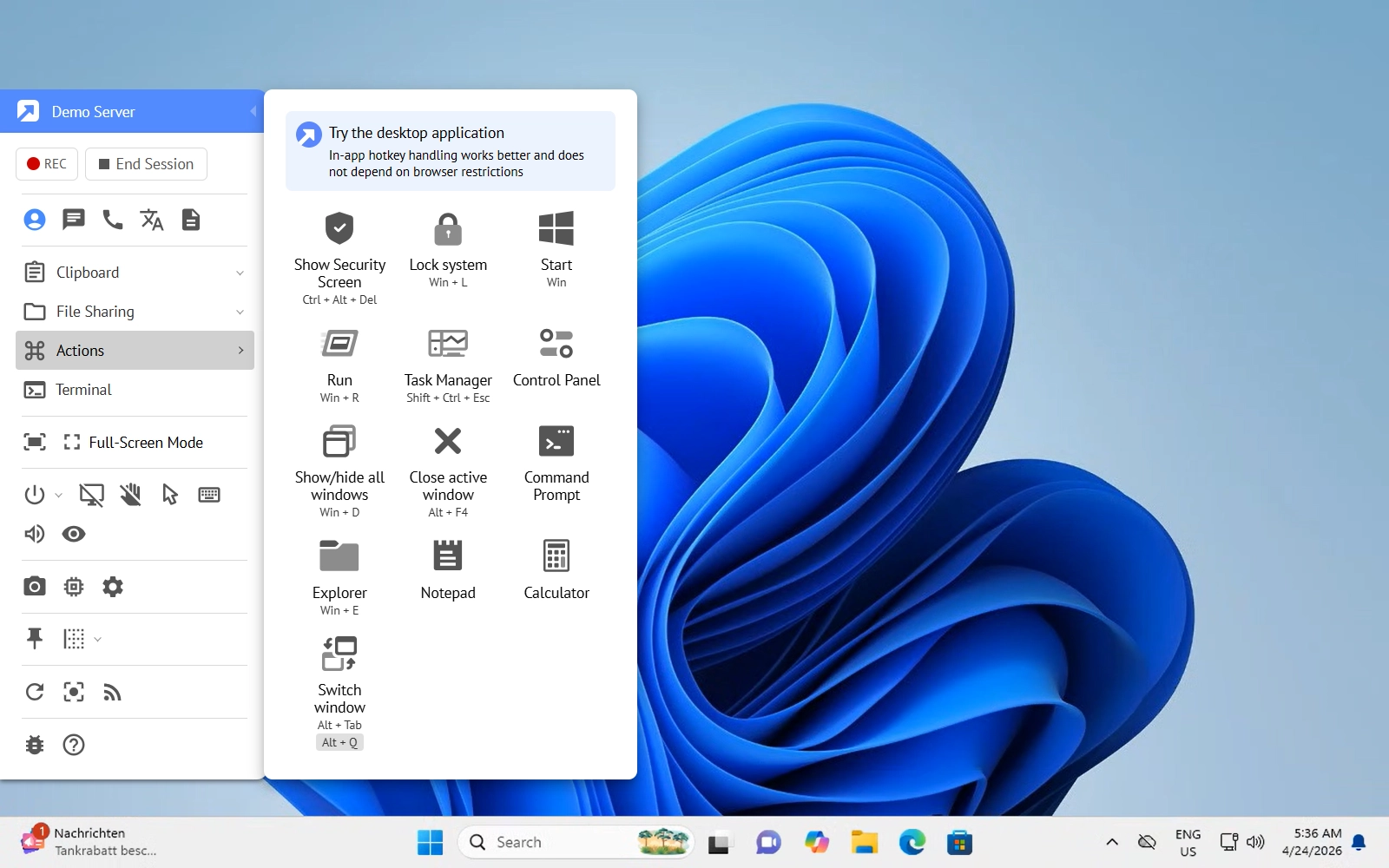
The screen control panel becomes the working space. It allows the agent to switch between viewing and controlling, adjust screen quality, and manage the session without interruptions. No guesswork. The issue becomes a visible task with a clear solution.
Smoother Team Collaboration
Screen control also changes how teams work together. It is not limited to one-to-one support sessions.
In many cases, issues require more than one specialist. A system engineer may need to join a session started by a remote screen support agent. A developer may need to inspect logs, look through the connection history or reproduce a bug.
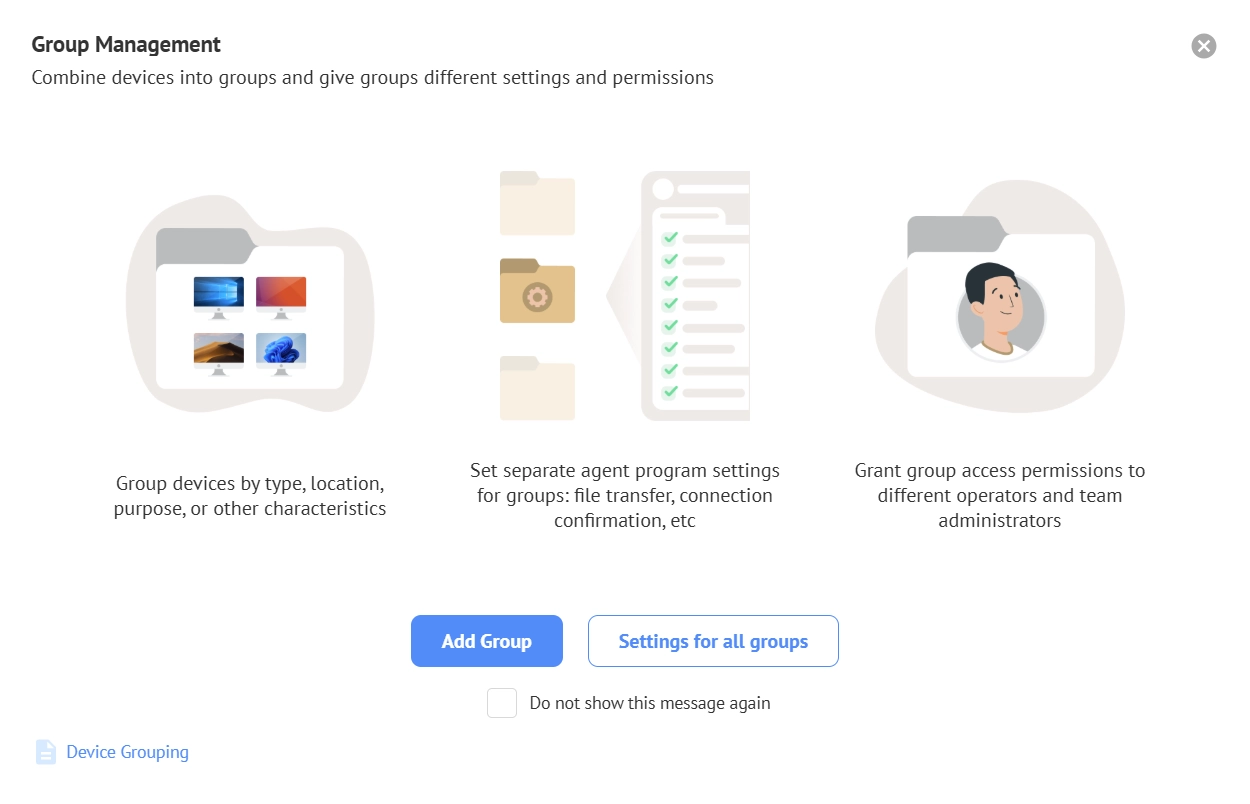
Getscreen.me allows teams to share access to the same device environment, creating a collaborative space where each expert can contribute promptly. The key shift here is from isolated actions to shared visibility.
Summary
Instead of sending screenshots or recordings, the team works inside the same live session. One person investigates. Another takes control when needed. The session continues without interruption.
Chrome Extension for Remote Access with Fast Response
One of the most practical scenarios involves browser-based access using a Chrome Extension. This approach is useful when speed matters more than deep system control.
How it works
A remote desktop support agent receives a request from a client. A client cannot install software due to company restrictions. Time is limited.
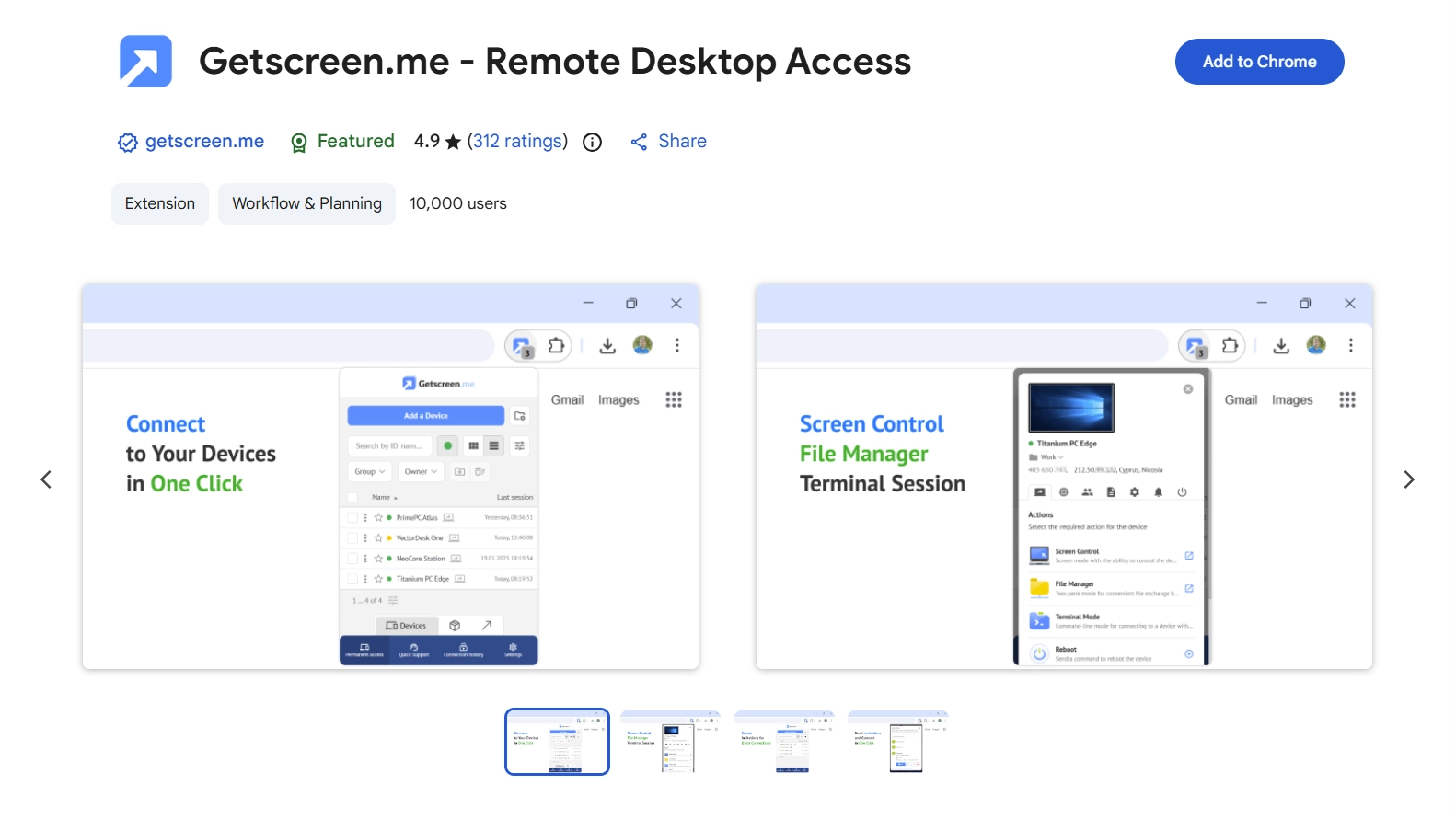
The agent gets access to a device via link. Within seconds, the session starts. No installation. No configuration. No delays.
It works best for:
- First-line support.
- One-time sessions.
- Working with external clients.
- Situations with restricted device access.
Example use case
A SaaS company supports customers worldwide. Many users are not technical. When an issue appears, the support team uses browser-based remote screen share and control to resolve it immediately.
What makes Getscreen.me truly powerful in this scenario is the built-in auto-translation feature. Every message typed in the chat is automatically translated into the user’s language in real time. This allows the agent to give instructions, explain actions, or clarify steps without worrying about language barriers.
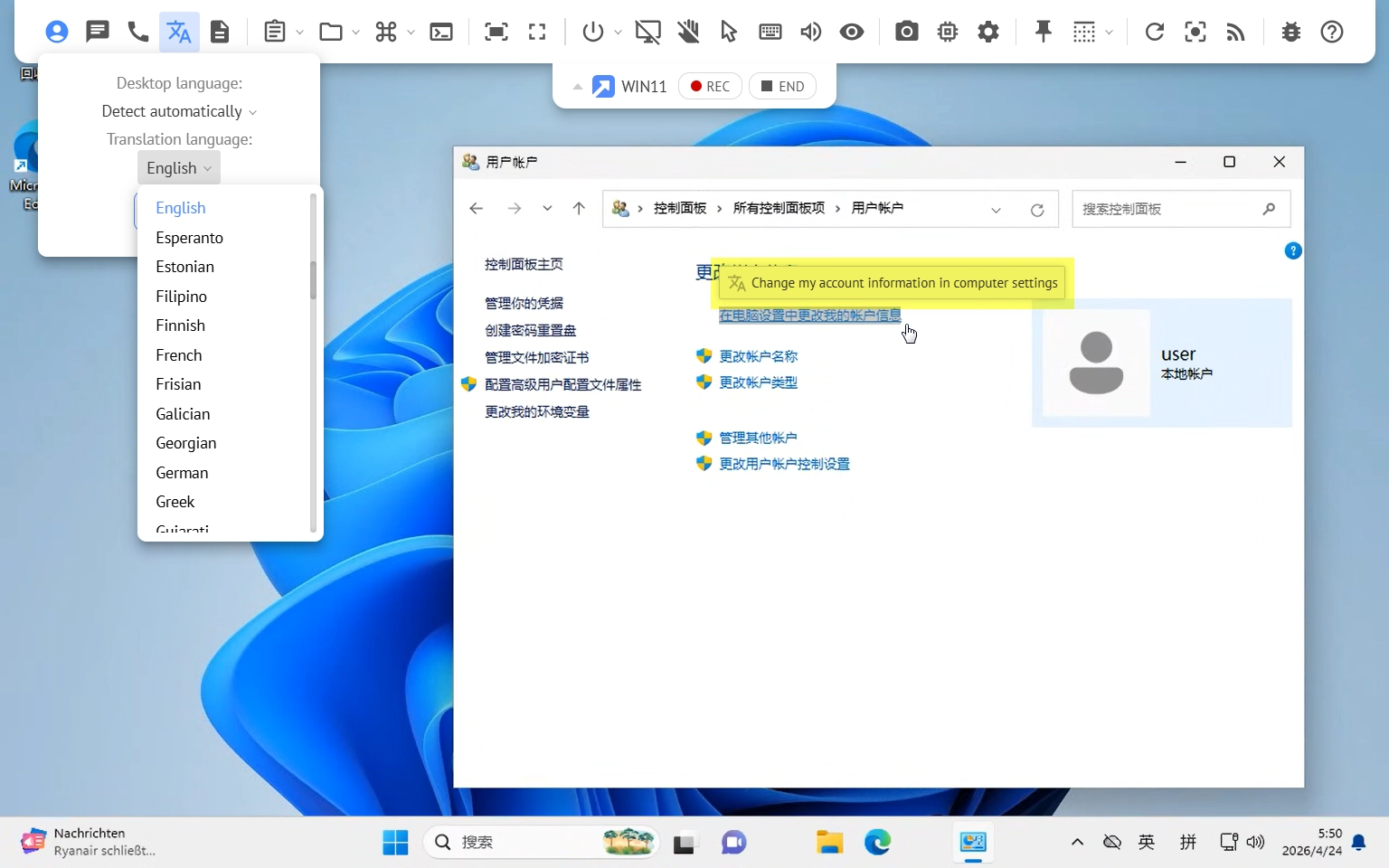
For example, a user in China needs assistance with the Chinese-based Windows configuration. An English-speaking technician can enable the auto translation feature to see what is happening to the connected device. He can easily navigate through the system settings and provide instructions in real time. The feature helps to overcome the language barrier and provide faster support.
It improves collaboration within multi-lingual support teams. If a case needs to be escalated to another specialist in a different country, auto-translation ensures smooth communication without misunderstandings.
Additionally, a technical specialist can check browser settings → clear cache or cookies → manage files → adjust account configurations. A user may simply watch the process and learn at the same time.
Summary
This model reduces the barrier to entry. It allows teams to provide support without asking users to prepare their environment. It also increases trust, since the session is transparent and temporary.
Full Control over Remote Access
Some teams need more than quick access. They manage infrastructure, servers, or long-term connections. In these cases, desktop software provides more flexibility.
How it changes the workflow
Devices stay connected to the system. Teams can access them at any time. This creates a persistent environment for management and monitoring. Instead of reacting to issues, teams can prevent them.
A typical scenario
A DevOps team manages several remote servers. One of them shows unusual behavior. Performance drops, and logs indicate a potential issue.
With desktop-based access, the engineer connects instantly. No need to request access or start a temporary session.
Inside the control panel, they can:
- open system tools;
- check running processes;
- restart services or reboot devices;
- apply fixes in real time.
The session remains stable even during complex operations.
Remote desktop screen access is critical for server management, long sessions with deep system interaction, teams working with restricted networks, continuous device and system monitoring.
Summary
Desktop software provides consistency. It ensures that access is always available and improves environment reliability where browser-based tools may face limitations. Teams gain full control over their infrastructure without interruptions.
Control Panel and Built-In Tools
During a session, the specialist needs to focus on the task, not on the tool. The control panel keeps everything in one place.
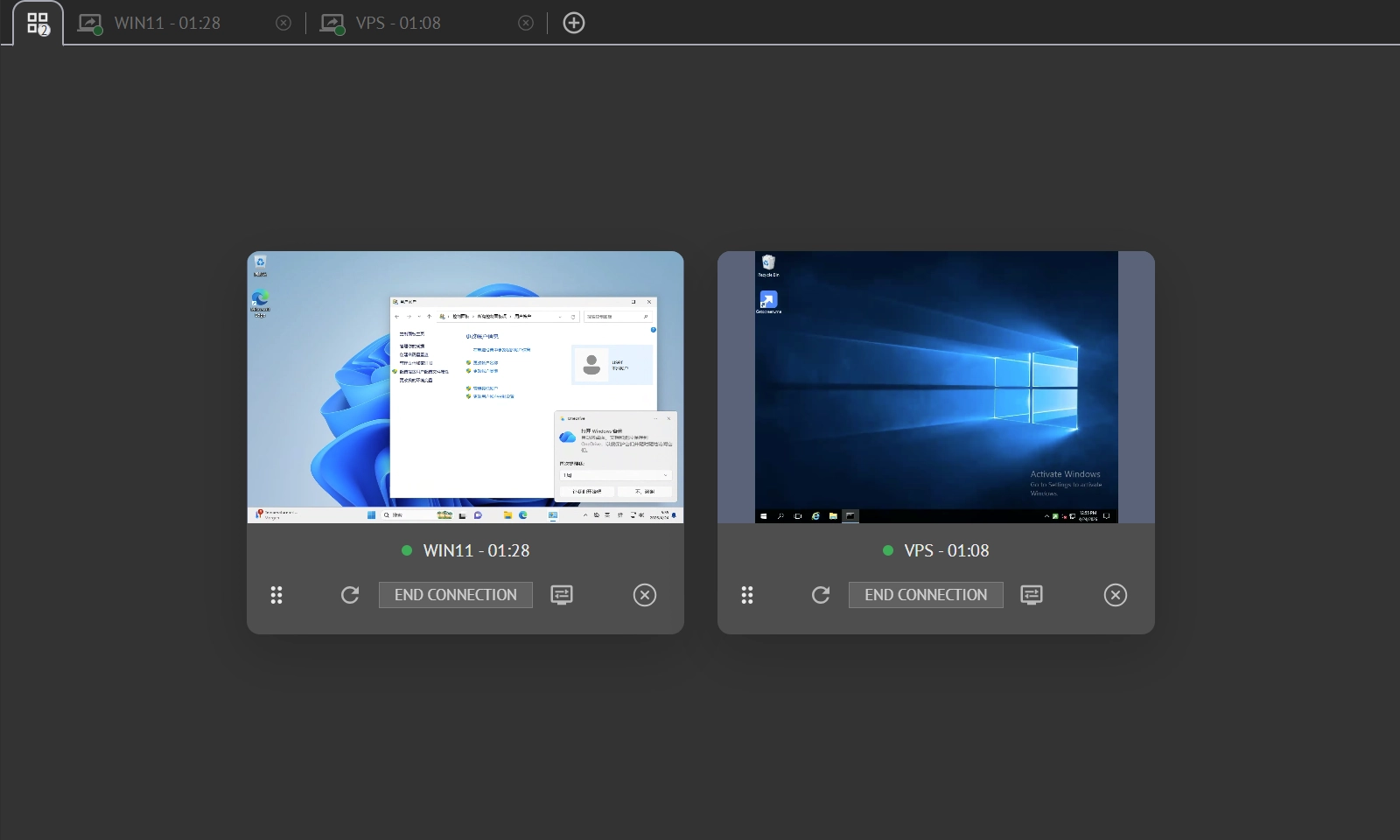
Technicians can quickly switch between modes, adjust quality, and use built-in tools without leaving the session.
Screen control becomes more effective when combined with the right tools.
- Clipboard synchronization allows quick data transfer between devices. This is useful for credentials, commands, or configuration data.
- Session recording helps teams review actions and maintain transparency. It is also useful for training new employees.
- File transfer simplifies the process of moving scripts, updates, or documents.
Each of these tools removes small barriers. Together, they create a smoother workflow.
Summary
Intuitive interface saves time and reduces cognitive load, which is critical in complex cases. The less teams have to navigate through the interface, the more time spent solving the issue.
User Experience as a Business Factor
User experience directly affects productivity. A slow or complex system increases resolution time. A clear and responsive interface reduces it.
Getscreen.me focuses on fast session start, stable performance, and intuitive design.
Summary
For the end user, this means less waiting and fewer steps. For the support team, it means more sessions completed in less time.
The Bottom Line
Remote screen control in Getscreen.me is a technical feature that improves how teams solve problems.
It reduces delays, improves collaboration, and creates a direct connection between specialists and systems. Whether through a browser extension or a desktop remote access app, the goal remains the same: fast, clear, and effective control over remote devices.
Teams gain a measurable advantage. They respond faster, solve issues more efficiently, and provide better support.