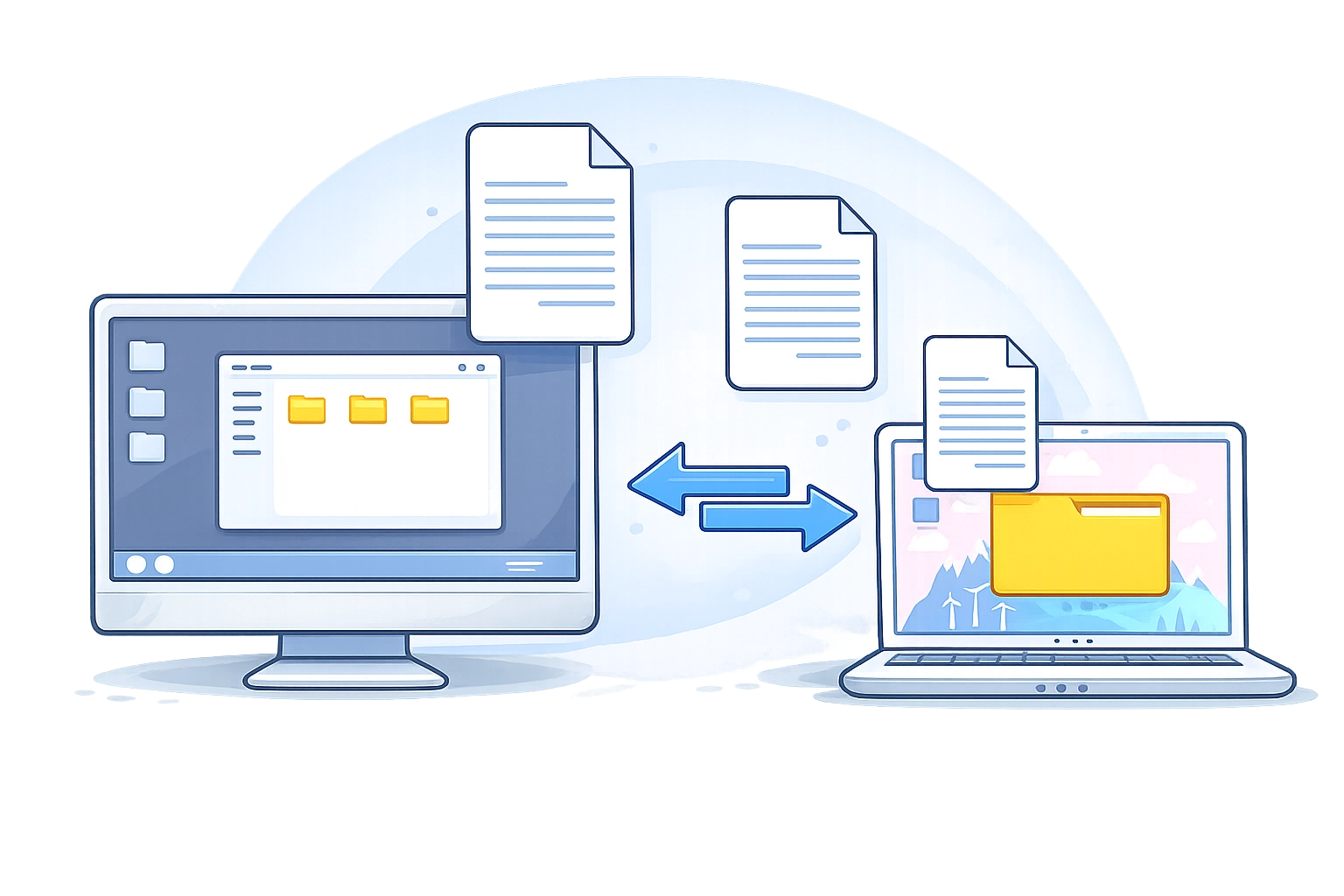
How File Manager Improves Remote Access Work
Remote support breaks down when file access becomes slow or confusing. Asking a user to “find a file” or “upload a log” often leads to delays, mistakes, or long explanations. A built-in File Manager removes that friction and gives technicians direct control over files on a remote device.
The feature is more than just an add-on inside remote access. Technicians can use it as a separate workspace designed for fast, secure file operations.
Direct Access Without Breaking the Workflow
Technicians can enter the File Manager either from the dashboard or during an active session. This flexibility removes the need to follow a rigid support flow.
Instead of starting with screen sharing and then navigating through the system step by step, a technician can immediately access the file structure. The dual-pane interface shows both local and remote environments side by side, which mirrors tools many technicians already use.
A typical workflow looks like this:
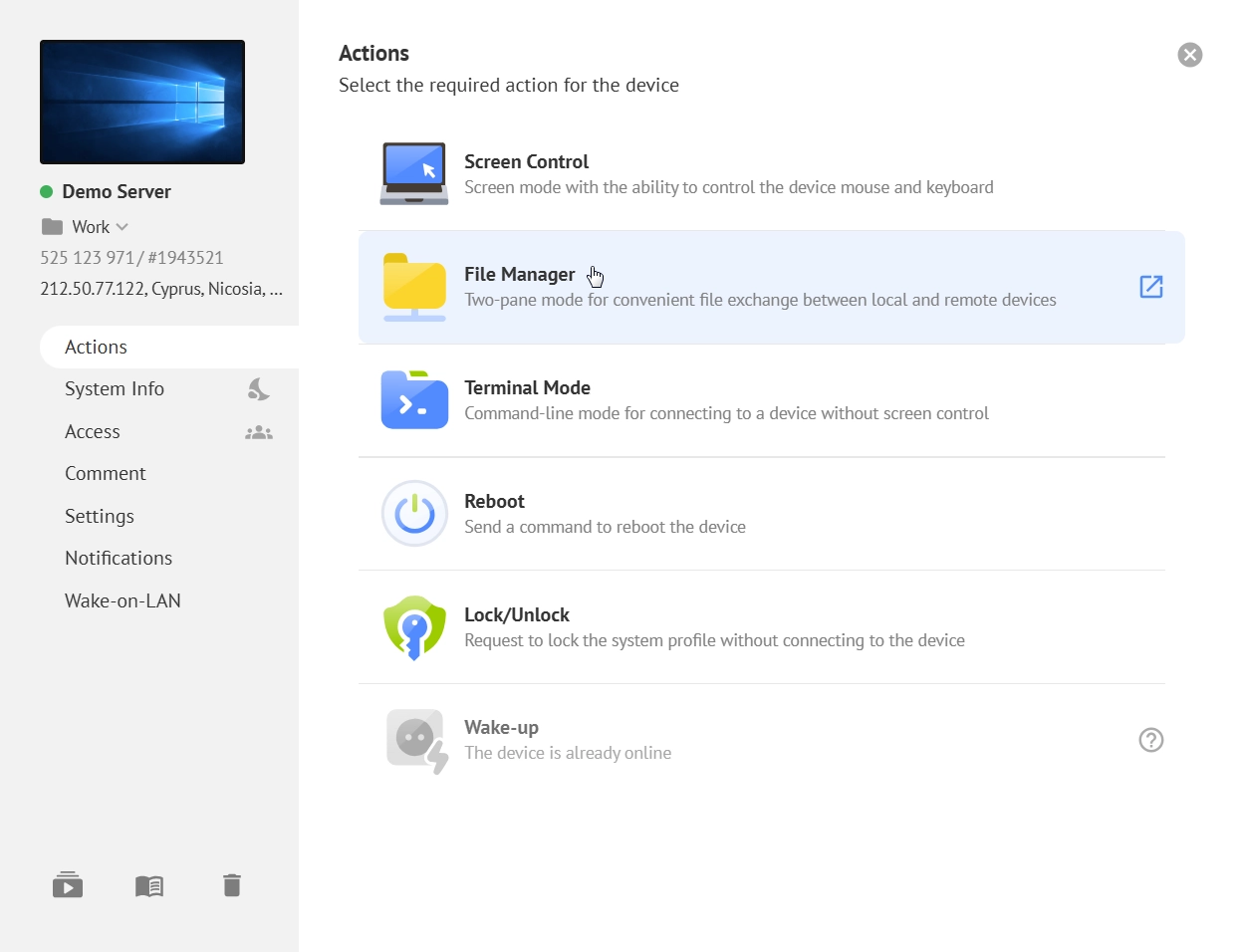
- open the Getscreen.me dashboard;
- select a device with Permanent Access;
- choose File Manager mode instead of screen connection;
- navigate folders on both devices instantly.
Or during a session:
- connect to the remote screen;
- open the control panel;
- switch to File Manager;
- continue working without interrupting the session.
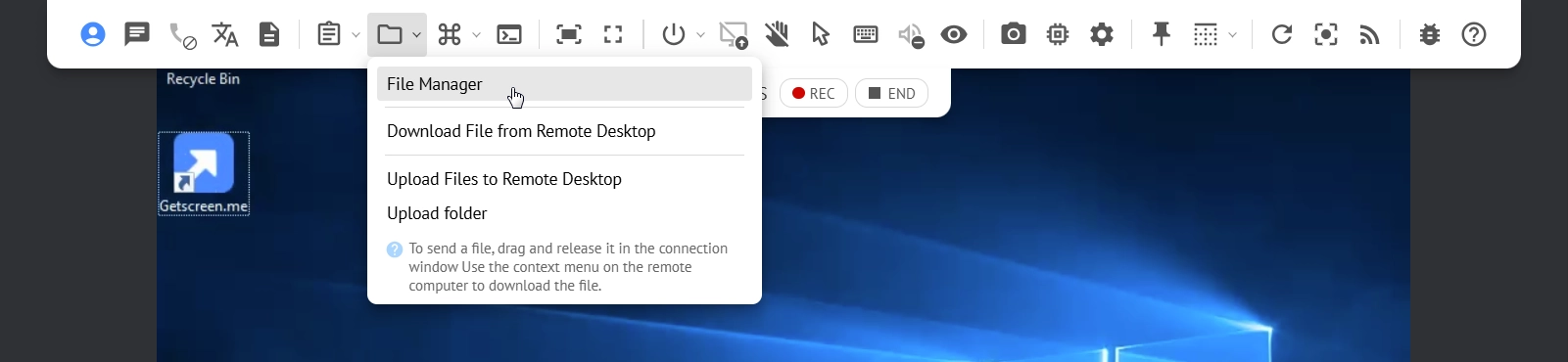
Here technicians can quickly download and upload files to a remote device in just a few clicks. It is also possible to browse through the files and folders right in the Download Menu interface, which saves time.
From a technician’s perspective, this reduces cognitive load. There is no need to switch between tools or mentally track file locations while guiding a user. Everything is visible and accessible in one place.
Result
Technicians spend less time navigating and more time solving the issue. It reduces the chance of human error, especially when working with unfamiliar systems. In high-volume remote support environments, this level of control leads to faster ticket resolution and more consistent results.
Keyboard-Driven File Manager for Faster Remote Support
File sharing is one of the most common tasks in remote support. It usually involves email, messengers, or cloud links. Each extra step increases the chance of delay or confusion.
Getscreen’s built-in file manager is designed for technicians who work fast. Full keyboard navigation lets engineers move through remote file systems without relying on constant mouse clicks. Support teams can quickly browse folders, select files, and trigger actions directly from the keyboard.
A major time-saver is the ability to start file copying instantly with a single press of F5. This workflow is familiar to many IT specialists and system administrators. This makes large-scale file operations much faster during remote maintenance, software deployment, log collection, or backup tasks.
In real support scenarios, keyboard-based navigation reduces repetitive actions and speeds up work on remote machines with high latency or limited responsiveness. Technicians can stay focused on the task instead of managing windows and menus.
The screenshot below demonstrates the dual-pane file manager interface used during a file transfer operation between directories on a remote device.
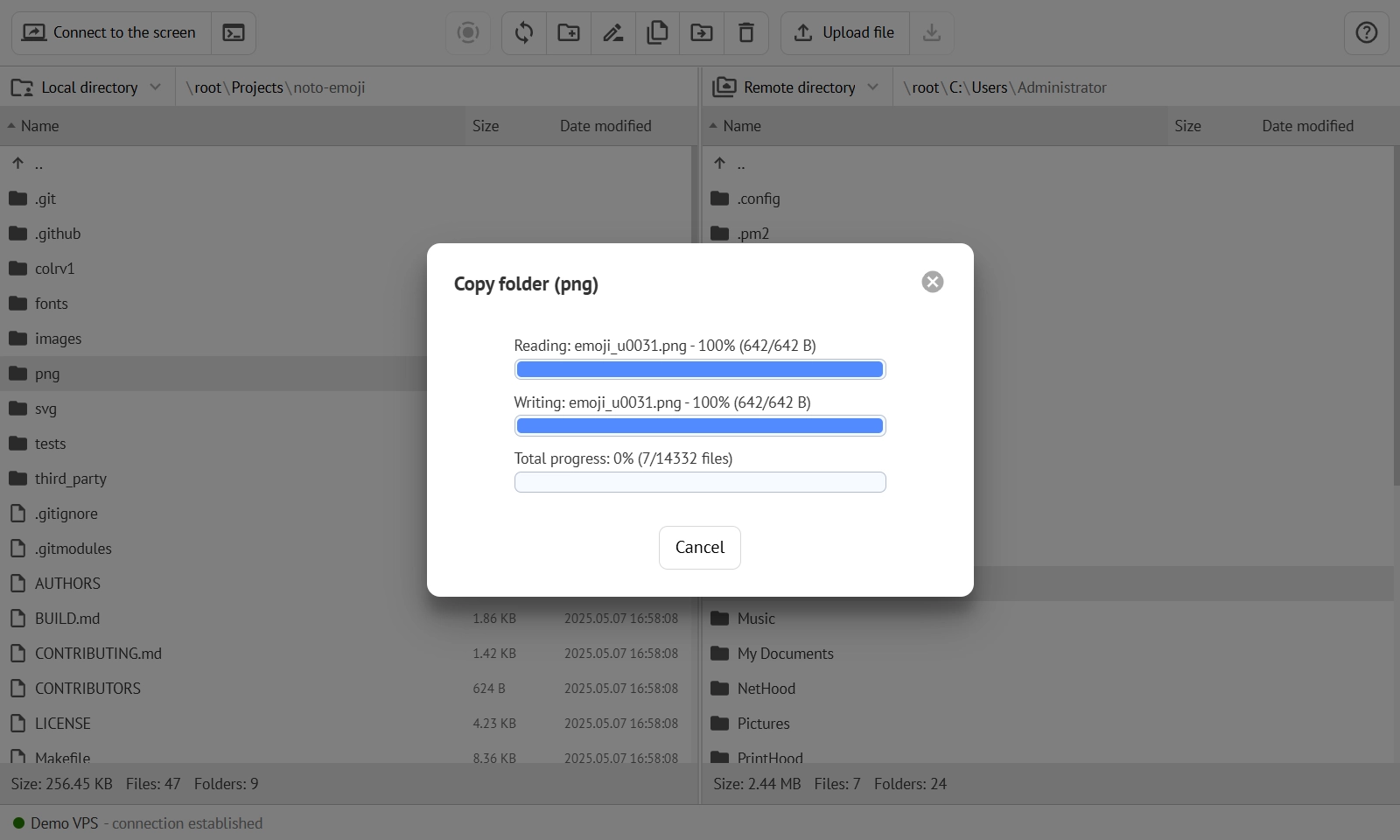
There is no need to open the remote desktop view or guide the user through download steps. The transfer happens inside the File Manager interface and does not interrupt the session.
For technicians, the key benefit is speed combined with precision. The file goes exactly where it is needed without additional steps. There is no dependency on external tools or user actions.
This matters in real scenarios. When fixing critical issues, even small delays can increase downtime. A technician who can instantly deliver a patch or script maintains momentum in the session.
Result
There are no pauses, no confusion, and no repeated instructions. This consistency builds trust and makes the remote support experience more reliable. The technician keeps control of the process from start to finish.
One-Click Download during a Screen Control Session
Accessing files from a remote device is just as important as sending them. Technicians often need logs, configuration files, or user data to diagnose problems when connected to the remote device.
In many tools, this process involves multiple steps. In Getscreen.me, technicians can manage files during the Screen Control session without the need to switch to a separate working space specifically.
The system automatically assigns a default folder on the remote device. It ensures fast allocation and simplified file management with a fast-to-use drag-and-drop feature that can be a real time-saver, especially when a technician needs to quickly upload something to a remote device or share it with a user.
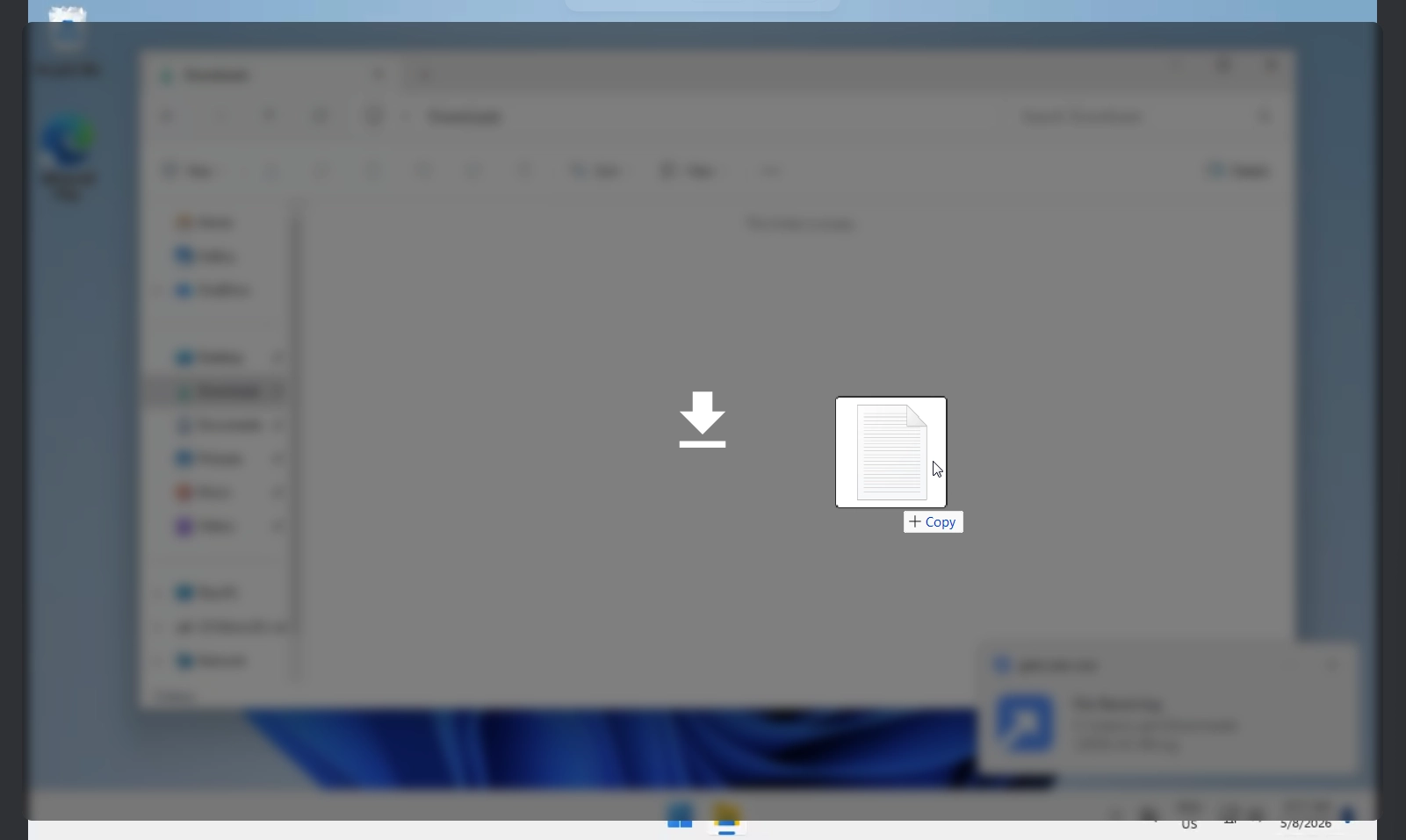
A small detail changes the experience significantly. Logs, reports, or user data can be collected without interrupting the session or explaining steps to the user.
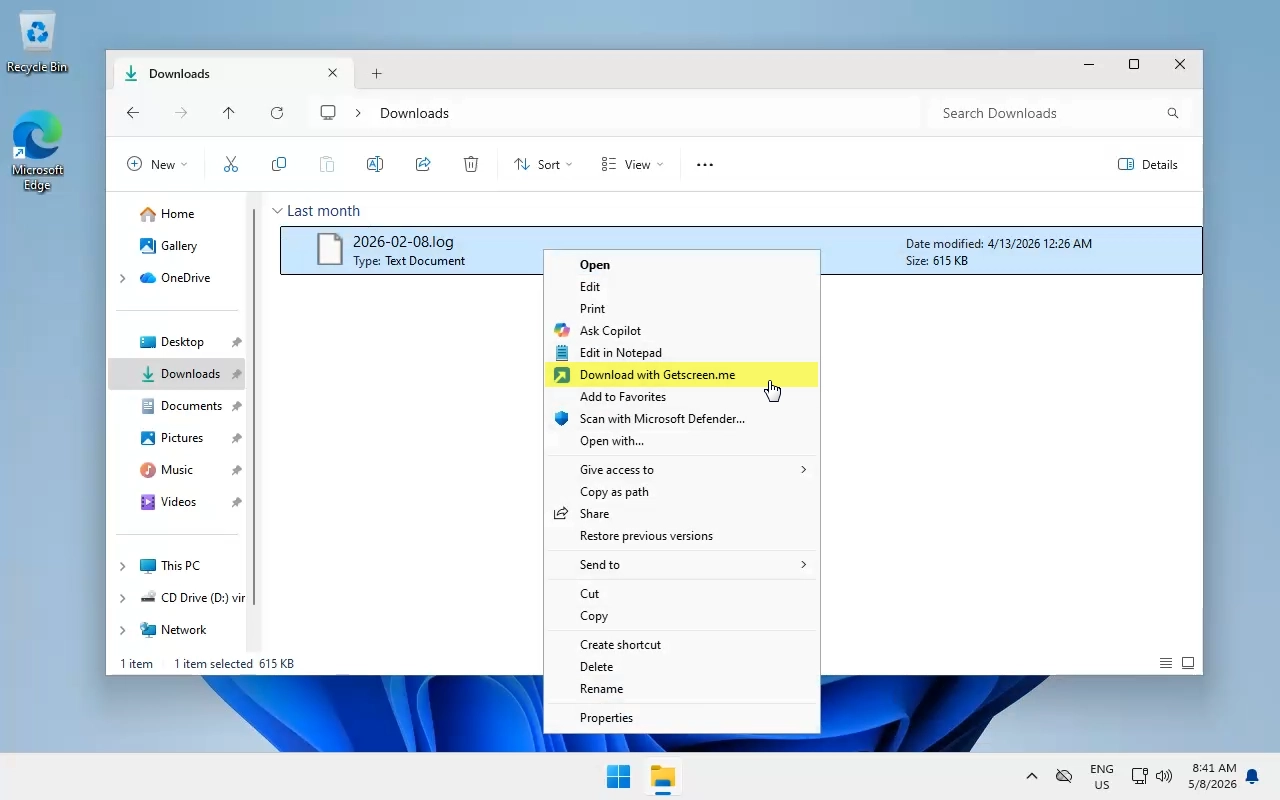
The time saved is not just a few seconds per action. Over multiple sessions, it adds up to a noticeable efficiency gain. More importantly, it allows technicians to react faster when diagnosing issues, which improves the overall reliability of support.
This also reduces reliance on the user. There is no need to explain how to find or send files. The technician handles everything directly, which avoids miscommunication.
Result
Over time, this creates a measurable impact. Faster diagnostics lead to shorter sessions. Shorter sessions allow technicians to handle more cases without sacrificing quality. The workflow becomes predictable, which is essential in professional support environments.
Full Control with Connection History and Records
In technical support, actions must be traceable. Technicians need to know what was done, especially when working in teams or handling sensitive systems.
Getscreen.me provides detailed connection history and file operation records. Every transfer is logged and available for review. Technicians can review this information at any time.
A typical tracking workflow:
- open connection history after the session;
- view the list of transferred files;
- check timestamps and actions;
- access session records if needed.
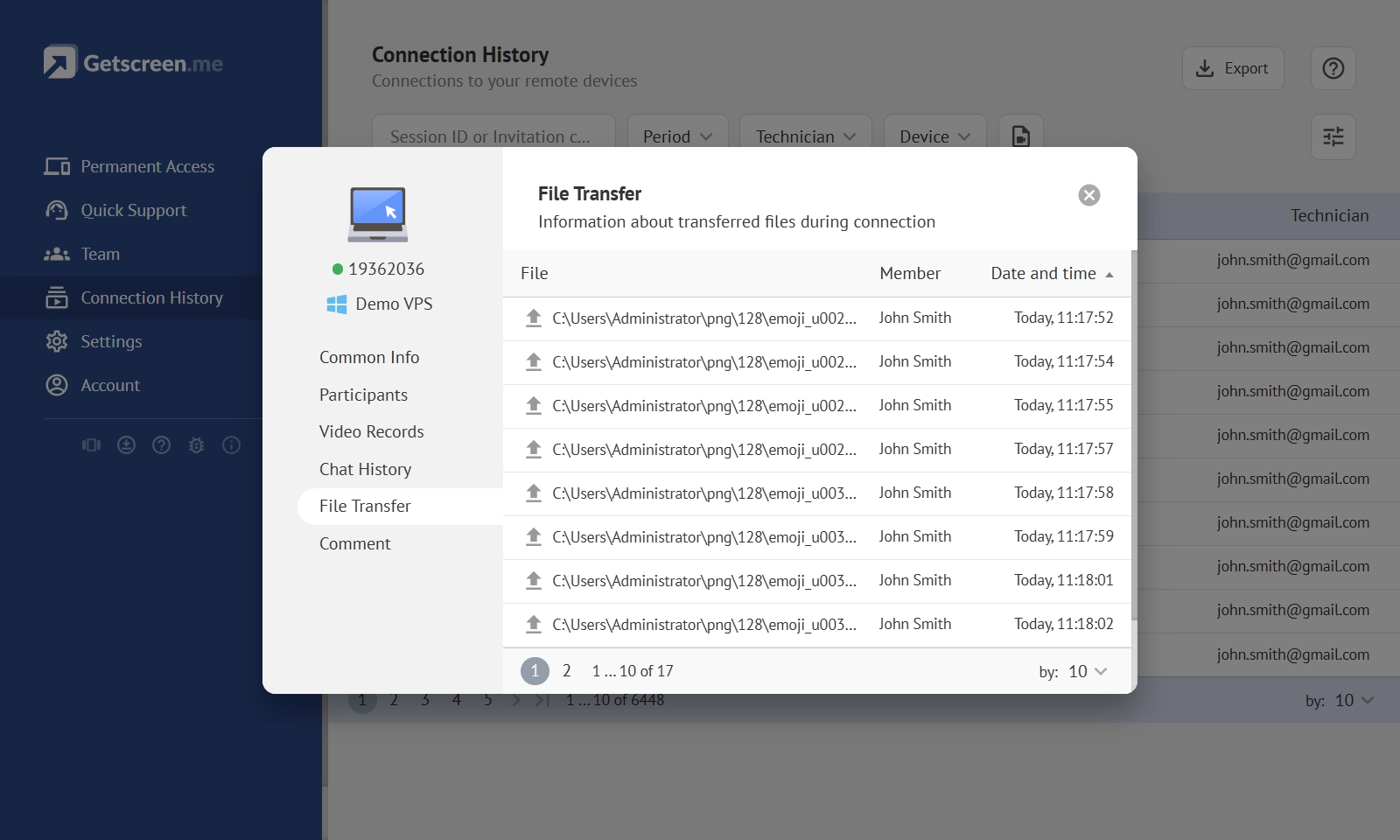
For technicians, this creates a safety net. If something goes wrong, there is a clear record to investigate. If everything works correctly, the log serves as confirmation of completed work.
The feature is especially important in professional environments where accountability matters. Teams can review actions, share insights, and maintain consistent standards. It also improves communication with clients. Instead of vague explanations, technicians can provide clear evidence of what was done. This transparency builds confidence and reduces disputes.
There is also a recording feature that captures file-related actions during the session. This creates a transparent log of what happened and when.
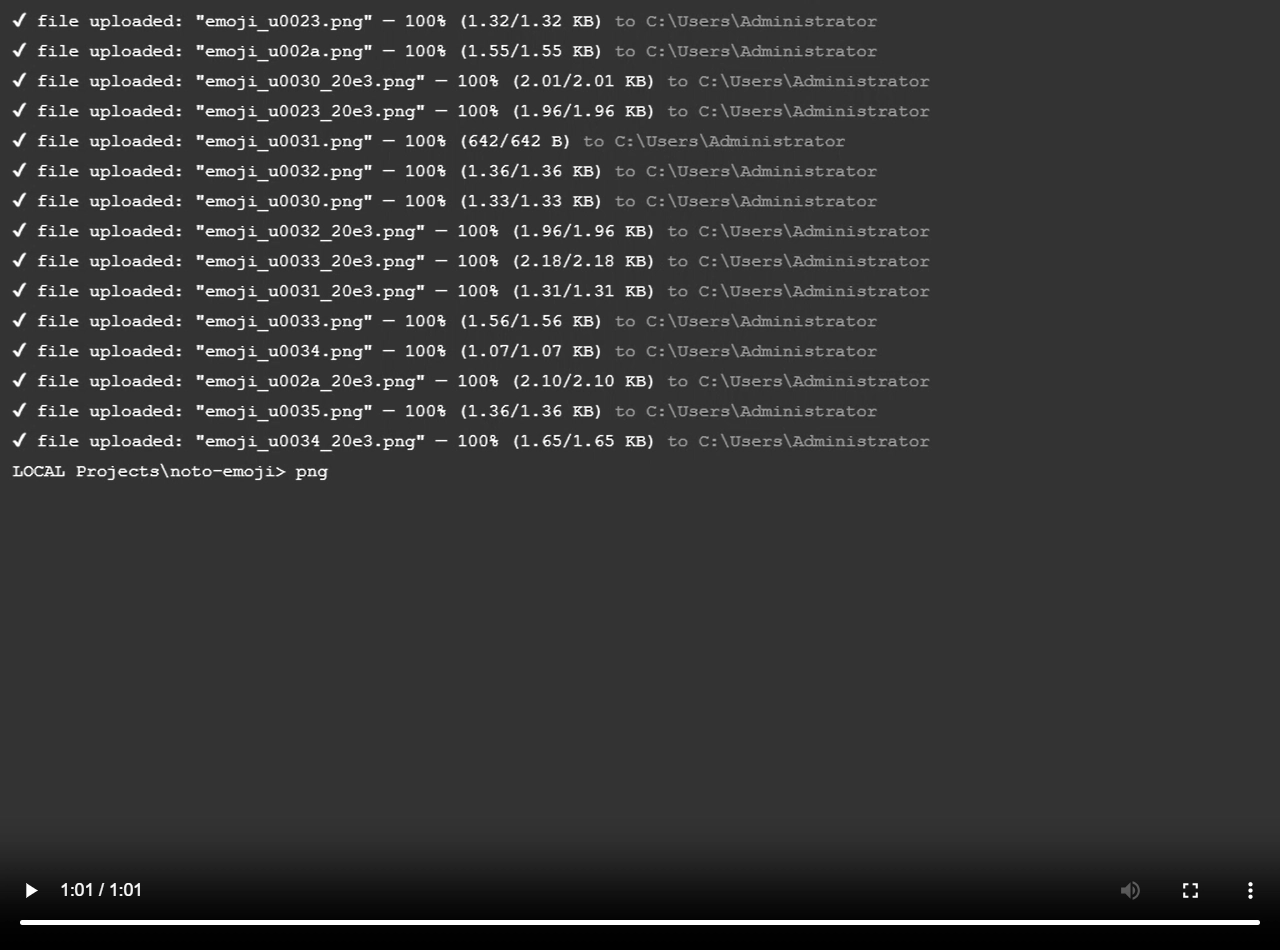
This level of visibility helps in several ways. It simplifies internal audits, supports troubleshooting, and reduces the risk of mistakes. If a file was moved, deleted, or replaced, the technician can confirm it instantly.
Result
From a quality perspective, this builds trust. Teams can maintain clear documentation of their work. Clients receive more reliable support because every action is traceable and controlled.
Why It Matters for Daily Support
The File Manager changes how technicians approach remote work. It removes routine obstacles and replaces them with direct, controlled actions.
From a practical standpoint, this leads to fewer delays caused by user interaction, faster execution of routine tasks, better focus on problem-solving instead of navigation, and consistent and repeatable workflows.
For technicians, this means less frustration and more efficiency. For businesses, it means higher-quality support and better use of resources. Work becomes faster, cleaner, and more reliable.