How to Improve Screen Image Quality During Remote Access Sessions
When technicians connect to remote computers, they receive the user's desktop as a video stream. The quality of this stream depends on several factors, including network conditions, data transmission methods, and video encoding settings.
However, VPNs, unstable Wi-Fi, overloaded network channels, and corporate security policies can all affect remote sessions. It means connection conditions can vary significantly. As a result, technicians may experience delayed screen updates, choppy video, or reduced image quality.
Getscreen.me offers several settings to adapt screen transmission to different network environments and remote support scenarios. Some parameters can be configured in advance for individual devices or across an account, while others can be adjusted directly during an active session.
Let's look at the available options and how to use them.
Choosing the Video Transmission Channel
The first setting to consider is the channel used to transmit the video stream. Getscreen.me supports two options:
- WebRTC – the primary channel, designed for fast data transmission and low latency.
- WebSocket – an alternative channel that routes video data through a proxy server.
By default, Getscreen.me attempts to establish a connection through WebRTC. If this is not possible, the system automatically switches to WebSocket.
When Do You Need WebSocket?
WebRTC generally provides better performance because it supports direct peer-to-peer communication between devices. However, establishing such a connection is not always possible.
Corporate firewalls, VPN configurations, NAT restrictions, and security policies may interfere with WebRTC. In some environments, outdated browsers or limited TURN server resources can also prevent a connection from being established.
WebSocket uses a different approach. Instead of transmitting video directly between endpoints, it sends data through a dedicated proxy server. This introduces an additional network hop, so transmission is generally slower than with WebRTC. However, WebSocket can provide a more reliable connection in environments where WebRTC encounters restrictions.
When should you switch?
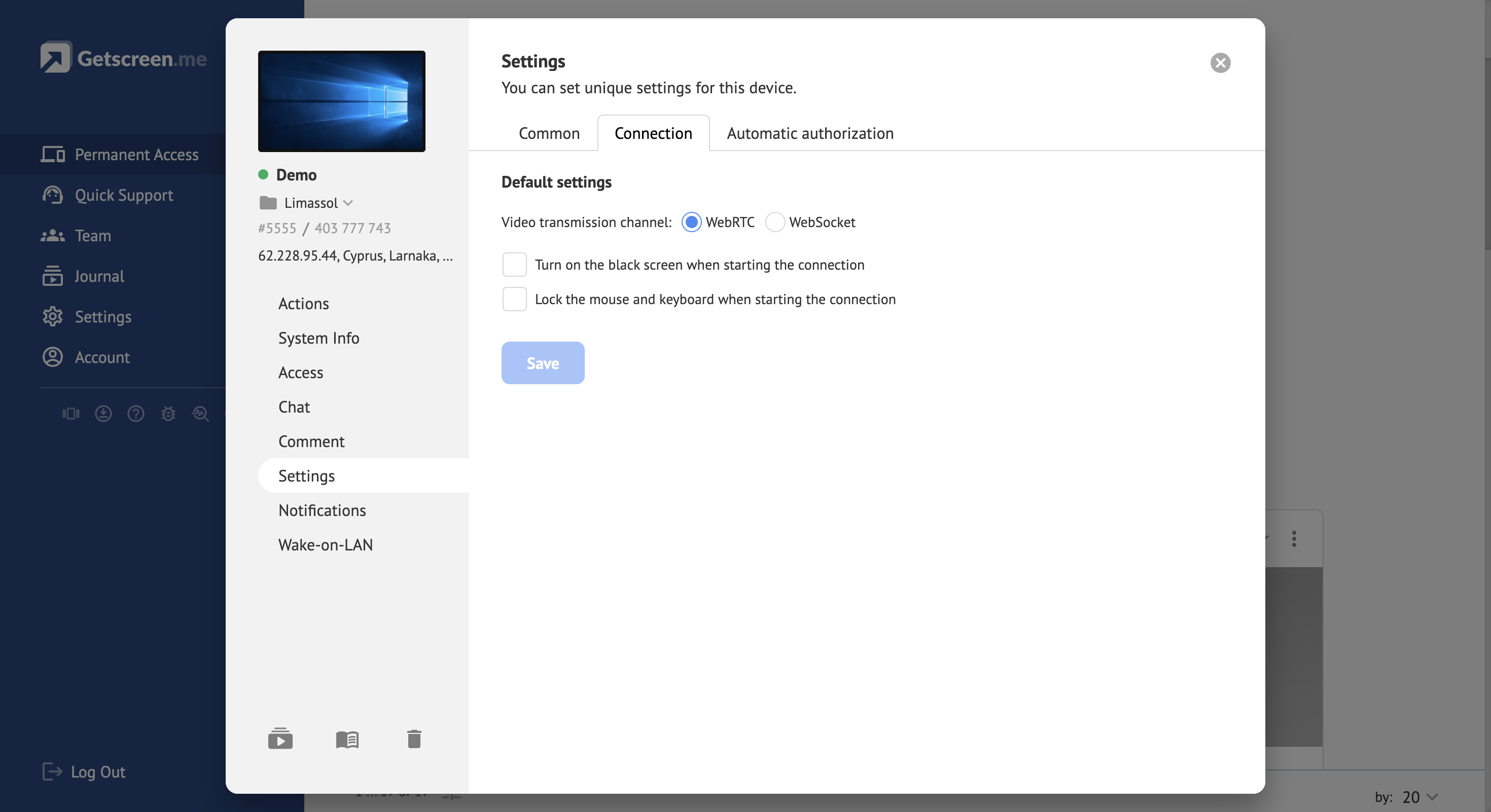
If WebRTC works poorly in a particular network environment, it may be worth testing WebSocket. You can select it as the default channel for an individual device:
- Open the device in your Getscreen.me dashboard.
- Go to Settings → Connection.
- Find the Video Transmission Channel option.
- Select WebSocket and save your changes.
Flexible Settings
Getscreen.me will remember this preference and use it for subsequent connections to that device. You can also switch channels directly during an active remote session.
Configuring the Video Codec
Video codecs determine how screen images are compressed before transmission. Their choice affects the amount of data sent over the network and the characteristics of the resulting image.
Getscreen.me supports three video codecs commonly available in modern browsers:
- AV1;
- H.264;
- VP8.
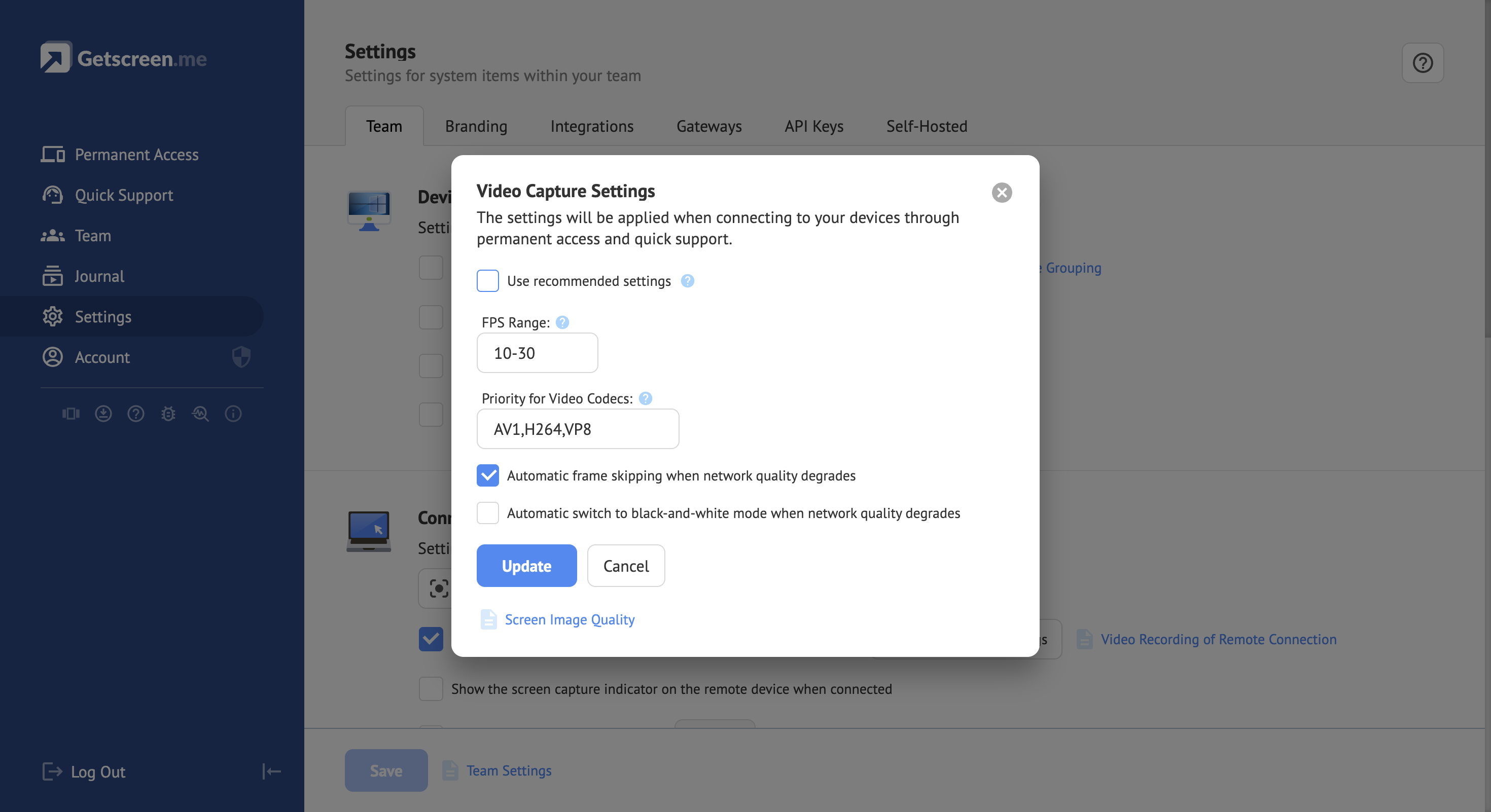
By default, the system prioritizes them in the following order: AV1, H.264, VP8. The Agent App automatically selects an available codec based on the capabilities reported by the technician's browser.
Why Change Codec Priority?
Technicians and support teams work with different hardware and software environments. Some use modern computers and browsers with support for newer video formats, while others rely on older equipment or have specific compatibility requirements.
Changing codec priority gives administrators additional control over video encoding. For example, if a particular environment has compatibility issues with the preferred codec, changing the priority may help the system select an alternative supported by the technician's browser.
Configured Preferences
Operators can configure codec preferences in the Video Settings section of the Agent App or define recommended settings for devices connected to your account.
Adjusting FPS
FPS (Frames Per Second) indicates how many individual frames are displayed every second. The higher the frame rate, the smoother the movement appears.
However, a higher FPS also means more frequent screen updates, which can increase network bandwidth requirements.
Getscreen.me uses an FPS range of 10–30 by default. You can adjust this range to accommodate different tasks and network conditions.
For remote technical support, the highest possible frame rate is not always necessary. When working with documents, Windows settings, administrative panels, or system utilities, technicians usually need to see updated information rather than smooth animations.
Depending on your requirements, you can:
- Use a higher FPS range when working with interfaces that contain frequent visual changes.
- Reduce FPS when network bandwidth is limited.
- Configure different FPS ranges for devices with different connection conditions.
The goal is to find the sweet spot between image smoothness and connection responsiveness.
Optimized Resource Usage
Adjusting FPS helps teams make more efficient use of available network bandwidth. This can be particularly useful when several technicians work with multiple remote devices simultaneously.
Skipping Frames Under Unstable Network Conditions
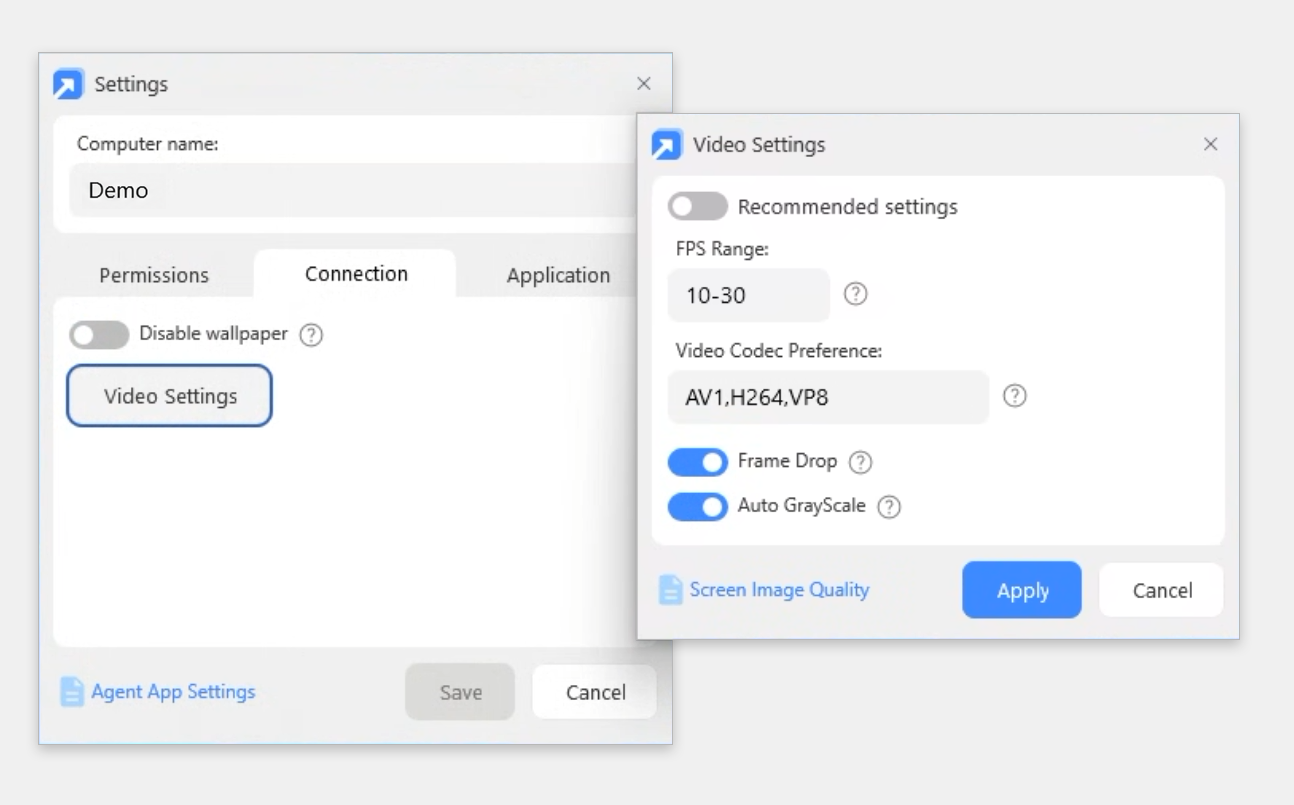
Getscreen.me offers an automatic frame-skipping option for WebRTC connections. When enabled, the system can skip some frames under poor network conditions to reduce the amount of data being transmitted.
There is a trade-off: the video may become less smooth because some intermediate frames are not delivered. However, this can help prevent excessive delays and keep the remote session responsive.
Consider a technician connected to a computer over an unstable network. They need to open a system utility, change a configuration, or check the result of an operation. In this situation, receiving the latest screen state may be more important than seeing every intermediate movement.
Automatically Disabling Colors
Another way to reduce the amount of data transmitted during a remote session is to temporarily disable color.
Getscreen.me can automatically switch the remote screen to black-and-white mode when network conditions become poor. Once the connection improves, color transmission is restored.
This option can be useful in support scenarios where accurate color reproduction is not essential. For example:
- Changing system settings.
- Diagnosing computer problems.
- Working with terminal interfaces.
- Restarting services and applications.
- Performing routine administrative operations.
Technicians can continue viewing the interface and controlling the remote computer without relying on full-color transmission.
Disabling Desktop Wallpaper
Desktop wallpaper is another element that contributes to the amount of visual information transmitted from a remote computer.
Getscreen.me allows technicians to disable the wallpaper when a remote session starts. This reduces the amount of video data that needs to be transferred, particularly when the desktop uses detailed photographs, gradients, or other complex backgrounds.
The option can be configured at several levels:
- For an individual device through its Agent App settings.
- For multiple devices through Group Settings.
- Across devices linked to an account using recommended video settings.
- Directly during an active remote session.
This reduces unnecessary data transmission during technical support sessions.
Group Settings
In larger organizations, remote devices are often organized into groups based on departments, office locations, branches, or their intended use.
These groups can have different network requirements. For example, computers in a central office may have reliable high-speed connections, while devices in remote branches operate over more limited internet channels.
Getscreen.me supports group-level configuration for wallpaper disabling. Administrators can enable this option for a group of devices instead of changing the settings individually.
Group configuration reduces repetitive administrative work and helps maintain consistent settings across multiple computers. If the network requirements of a particular department or branch change, administrators can update the relevant group configuration without having to revisit every device separately.
Changing Settings During an Active Session
Network conditions can change after a remote connection has already been established. For example, network congestion may increase during working hours, or a user may switch from a wired connection to Wi-Fi.
In such situations, technicians do not necessarily need to disconnect and establish a new session.
Getscreen.me allows several image transmission parameters to be adjusted directly from the remote session control panel.
Depending on the setting, technicians can:
- Switch between WebRTC and WebSocket.
- Enable or disable color transmission.
- Show or hide desktop wallpaper.
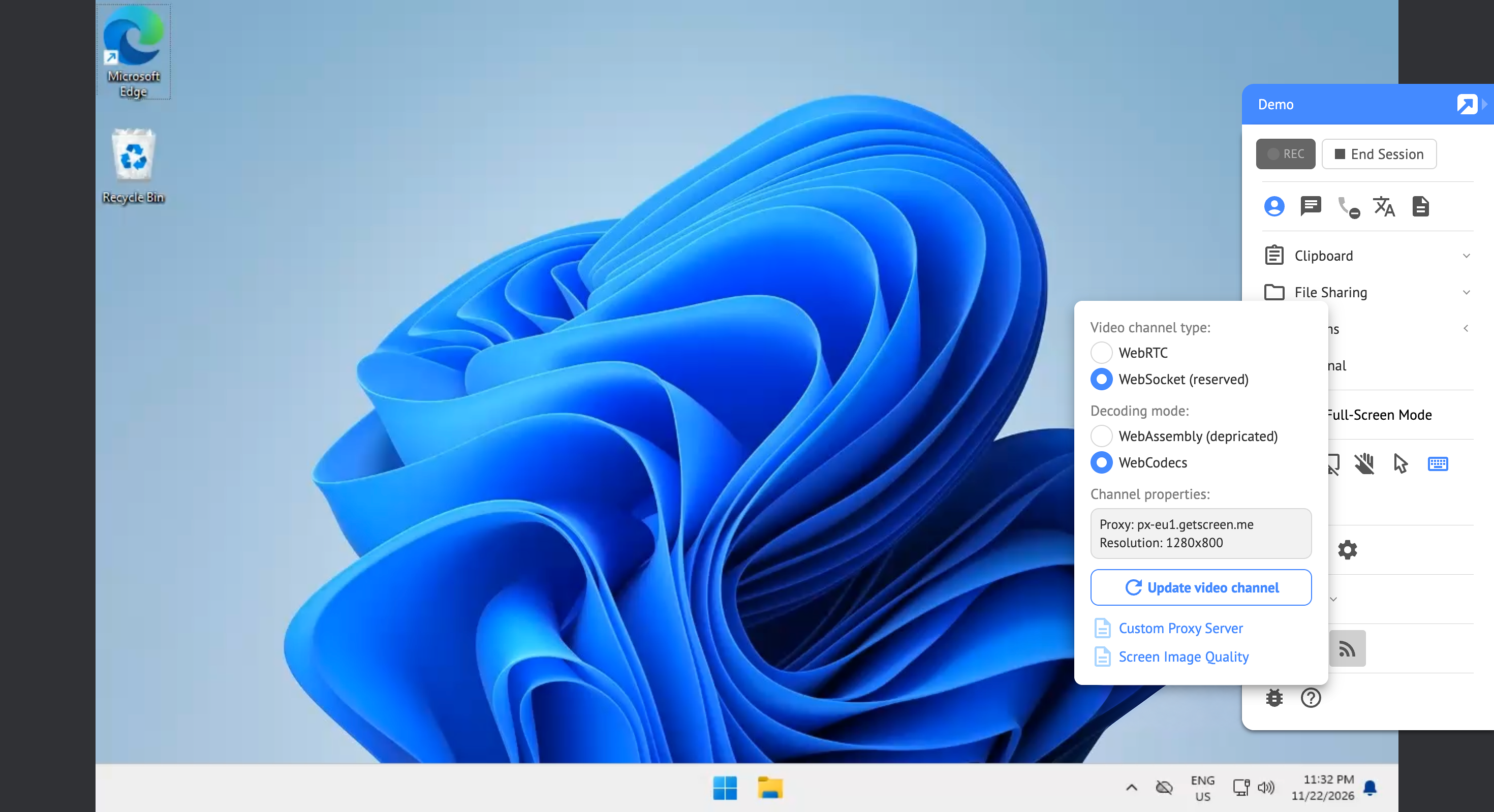
This makes it easier to respond to changing connection conditions without interrupting ongoing support work.
Custom Proxy and Self-Hosted
The quality of a remote video stream also depends on the network route between the remote computer and the technician's device.
When many technicians share default proxy servers, their resources may become overloaded during periods of high activity. This can introduce additional latency and affect screen transmission.
Getscreen.me supports custom proxy servers, allowing organizations to use their own infrastructure for data transmission. Administrators can place proxy servers closer to the relevant offices, data centers, or network segments to optimize communication between remote devices and technicians.
For organizations with larger or more complex infrastructures, Getscreen.me Self-Hosted version provides even greater control over remote access infrastructure. Companies can deploy and scale their own:
- TURN servers for WebRTC connections.
- Proxy servers for WebSocket connections.
These servers can be installed within corporate networks or in locations closer to technicians and managed devices. This helps organizations optimize data routes, manage infrastructure capacity, and reduce unnecessary network traffic.
The Bottom Line
Screen image quality during remote access sessions depends on different factors. Video transmission channels, codec preferences, FPS, and other parameters all influence how smoothly technicians can interact with remote computers.
Getscreen.me provides several ways to fine-tune these settings, whether you need to optimize a single device, configure multiple computers, or adapt an active session to changing network conditions.