
Why People Look for a TeamViewer Alternative
For years, TeamViewer has been one of the most popular remote access software. However, reviews and discussions from IT professionals show several recurring reasons why companies start looking for a TeamViewer alternative. They include subscription costs, concurrent connection limits, licensing requirements, customer connection steps, and restrictions around personal use.
Depending on how your team works, a business might need switching to alternative apps like TeamViewer. A small IT company cares more about the cost of supporting several customers, while a larger support team requires more technicians to work at the same time, which means scalability and customization options.
Why Users Consider Switching
Before you select apps similar to teamviewer, you need to have a closer look at the parts of your current setup and how they affect your technicians and remote support flows.
The most common areas to review are:
- How much you pay for the required number of users and devices.
- How many technicians connect at the same time.
- How customers start a support session.
- Whether technicians can work from a browser.
- Which features are available for personal and commercial use.
These points are closely connected. For example, adding more licensed users does not necessarily give a team more concurrent connections. Likewise, a lower subscription price may not help if it does not include the features your technicians need.
Subscription Costs
Discussions among IT professionals often mention the price of TeamViewer subscriptions, especially when a company needs several users, devices, or simultaneous connections.
The important thing is to look beyond the starting price. The final cost depends on the setup your team needs. When comparing TeamViewer licensing, check:
- Number of licensed users.
- Number of managed devices.
- Number of concurrent connections.
- Mobile support.
- Additional features or add-ons.
- Contract and renewal costs.
A small support team can run into this issue quickly. You may have only a few technicians, but still need several simultaneous connections or additional features to support customers effectively.
Cheaper Option
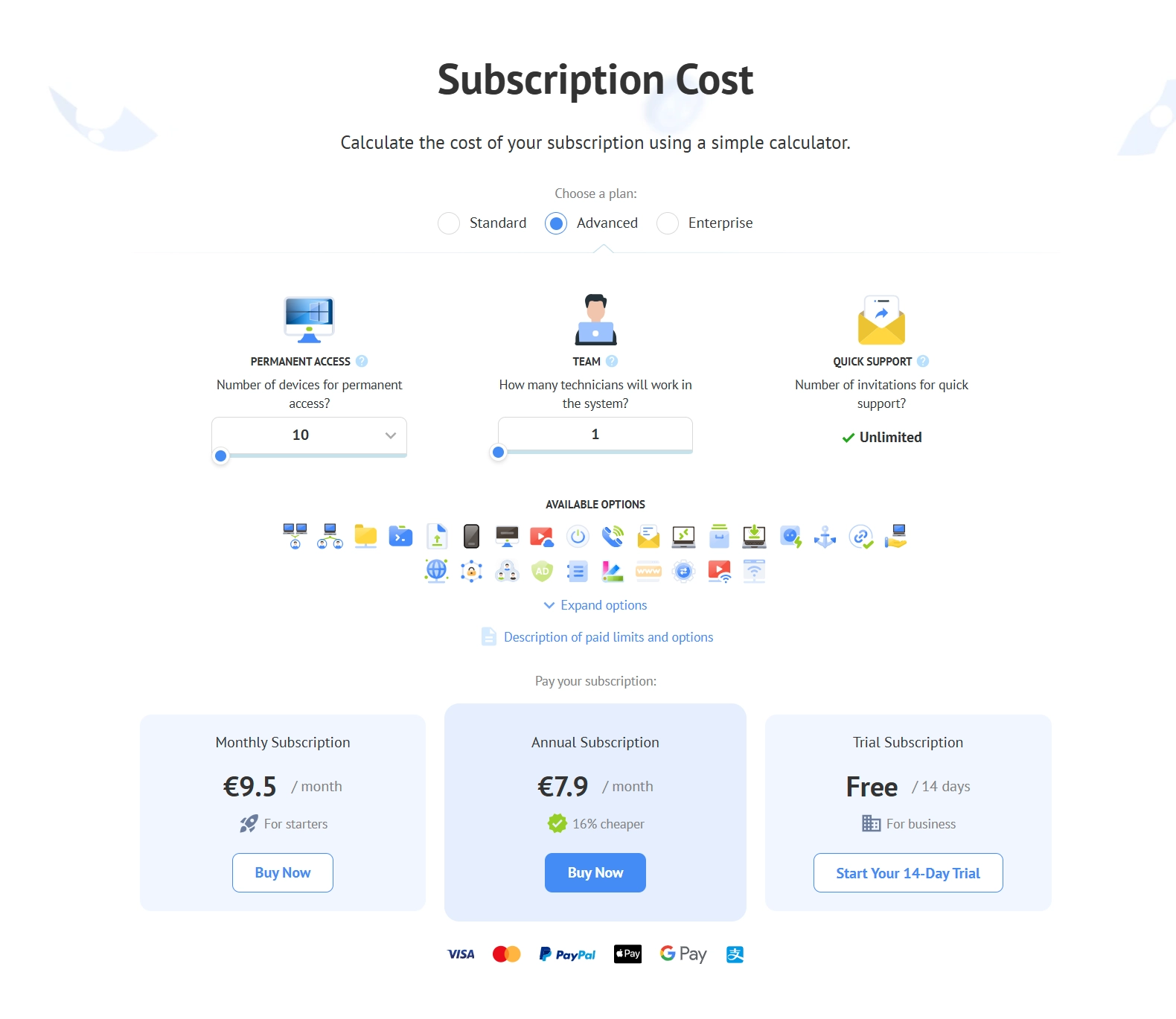
Getscreen.me can work as a TeamViewer alternative for business when predictable remote support costs are important. Its paid plans are based on technicians and devices, with unlimited concurrent connections included.
Licensing and Concurrent Connections
TeamViewer licensed users and concurrent connections are different. A company can have several people licensed to use the platform while still being limited in how many remote sessions they can run at the same time.
This matters when several technicians need to support customers simultaneously. If one technician is already using the available connection, another technician will have to wait or the company may need to purchase additional connection capacity.
When reviewing your current setup, ask:
- How many technicians have TeamViewer accounts?
- How many of them work with customers at the same time?
- What is the maximum number of simultaneous sessions?
- How much does it cost to increase that number?
This is especially relevant for help desks and IT service providers. Their workload can change throughout the day, and several customers may need assistance at once.
Flexible Pricing
Getscreen.me provides unlimited concurrent connections on its paid plans. This means several technicians can work with different customers at the same time without purchasing additional connection channels.
Customer Connection Steps
The technician is only one part of a remote support session. We also need a user from the other side to start or approve the connection, and every additional step can make the process more difficult for non-technical users.
With TeamViewer, the standard attended support workflow can involve sending the customer a QuickSupport link, asking them to download and open the application, and then providing the TeamViewer ID and password to the technician.
That process can work well for regular customers and is less convenient when technicians regularly support new users who are unfamiliar with remote access software.
Before switching to programs like TeamViewer, test the customer side of the workflow. Pay particular attention to:
- How many steps the customer needs to complete.
- Whether software needs to be downloaded.
- Whether the customer needs to provide an ID or password.
- How quickly a technician can start helping.
- What happens when the customer is not technically experienced.
Fast Access
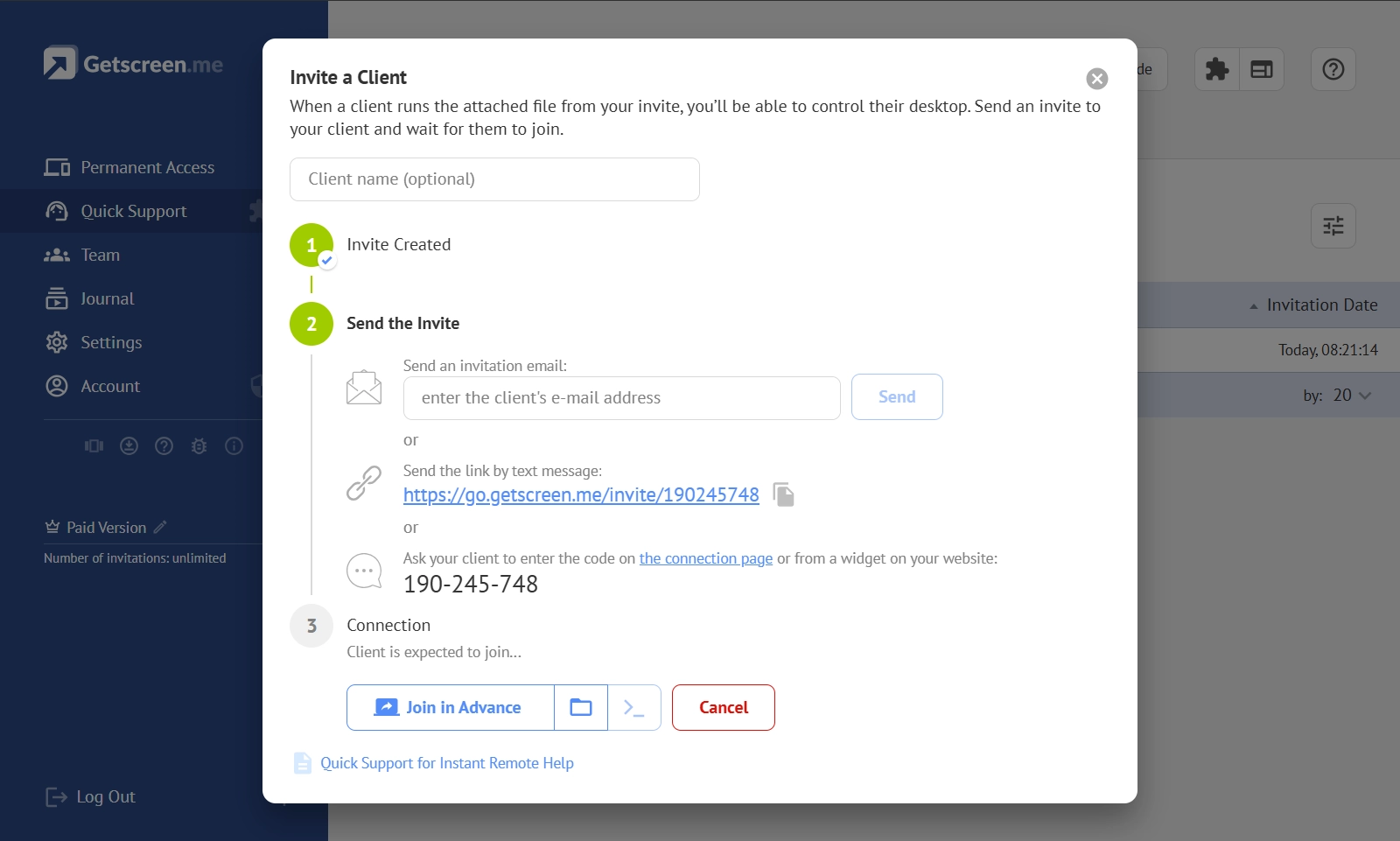
Getscreen.me offers Quick Support for one-time remote sessions. Technicians can send customers an invitation, link, or code so they can start a support session without setting up permanent remote access.
Browser-Based Access
Remote access from a browser can be useful when technicians work from different computers or want to have all needed browser-based instruments like HelpDesk or CRM in one place.
TeamViewer also provides browser-based functionality, but the available workflows depend on the type of connection and subscription. This is why it is worth testing the exact workflow your team needs instead of simply checking whether a product has a web client.
For a browser-based software like TeamViewer, check both sides of the connection:
- Can the technician start a session from a browser?
- Can the technician access managed devices?
- Can customers join support sessions easily?
- Are all important remote control features available?
- Does the workflow require additional software?
This distinction matters for teams that want remote access from a browser to be part of their normal support process.
Instant Support
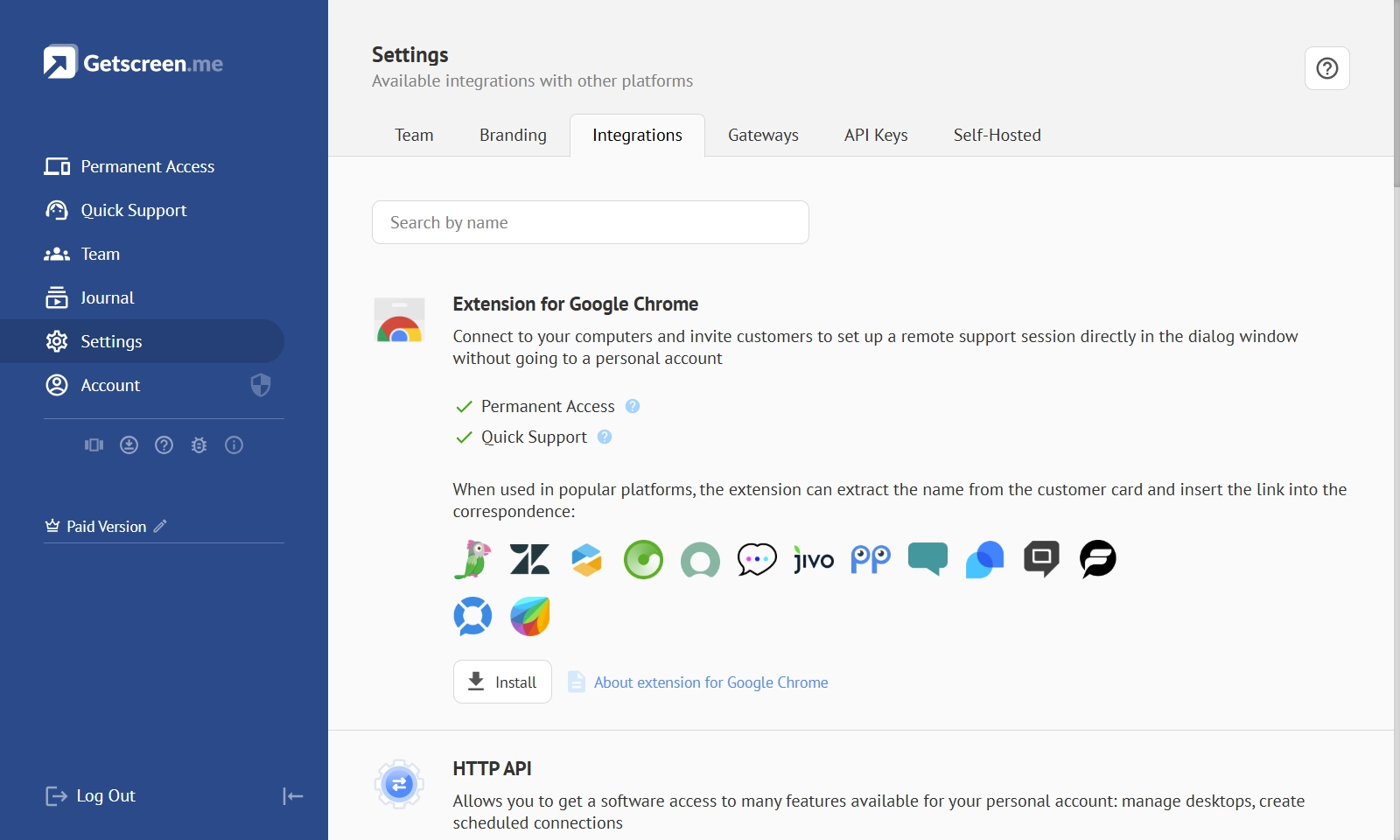
Getscreen.me is built around browser-based access for technicians. The web dashboard lets technicians manage devices and start remote sessions without installing the full application on every computer they use.
Personal-Use Restrictions
The free version of TeamViewer is intended for personal, non-commercial use. This can become an issue when someone starts using the software for work or provides technical support to customers.
TeamViewer has systems for detecting suspected commercial use. Users can receive a warning or will be forced to provide information about how they use the software.
This is why a free remote access tool should not be treated as a long-term solution for business support. If technicians regularly access customer or company devices, check the commercial licensing terms before deploying the software.
When reviewing TeamViewer free version limitations, consider whether you use remote access for:
- Customer support.
- Employee or workplace computers.
- Business servers.
- Company-owned devices.
- Paid IT services.
Free Trial
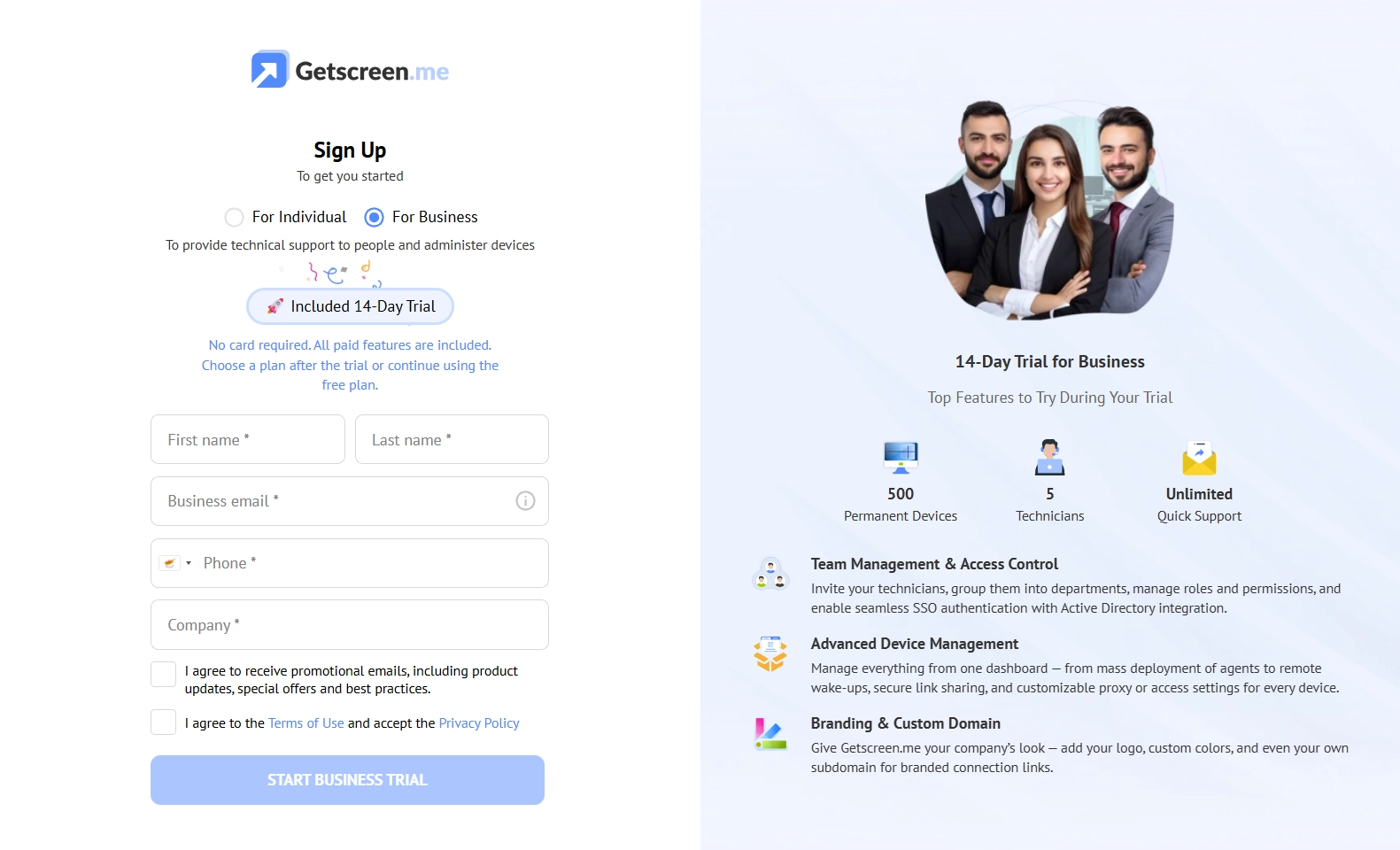
Getscreen.me separates personal and business use through different plans. Businesses can use the 14-day Business Trial to test the full business feature set before choosing a subscription.
What to Check Before Switching
Switching remote access software affects technicians, customers, and administrators. A feature-by-feature comparison is useful, but it should not be the only part of the decision.
Start with your current TeamViewer setup and identify what your team actually uses. Then check whether the TeamViewer similar app supports those workflows without adding unnecessary steps.
At minimum, compare:
- Technicians: How many people need access?
- Devices: How many computers and mobile devices need support?
- Concurrent sessions: How many technicians may work simultaneously?
- Customer support: How do customers start an attended session?
- Unattended access: How are permanent connections managed?
- Browser access: Can technicians work from a browser?
- Administration: What permissions and management tools are available?
- Security: What authentication and access controls are provided?
- Integrations: Can the platform connect to your existing tools?
- Cost: What will the complete setup cost per month and per year?
It is also worth testing the customer experience. A remote support platform may have all the required technical features, but a complicated connection process can still create extra work for the support team.
Example: Three Technicians, Ten Clients
Consider a small IT support company with three technicians and ten clients. If each client has around ten managed devices, the team needs to support approximately 100 devices.
The TeamViewer configuration includes:
- 15 licensed users.
- 300 managed devices.
- 1 included concurrent connection.
- 2 additional concurrent connections.
- Mobile device support.
The annual price in the comparison is €2,659.44.
The Getscreen.me configuration includes:
- 3 Advanced technicians.
- 100 devices.
- Unlimited concurrent connections.
- Mobile support.
The annual price is €396.
| TeamViewer | Getscreen.me | |
|---|---|---|
| Technicians / Licensed Users | 15 | 3 |
| Managed Devices | 300 | 100 |
| Concurrent Connections | 3 | Unlimited |
| Mobile Support |  Add-on Add-on |
Included |
| Annual Price | €2,659.44 | €396.00 |
The two configurations are based on different licensing models. In the TeamViewer example, the company needs a larger package to get the required number of licensed users and concurrent connections, while the Getscreen.me setup is configured around the three technicians and 100 devices the company actually needs.
How to Switch to Getscreen.me
A controlled migration lets the team test Getscreen.me with real devices and customers before changing the entire support workflow.
Review Your Current Setup
Start by documenting how your team currently uses TeamViewer. This gives you a baseline for the migration. It also helps identify features that need to be tested before you switch from TeamViewer.
Run a Pilot
Choose a small group of technicians and customers for the first test. Ideally, include different types of connections: a regular attended support session, an unattended device, and a connection from a browser or an alternative technician workstation.
Getscreen.me's Business Trial can be used for this stage. The trial provides access to the business feature set for 14 days without requiring a card.
If you already paid for TeamViewer, Getscreen.me also offers a User Period Buyout Program along with other exclusive discounts. You can provide your paid TeamViewer invoice, and the remaining paid period can be credited toward your Getscreen.me plan.
Test Essential Workflows
Do not limit the pilot to a basic connection test. Reproduce the tasks your technicians perform every day.
Check how quickly a customer can join a session. Try remote browser access, unattended connections, file transfers, multiple simultaneous sessions, mobile support, and any administrative features your team depends on.
Also test the process from the customer's perspective. A remote support platform can have all the required technical features and still create problems if customers struggle to start a session.
Evaluate Results and Costs
After the pilot, compare the results with your original baseline.
Look at:
- Average time needed to start a support session.
- Number of steps required from the customer.
- Number of simultaneous sessions technicians can run.
- Connection stability.
- Time required to access unattended devices.
- Features that technicians use most often.
- Administrative effort.
- Monthly and annual costs.
Roll Out in Stages
Once the pilot is complete, move customers and devices in groups.
Start with less critical devices and customers whose support workflows are straightforward. Then migrate more complex environments after the technicians have become comfortable with the new platform.
Keep TeamViewer available during the transition if your operational requirements allow it. This gives technicians a fallback while they move permanent access, customer invitations, and internal procedures to Getscreen.me.
Document the new connection process for technicians and customers. Create a short internal checklist to cover how to create a Quick Support invitation, establish permanent access, connect through the browser, and handle common connection issues.
Start Your Getscreen.me Business Trial
The simplest way to evaluate a TeamViewer replacement is to use it with your real support workflows.
Start a 14-day Getscreen.me Business Trial, add your technicians, connect a representative group of devices, and test the workflows that matter to your team. No credit card is required, so you can evaluate the platform before committing to a subscription.
If you already have an active TeamViewer subscription, claim a User Period Buyout Program when planning the switch. The remaining paid period may be credited toward your Getscreen.me plan instead of paying twice during the transition.