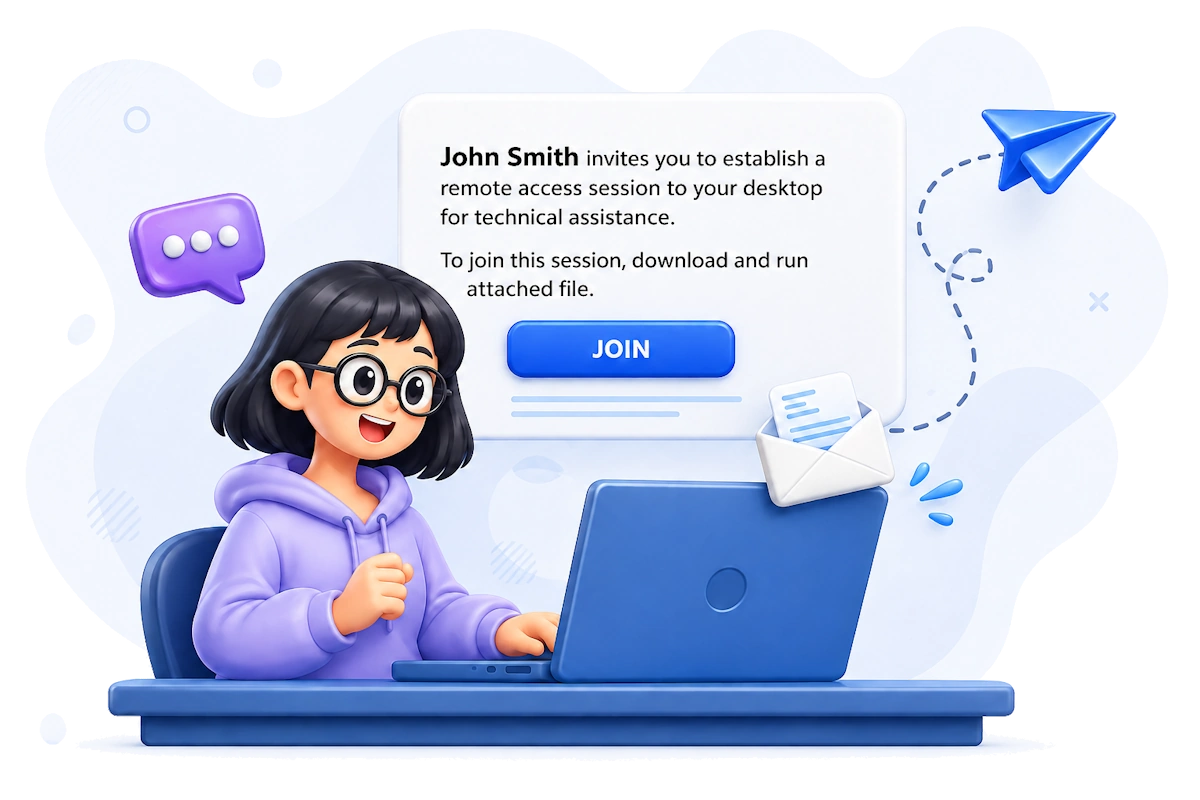
Quick Support: Faster Remote Assistance without Complicated Instructions
Remote support can become slow long before a technician starts working on a device. A user expects instructions. Someone has to show where to click to download a file or approve the connection. Every extra step increases waiting time and creates room for mistakes.
Quick Support was designed to remove these delays.
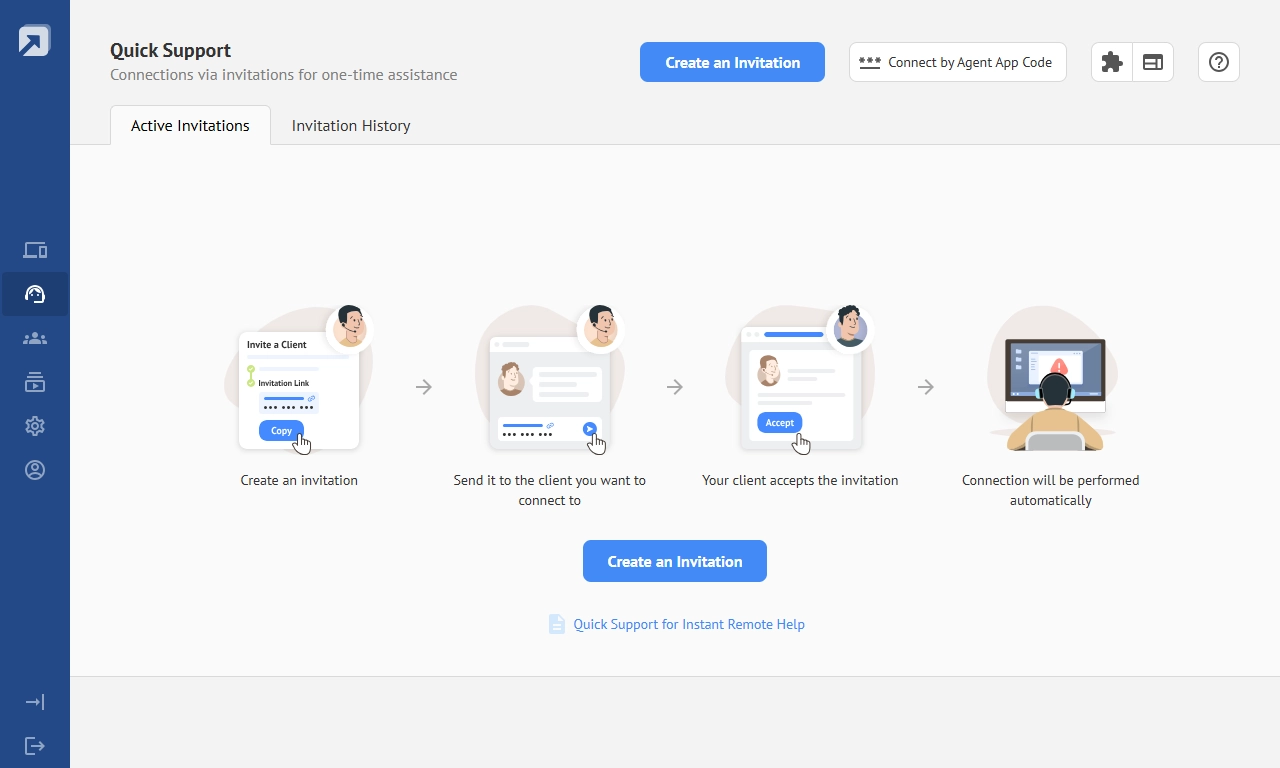
Instead of asking users to configure software, create accounts, or follow long setup guides, technicians can start a one-time remote session through invitations, links, or one-time codes. The process takes only a few moments and works well for help desks, MSPs, internal IT departments, and outsourced support teams.
The goal is to connect faster, solve issues sooner, and make the support experience easier for everyone involved.
One-Time Connections Without Complex Setup
Quick Support uses invitations, one-time links, and codes for urgent or occasional support sessions where permanent access is not required.
Invitation-Based Connections
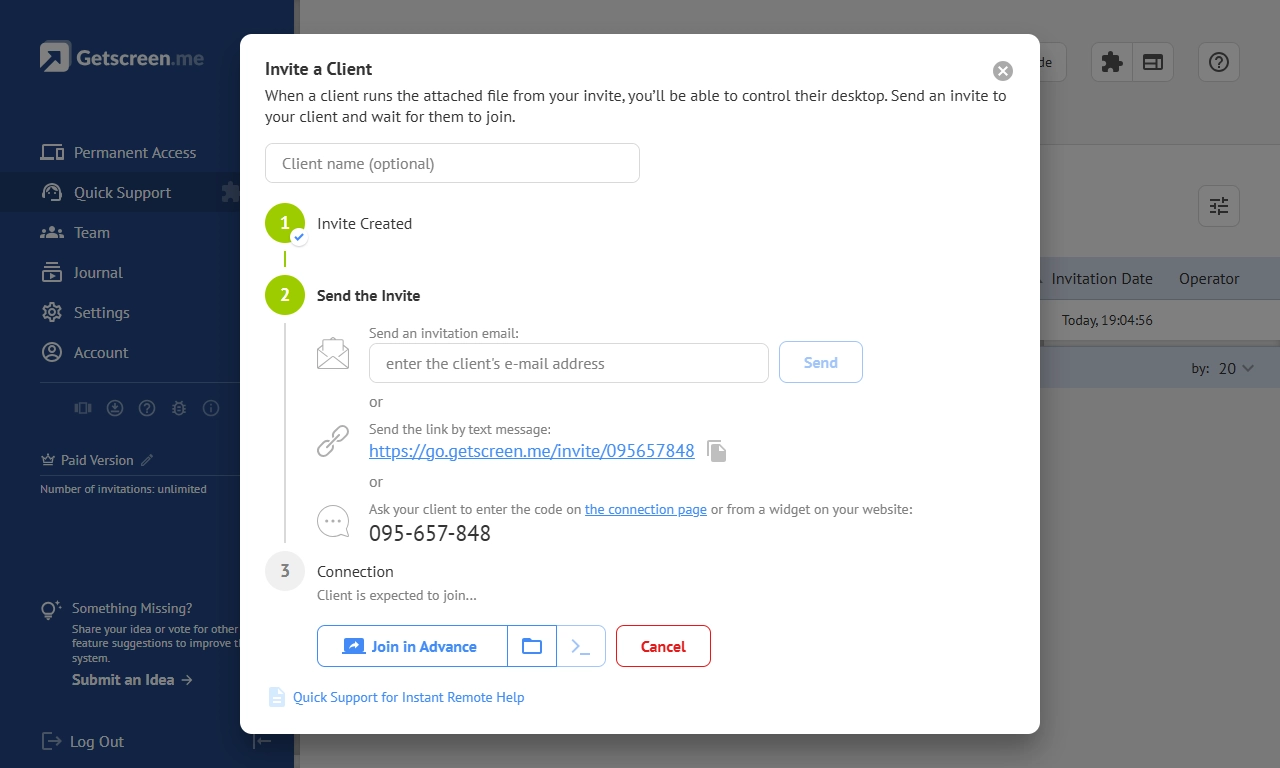
The invitation workflow starts from the Quick Support dashboard. A technician creates an invitation and sends it to the client. It can be delivered as a link through email, chat, CRM systems, help desk platforms, or any messenger.
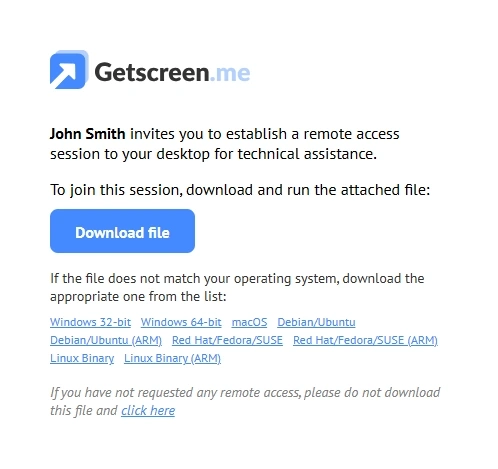
When the client opens the invitation page, they receive everything needed to start the session. The page contains the agent application file and clear instructions. After launching the file, the connection initializes automatically. For urgent situations, this difference can save several seconds on every support request.
Important
A user does not need to configure software, create an account, or manually enter connection parameters. Technicians no longer need to explain installation steps or guide users through multiple screens. The connection process remains consistent regardless of the user's technical experience.
Connections through Invitation Codes
Many technicians still receive support requests through phone calls. In these situations, sending links is not always practical. Quick Support solves this problem with invitation numbers.
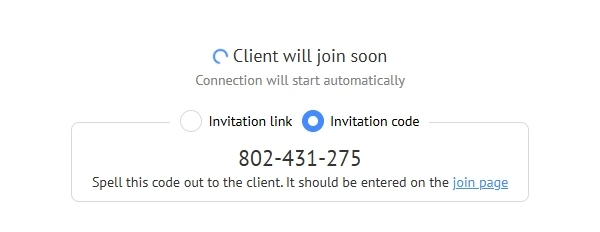
Each invitation receives a unique numeric code. The technician simply reads the code to the user. The user enters it on a dedicated connection page and gains access to the same invitation environment.
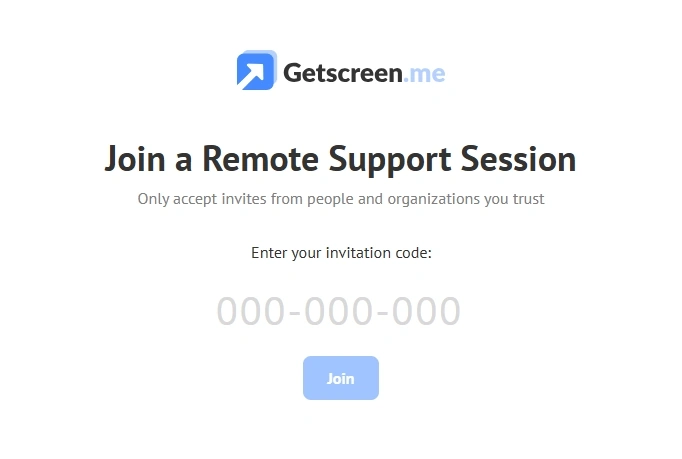
No email exchange is required. No messaging platform is needed.
Note
This method works especially well when helping users who have limited technical skills or restricted access to communication tools.
Agent App Codes for even Faster Connection
Quick Support also supports connections through a temporary code generated directly inside the agent application.
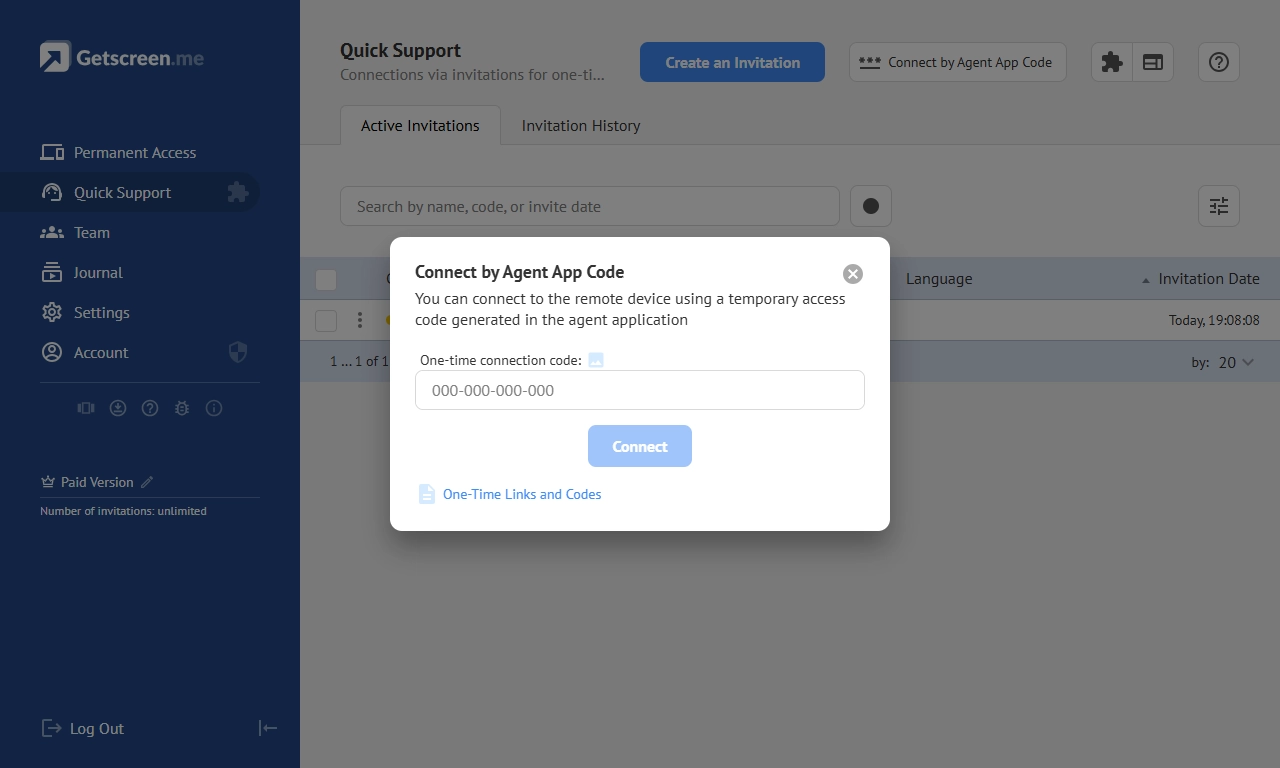
After launching the application, the client receives a randomly generated one-time code. The technician enters this code inside the Quick Support interface and instantly joins the session.
This workflow works particularly well during urgent support situations. There is no need to create invitations manually as well as exchange files or send detailed instructions. A user only needs to provide a short code.
It is also convenient for clients who are used to tools like TeamViewer or AnyDesk, where the user provides a session code to the technician. They can continue using a familiar connection process while taking advantage of Getscreen.me's browser-based remote access.
Important
For support teams handling dozens of requests every day, eliminating even a few steps from every connection can significantly improve response times.
Complete Control Over Invitations and Active Sessions
As support teams grow, managing dozens or hundreds of support requests becomes difficult without a centralized system.
Quick Support keeps all invitations and connections inside a single dashboard.
Technicians can quickly track:
- active invitations;
- pending requests;
- invitation codes;
- assigned operators;
- connection history.
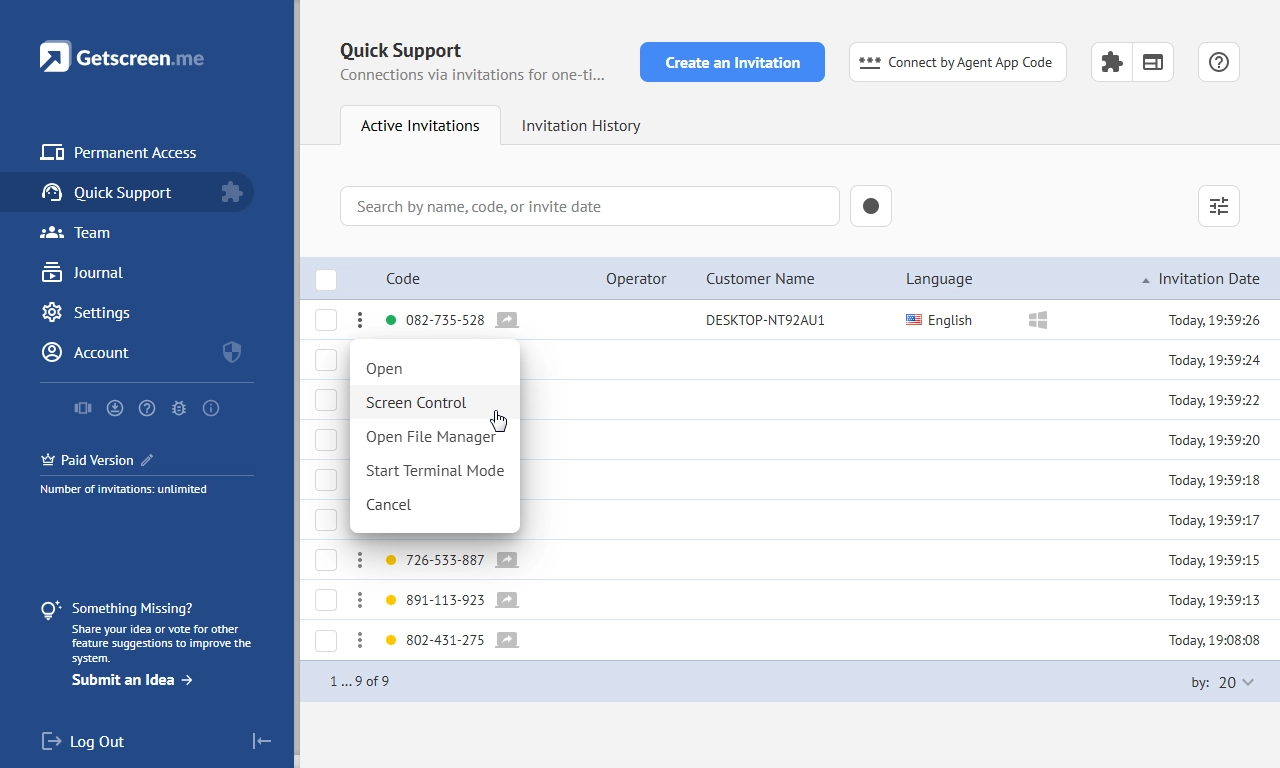
Instead of searching through emails or messaging applications, support teams can manage everything from one location. The dashboard allows assigning invitations to specific technicians or teams.
This creates a clear ownership structure. Every support request reaches the right specialist without confusion or duplicate work.
Important
For larger organizations, this improves accountability and helps managers track workloads across multiple operators. The result is a more organized support process and faster response times for clients
Chrome Extension: Remote Support Directly From Your Workflow
Switching between browser tabs, dashboards, ticket systems, and remote access software wastes valuable time. This may seem minor for a single session, but the lost minutes accumulate throughout the day.
The Getscreen.me Chrome Extension brings invitation management directly into the browser. Technicians can create invitations, send connection requests, and manage remote support sessions without opening the main dashboard.
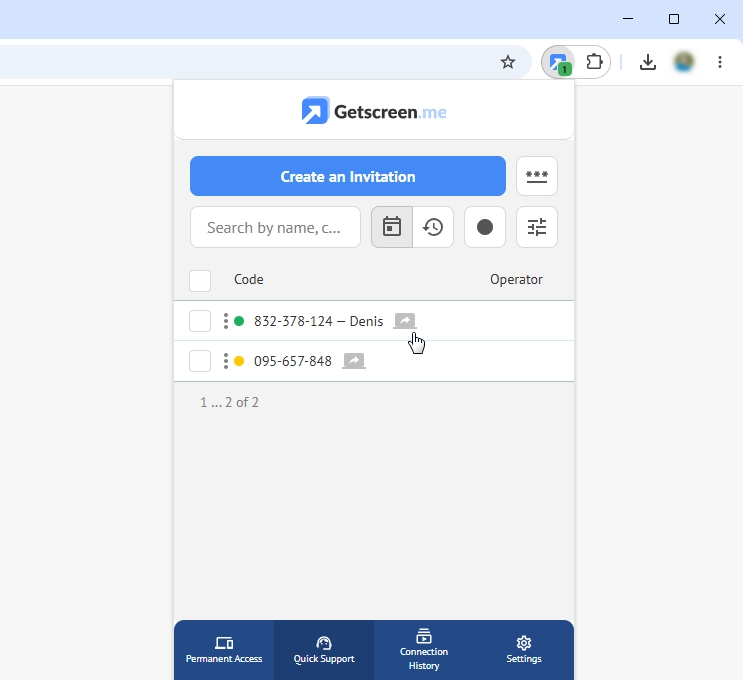
The extension integrates naturally into existing workflows and allows support teams to stay focused on user conversations. This becomes especially valuable inside help desk environments where agents already spend most of their day working in browser-based systems.
Important
Instead of copying links between applications, technicians can generate and send invitations from the same workspace where they communicate with customers. Less context switching. Less manual work. Faster remote support delivery.
Custom Widget for Internal Service Environments
Many companies prefer to keep support tools inside their own ecosystem. Large enterprises, financial organizations, healthcare providers, educational institutions, and government agencies often have strict software distribution policies. Users may only download approved applications from internal portals.
Quick Support delivers working environments through a customizable invitation widget. Companies can embed the invitation form directly into their websites, portals, intranets, or internal service platforms.
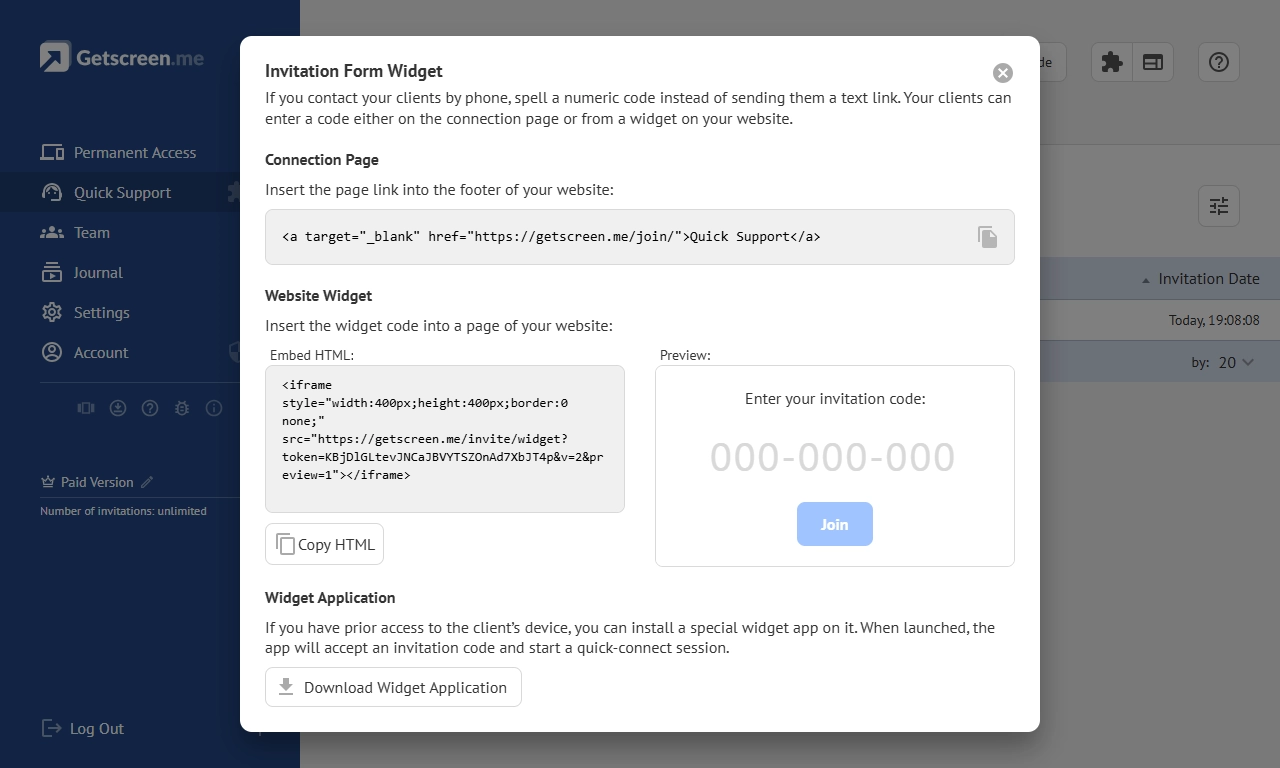
Employees stay within a familiar environment while still gaining access to remote support.
- This approach offers several advantages:
- Support becomes easier to access because users do not need to search for external pages.
- Internal IT departments maintain greater control over software distribution.
- Organizations can create a consistent service experience that aligns with existing business processes.
Important
For companies investing in long-term infrastructure, the widget becomes more than a convenience feature. It becomes part of a fully integrated support ecosystem.
Branding Improves Trust and Strengthens Security
Before granting access to a device, users want to know exactly who is trying to connect. Unknown files, unfamiliar logos, and generic connection requests often create hesitation.
Branding helps eliminate this uncertainty. Quick Support allows companies to customize invitation pages, agent applications, connection links, and visual elements with their own corporate identity. Clients see recognizable company names, logos, and branded interfaces throughout the connection process.
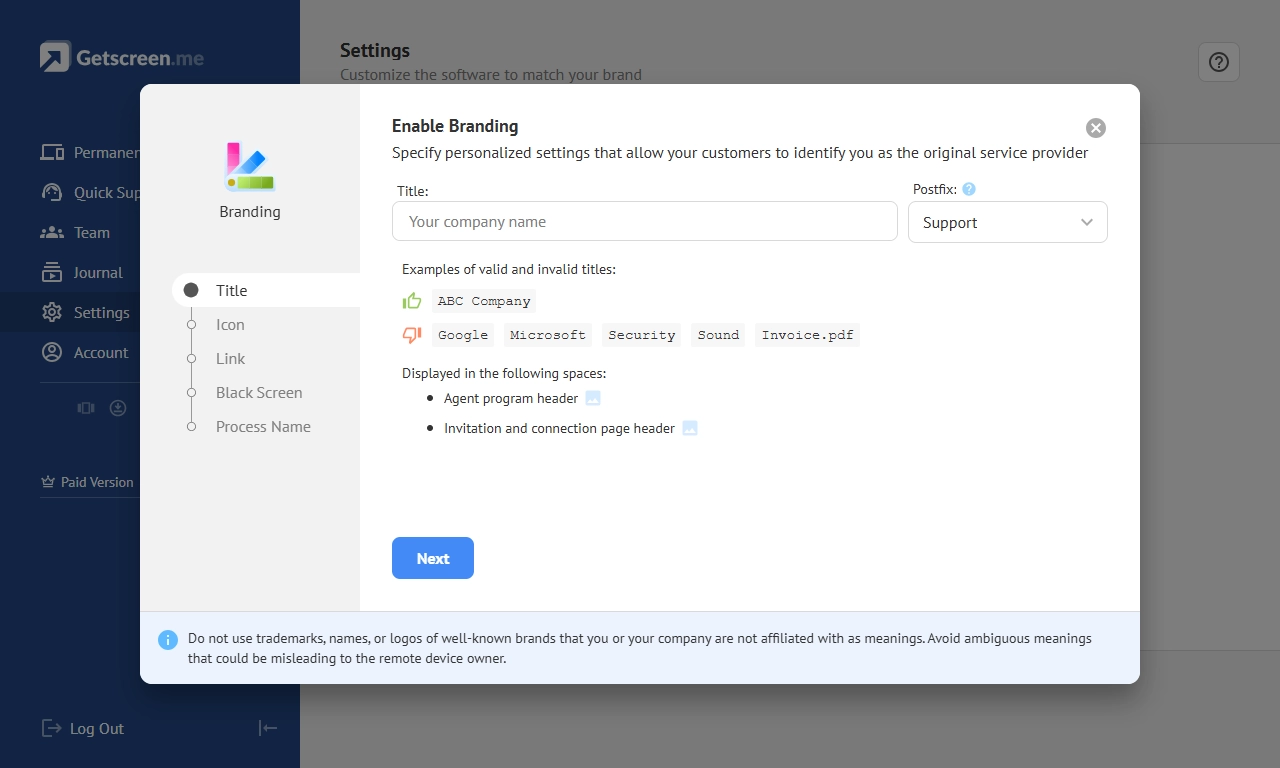
This creates several important benefits.
- First, users feel more confident opening invitations because they immediately recognize the organization requesting access.
- Second, branded invitations help reduce suspicion and lower the risk of users ignoring legitimate support requests.
- Third, a consistent visual identity strengthens professionalism and reinforces trust in the support process.
Important
From a security perspective, clear branding acts as an additional verification layer. Users can quickly distinguish legitimate support invitations from potentially fraudulent messages. When customers know exactly who is connecting, they are far more likely to cooperate and approve support sessions without delays.
Real-Time Translation for Multilingual Support
Quick Support includes built-in auto-translation during remote sessions. All interface texts are translated in real time into the technician’s language.
This removes language barriers during support. Technicians can give instructions, explain actions, and guide users through system configurations without switching tools or relying on external translators.
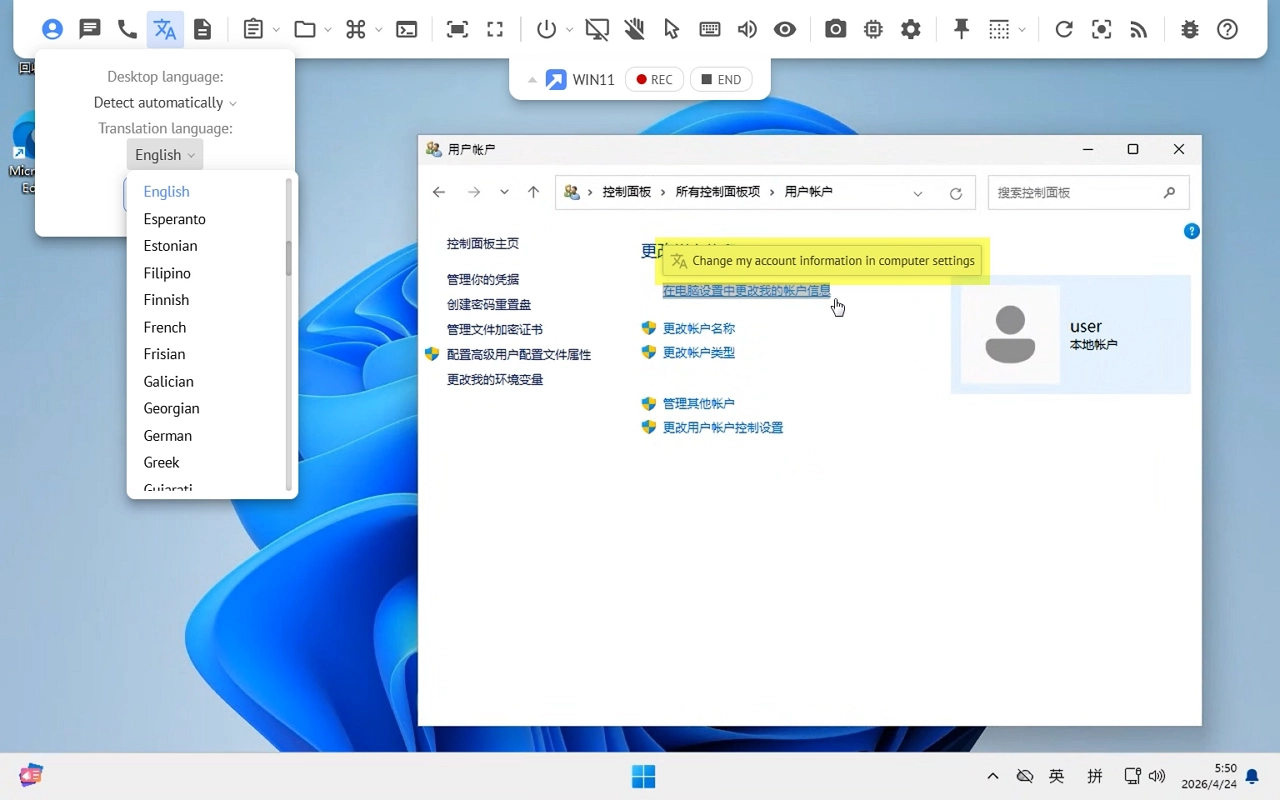
For example, a technician supporting a user in a different region can work directly inside the same session while all texts are automatically translated right here on the screen. This makes it easier to assist with system settings, configuration tasks, or troubleshooting in real time.
The same mechanism supports internal escalation. When a case moves between teams in different countries, communication stays clear. Instructions and context remain consistent, reducing misunderstandings and delays.
The result is faster resolution and smoother collaboration in multilingual support environments.
The Bottom Line
Quick Support is a feature designed to remove friction from the entire support process. Invitation links and codes eliminate complicated setup procedures. Centralized dashboards improve session management. The Chrome Extension keeps technicians inside their existing workflow. Custom widgets integrate remote support into company infrastructure. Branding increases trust and confidence during every connection.
Each feature solves a specific problem, but together they create a remote support experience that feels effortless for both technicians and users.
Less waiting. Less explaining. Less manual work. More time spent solving real problems.