Terminal Mode for Remote Support: Faster Troubleshooting with no Interruption
Generally, remote support starts with a desktop session. A technician connects to a device, checks settings, reviews logs, and looks for the source of a problem.
A Terminal Mode in Getscreen.me gives technicians direct access to the remote device’s operating system through a browser. Actually, it works as a remote command line. Instead of navigating multiple windows and menus, specialists can execute commands, manage services, edit configurations, and resolve issues from a single interface.
All the work happens in the background. Users continue working with no interruption. Technicians investigate the incident without taking control of the screen.
How Terminal Mode Helps Technicians
Graphical interfaces are convenient for everyday tasks. System administration is different. Many maintenance and troubleshooting operations are faster from the command line.
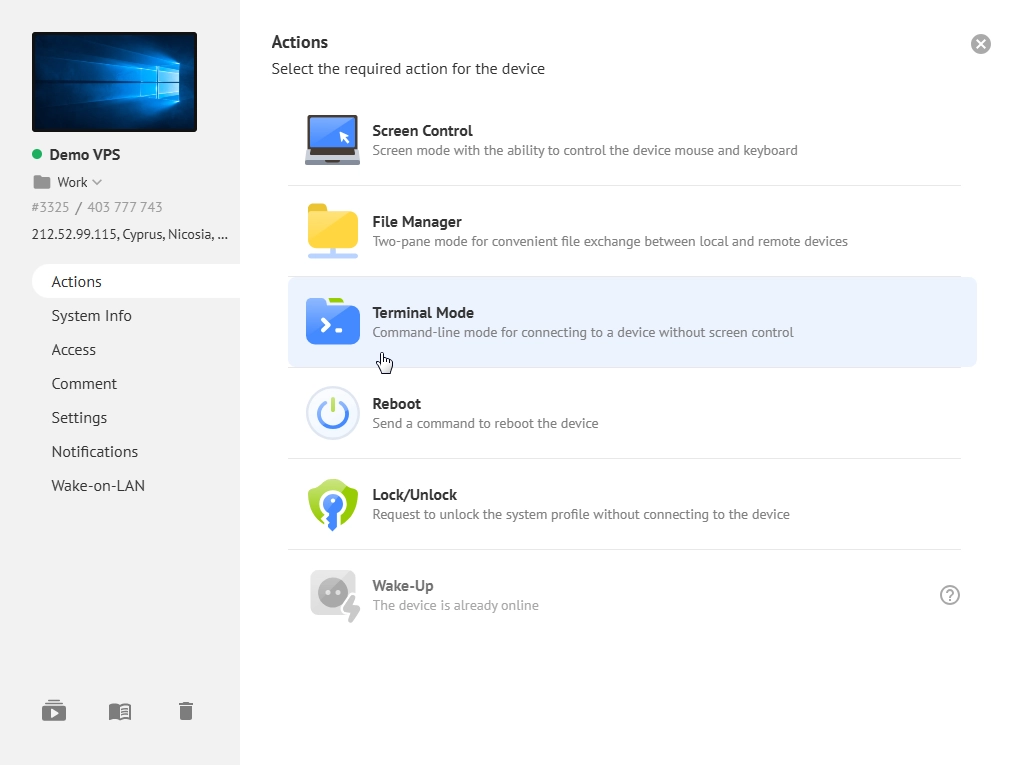
With the remote command line, specialists can:
- View and edit configuration files.
- Launch or stop processes.
- Manage services.
- Run scripts.
- Inspect system logs.
- Perform diagnostics.
- Manage user permissions.
- Monitor network activity.
A desktop session may require more time to navigate before reaching the required setting. A terminal command often produces the same result in seconds. It turn out to be a huge advantage for managed service providers, internal IT teams, and help desks supporting large numbers of endpoints.
Working Directly From the Command Line
A common support request involves an application that suddenly becomes unresponsive. Opening Task Manager remotely is one option. Using Terminal Mode is often faster.
Let’s say, you need to inspect active processes on Linux or macOS-powered remote devices. A technician can immediately inspect active processes via simple commands without opening a single desktop window:
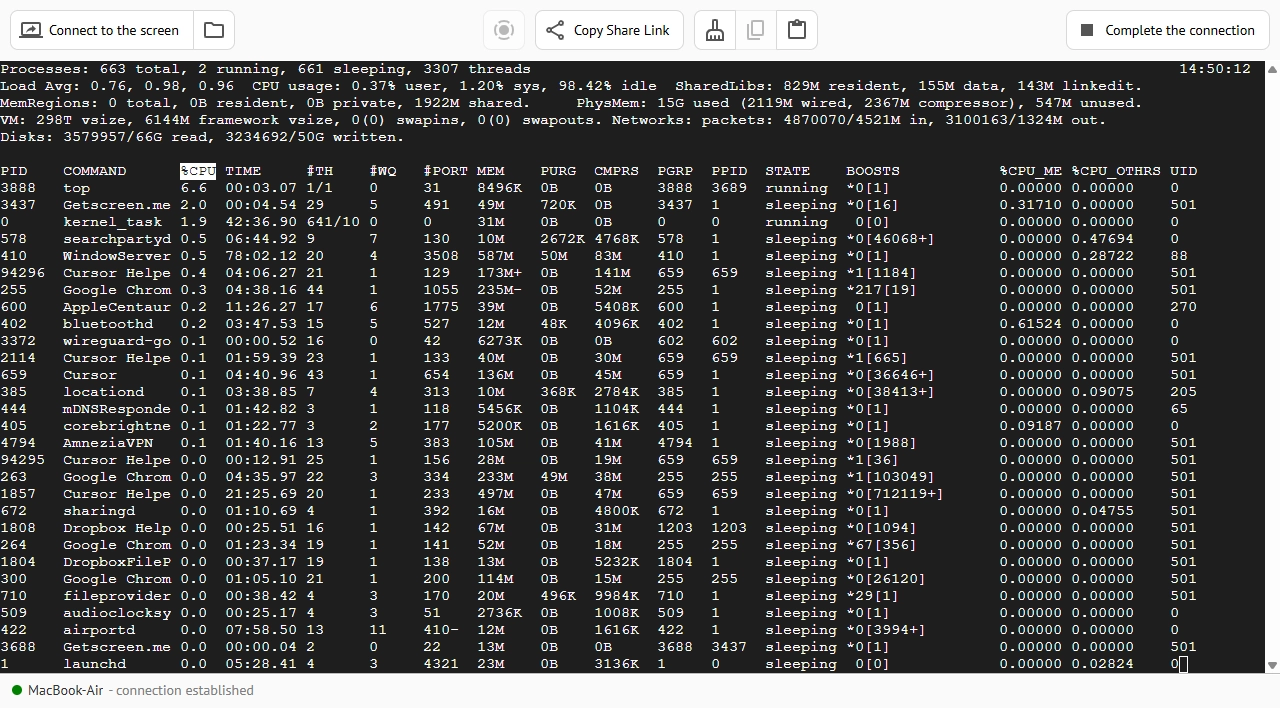
The process consuming excessive resources becomes visible instantly.
On Windows, PowerShell provides similar visibility. For instance, you may need to stop a specific running application instantly:
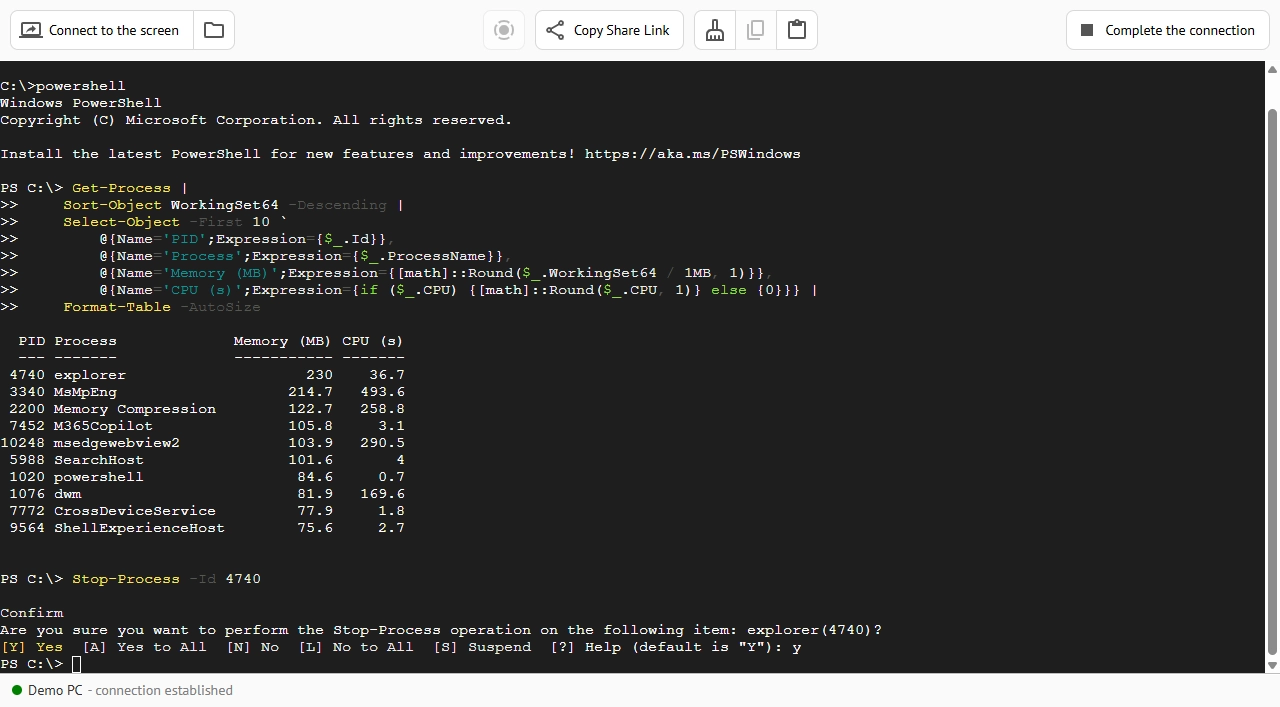
Teams can quickly resolve issues without opening a single desktop window.
The result
Terminal Mode reduces the number of steps required to diagnose and resolve common problems. Technicians reach the source of an issue faster, avoid interrupting users, and spend less time navigating graphical interfaces.
Registry Editor: Fixing Hidden Problems on Windows
Many Windows issues originate from incorrect registry values. Software installations may result in invalid entries. Security policies are often corrupted. Applications fail because of incorrect configuration settings stored in the registry.
When these situations occur, technicians need direct access to the Windows Registry.
Through Terminal Mode, administrators can review and modify registry settings remotely without taking control of the user's desktop. Specialists may connect directly during the remote session or from the remote access dashboard.
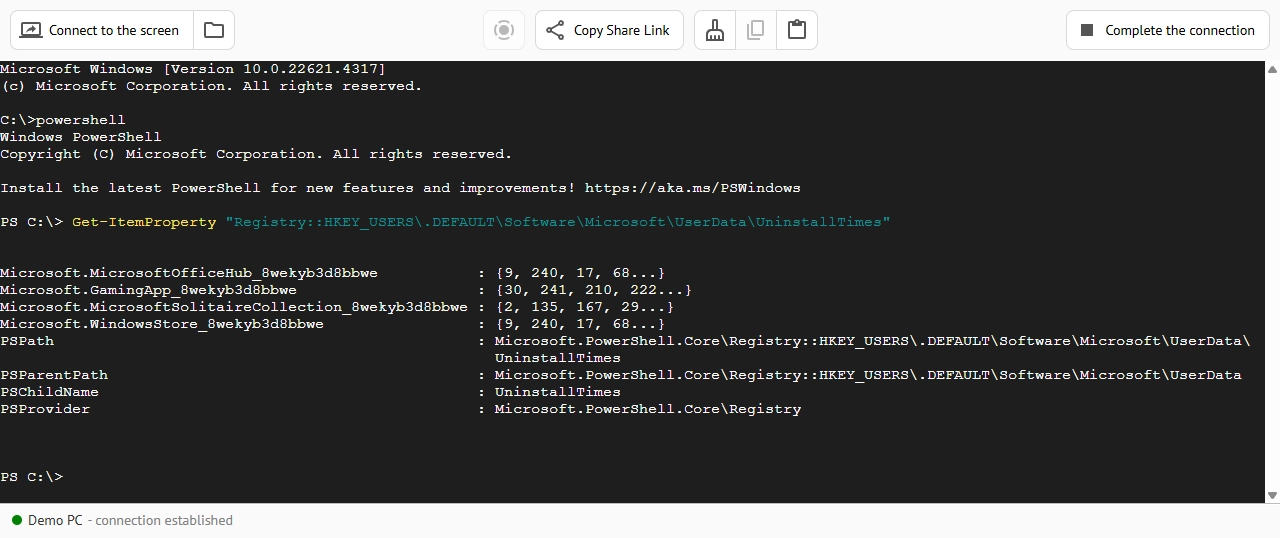
Example
Imagine a company that deployed a business application to hundreds of remote workstations. After an update, a group of users cannot launch the application. Investigation reveals that a registry key contains an outdated path to a configuration file.
Instead of starting remote desktop sessions one by one, technicians can quickly locate the affected registry value, update the configuration, and restore functionality. The problem is resolved without requiring user involvement.
The result
Registry access allows technicians to solve configuration problems at their source. Instead of time-consuming desktop sessions, teams fix issues in minutes, reducing downtime and improving support efficiency.
Script Execution: Solving Problems Across Multiple Devices
Manual troubleshooting only works for isolated incidents. When it comes to a bigger IT-infrastructure with a larger number of remote devices, teams may need a sort of automation. This is where script execution may come in handy. It allows technicians to perform repetitive tasks automatically.
PowerShell scripts on Windows and shell scripts on Linux or macOS can execute dozens of actions in seconds.
Using Terminal Mode, specialists can quickly:
- Remove temporary files.
- Restart services.
- Collect diagnostics.
- Update configurations.
- Install software.
- Check system health.
- Generate reports.
Example
A help desk receives reports that a VPN client is failing after a recent update. The root cause is identified quickly. A technician needs to restart the device and remove temporary files.
Without automation, technicians would have to launch the same procedure over and over on every affected remote device. With Terminal Mode, a script can perform the entire fix automatically.
A simple PowerShell command can restart the required service:
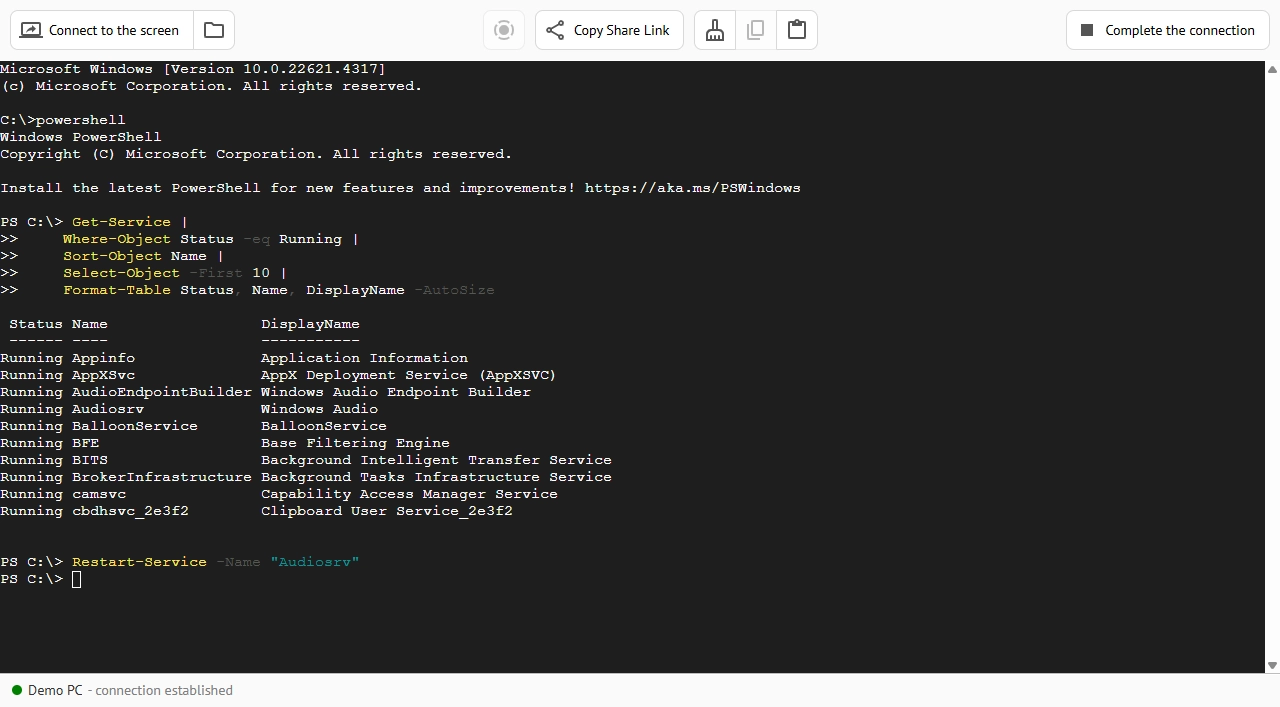
What’s more, teams can add additional cleanup commands and execute them remotely.
The result
Script execution eliminates repetitive work. Technicians spend less time performing routine maintenance and more time solving complex problems. Support teams can resolve incidents consistently across hundreds or thousands of devices.
System Data: Working With Logs, Core Files, and Temporary Data
Often teams need to examine system-level information. Logs reveal exactly why an application crashed. Configuration files show how a service is configured. Temporary files may expose failed updates or corrupted installations.
Terminal Mode provides direct access to this data. Technicians can browse directories, inspect log files, review configurations, and remove unnecessary temporary files without launching a desktop session.
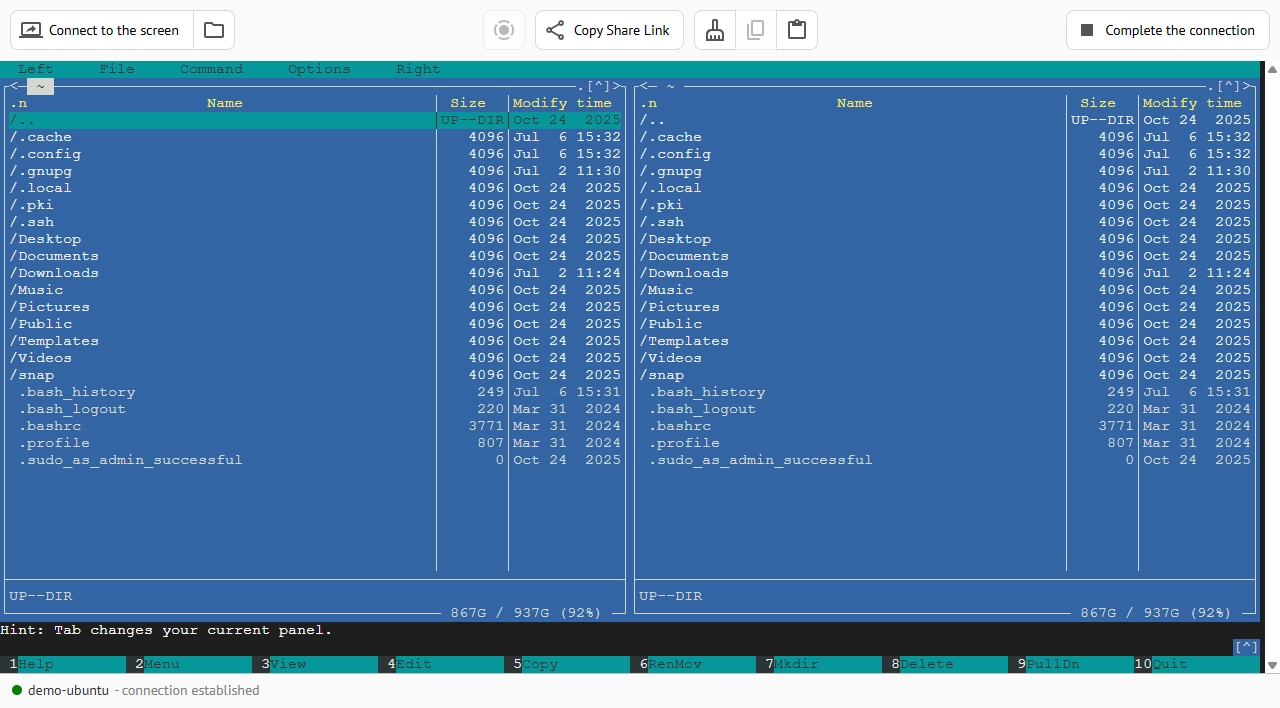
On Linux, administrators often investigate issues through log files located in /var/log directories. On Windows, diagnostic information can be collected from event logs, application logs, and system directories.
Example
A remote user reports that a business application closes unexpectedly every morning.
It is hard to reproduce the issue during a live support session. A technician accesses the device through Terminal Mode and reviews system logs. The logs reveal that a scheduled background task modifies a configuration file each morning.
A specialist makes necessary corrections to the task and the application becomes stable. Without direct log access, the investigation could take hours or even days.
The result
Access to logs, configuration files, and temporary data significantly reduces troubleshooting time. Technicians can identify root causes instead of relying on assumptions or user descriptions.
Device Management and Hardware Diagnostics
Hardware-related incidents often require information that users cannot easily provide. Terminal Mode allows technicians to retrieve detailed device information directly from the operating system and easily locate a problematic device:
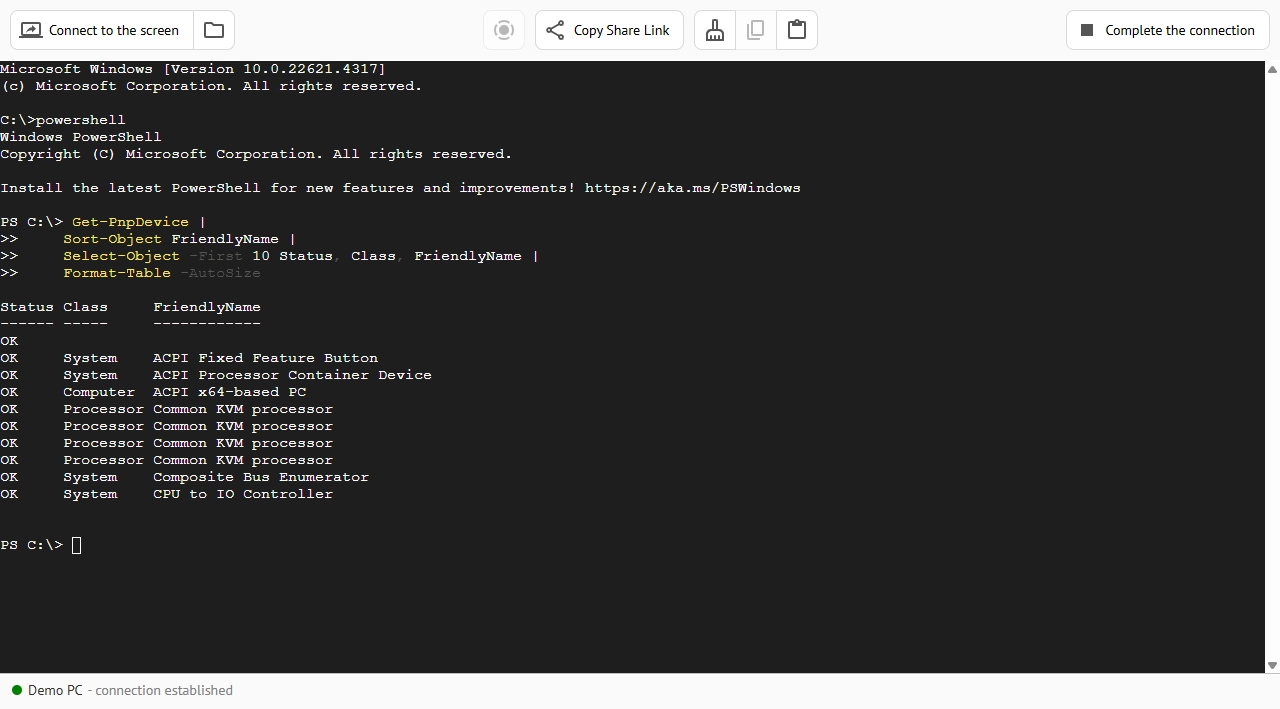
On Windows, PowerShell can display installed hardware. The output includes:
- Device names.
- Manufacturers.
- Status information.
- Device identifiers.
- Driver-related details.
A technician can quickly identify hardware conflicts, missing drivers, or malfunctioning devices without asking users to open Device Manager.
The result
Hardware diagnostics become faster and more accurate. Support teams gain direct visibility into device status and can resolve driver-related issues remotely.
Collaboration Through Shared Terminal Sessions
Complex incidents require multiple specialists to dig in. With Terminal Mode, several specialists can work within the same terminal session simultaneously. One engineer can investigate logs while another reviews configurations or validates commands.
This approach is especially useful for:
- Escalated incidents.
- Security investigations.
- Infrastructure troubleshooting.
- Technician training.
- Audit activities.
The result is faster problem resolution and more efficient teamwork.
Why Terminal Mode Matters for Modern Remote Support
Many technical issues occur inside processes, services, configuration files, system logs, registry settings, and automation scripts. Accessing these areas through a traditional desktop session often introduces unnecessary delays.
Terminal Mode gives technicians a faster path to the root cause of a problem. Commands execute instantly. Scripts automate repetitive tasks. Logs and configurations remain accessible from anywhere through a browser.
Most importantly, technicians can work without disrupting the user.