Share Screen: Free Remote Access in Just a Few Clicks
When the system goes down, every minute matters. Meanwhile, every extra step slows down remote support. Installing complex software, creating accounts, or configuring devices can quickly turn a simple technical request into a time-consuming experience.
Screen Sharing in Getscreen.me is designed to eliminate this bottleneck.
First of all, it is a completely free feature that lets you establish secure, one-time remote access in just a few clicks. Whether you're an IT technician helping a customer, an employee assisting a colleague, or simply supporting a friend or family member, you can start a remote session instantly without complicated setup.
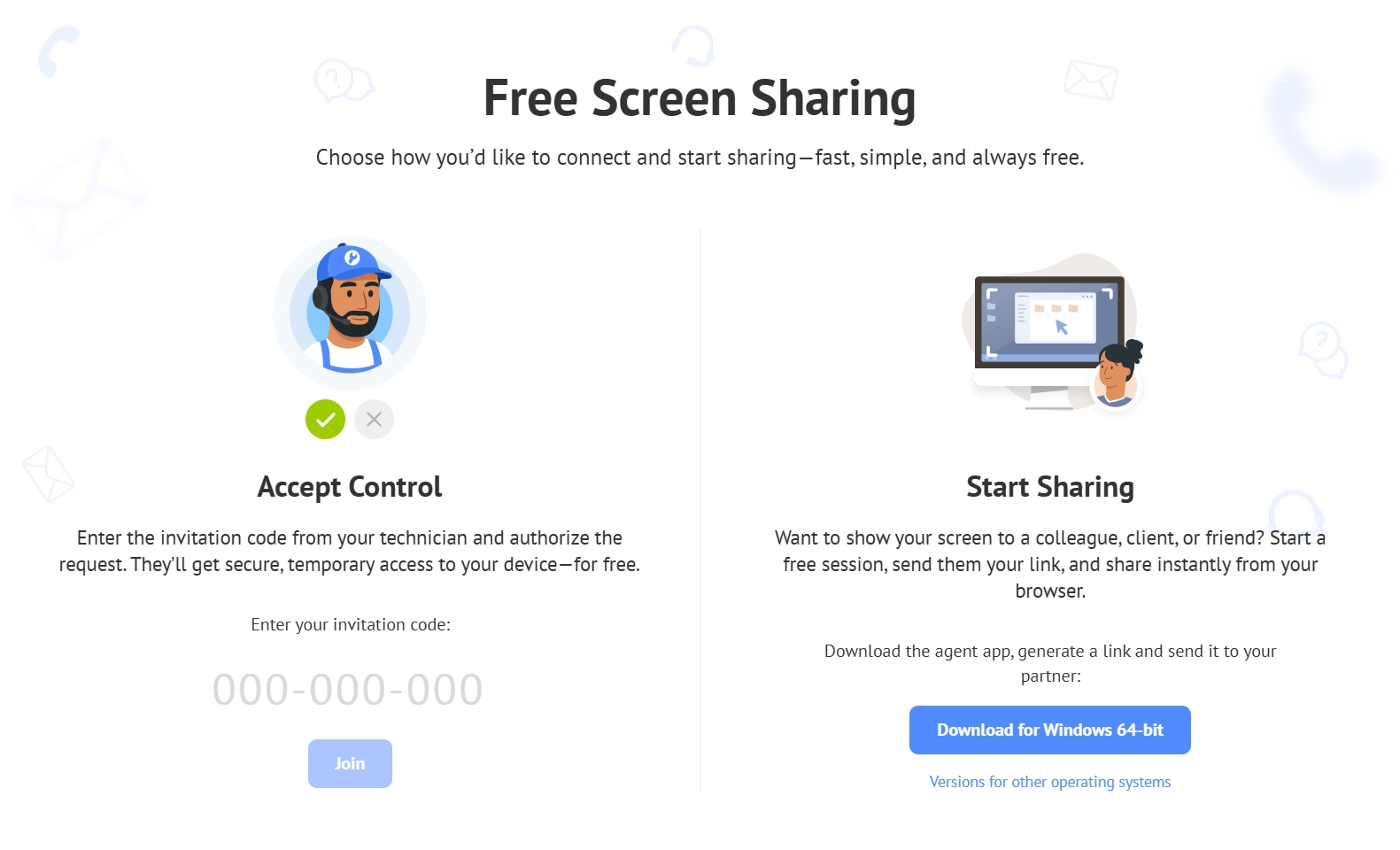
Depending on the situation, either the technician can initiate the connection by sending an invitation, or the user can start sharing their own screen and invite someone to join. Both workflows are fast, secure, and designed to get people connected as quickly as possible.
What Is a Share Screen Feature?
It is the Getscreen.me's free feature for establishing one-time remote access sessions without configuring permanent access to a device.
Unlike permanent remote access, Share Screen is intended for situations where access is only needed once. The session exists only for the duration of the remote support request or collaboration. It gives users full control over when access begins and when it ends.
This makes Screen Sharing ideal for:
- technical support;
- troubleshooting;
- software demonstrations;
- training sessions;
- simply helping someone solve a problem remotely.
Depending on who starts the session, there are two equally convenient ways to connect:
- The technician creates an invitation and sends it to the user.
- The user starts sharing their screen and invites another person to join.
Both approaches follow the same principle: establish secure remote access with as few actions as possible.
The Value
For organizations, this means faster support without unnecessary administrative work. For users, it means receiving help without installing full-featured remote access software or changing their device configuration.
Two Simple Ways to Start a Remote Session
Share Screen is flexible. Different situations call for different workflows, so Getscreen.me supports both.
User-Initiated Screen Sharing
Sometimes the user doesn't need a technician to create the session. They simply want to share their screen with someone else.
In this case, free Screen Sharing works in the opposite direction. The user runs the Getscreen.me agent, starts a free remote session, and generates a secure one-time link to grant access. Last thing is to send it to a colleague, client, friend, or family member.
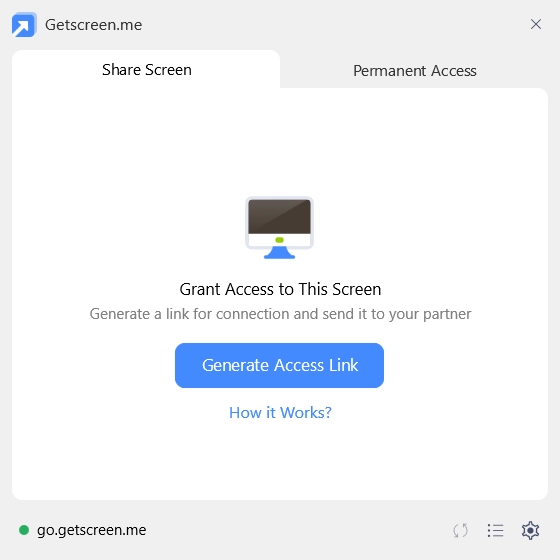
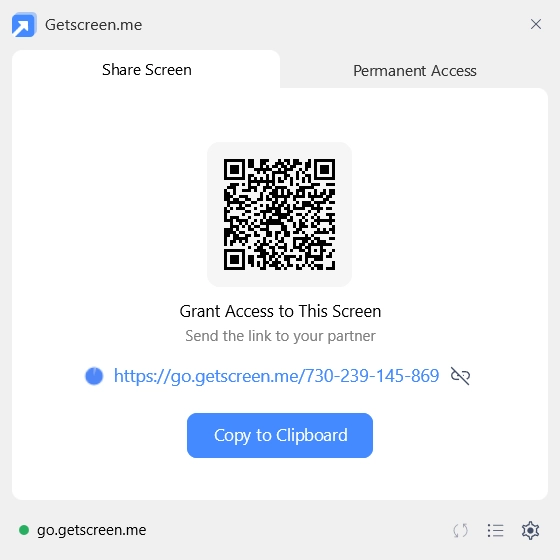
The invited person joins directly from a browser. The remote access session starts immediately. What’s more important, users stay in complete control when configuring access settings. They decide when screen sharing starts, who receives access, what rights and permissions to grant, and when the session ends.
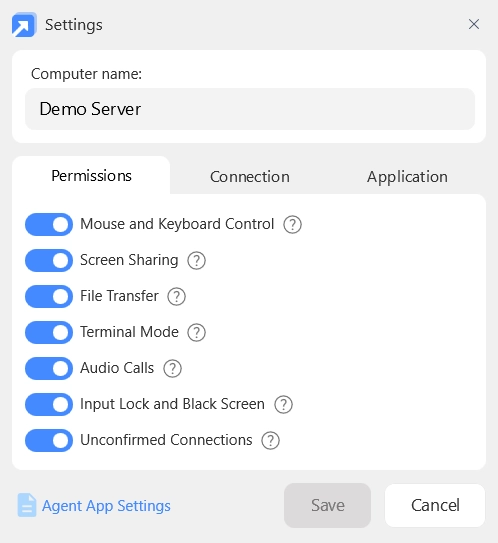
Whether you're showing a presentation, asking for technical advice, or helping someone troubleshoot an issue, starting a remote session becomes as simple as sending a link.
If a support specialist is a registered Getscreen.me technician, he can simply read the one-time numeric code displayed in the agent application over the phone or in a voice call instead of sending the full-length link. The technician enters this code to initiate the immediate Quick Support session.
For Users
The process requires almost no technical knowledge. There are no complicated IDs to exchange, no network settings to configure, and no permanent software installation.
Technician-Initiated Support
The technician creates an invitation in Quick Support and sends it to the client. Depending on how they're communicating, the invitation can be shared in several ways:
- as an invitation link through email or a messenger;
- as a numeric invitation code over the phone;
- through an embedded invitation form on the company's website.
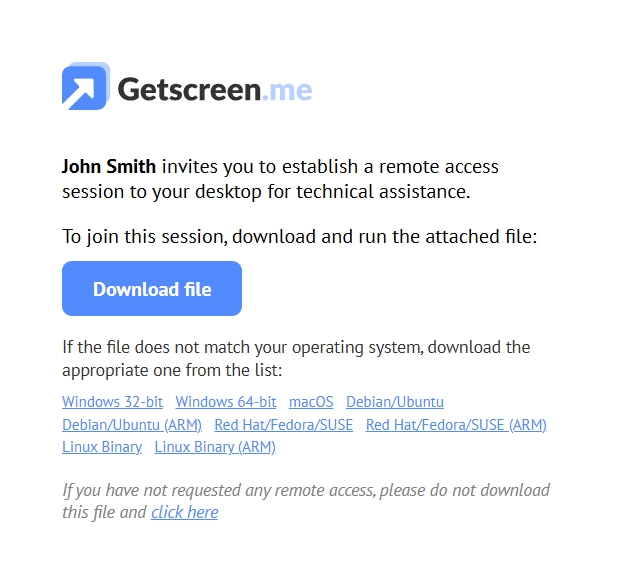
If the invitation is sent as a link, the client simply opens the invitation page, downloads the attached lightweight agent application, and runs it. Once the client authorizes the request, the remote session is initialized automatically.
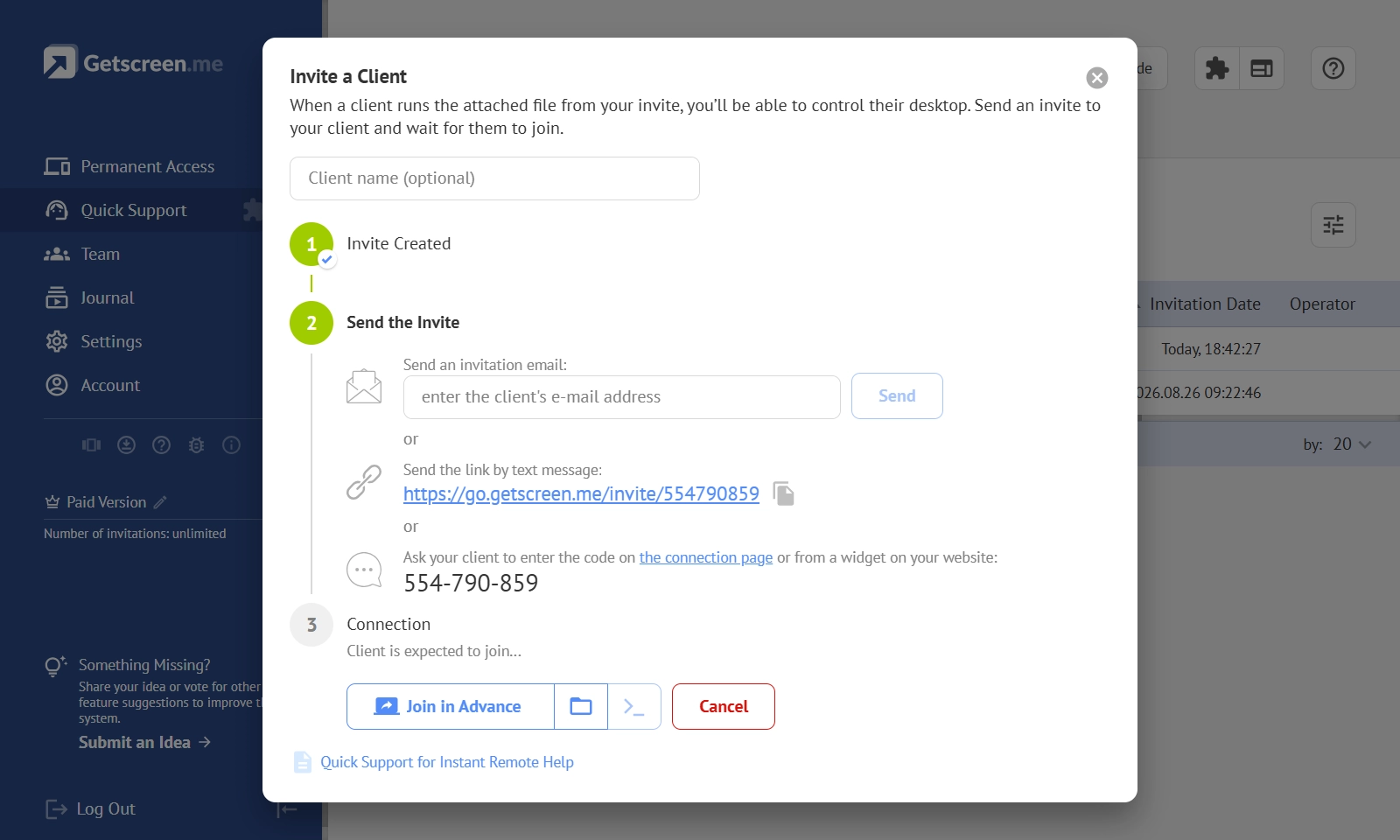
If the technician and client are speaking over the phone, there's an even simpler option. Instead of sending a link, the technician can dictate a numeric invitation code. The client enters it on the Share Screen page, opens the same invitation, and proceeds with the connection.
For Technicians
The feature removes guiding users through connection procedures before troubleshooting can even begin.
Real-Life Scenario: Emergency IT Support
Imagine an employee working remotely who suddenly runs into a problem after installing a Windows update. Several business applications stop responding just before an important meeting.
Instead of waiting for an invitation from the IT department, the employee launches the Getscreen.me agent and starts a free Share Screen session. The application immediately generates a secure one-time link and a numeric session code.
The employee sends the link to the IT technician through the company's messenger. If they're already speaking over the phone, they can simply dictate the one-time code instead. The technician enters the code in the Quick Support section of their Getscreen.me account and joins the session within seconds.
With immediate access to the employee's screen, the technician can diagnose the issue, identify the faulty update, restart the required services, reboot the computer if necessary, and confirm that everything is working correctly before ending the session.
Instant Support
Employees no longer have to wait for the technician to prepare or send an invitation. They can initiate the support session themselves as soon as the problem appears. It allows the IT team to connect faster and minimize downtime.
Real-Life Scenario: Helping Family or Friends
Imagine your family member accidentally changes several Windows settings and can no longer find every-day applications. Trying to solve the problem over the phone quickly becomes confusing for both of you.
Instead, you can connect remotely within seconds, restore the settings, restart the computer if needed, and make sure everything works properly before ending the session.
24/7 Access
The same approach works in countless everyday situations. A student traveling abroad can ask a classmate for help with specialized software. Parents can receive assistance with new applications. Friends can troubleshoot computer issues together without needing to be in the same room.
Final Thoughts
A Share Screen feature puts users in control of the connection process. Instead of waiting for a technician to create an invitation, they can start a secure remote session themselves, generate a one-time link or code, and invite the right person to join within seconds.
Whether you support customers, assist colleagues, help friends, or troubleshoot a family member's computer, free Screen Sharing removes unnecessary complexity from the connection process and lets you focus on the issue.
Best of all, the tool is completely free. You can start secure, one-time remote sessions whenever you need them, making remote support faster, more accessible, and easier for everyone.