Getscreen.me Business Trial: Your Free Ultimate 14-Day Remote Access Test Drive
Choosing remote access software means finding a solution that fits your daily workflow, helps your team resolve issues faster, and scales as your business grows. The best way to understand whether a platform meets these expectations is to use it in close-to-real working conditions.
That's exactly what the Getscreen.me Free Business Trial is designed for.
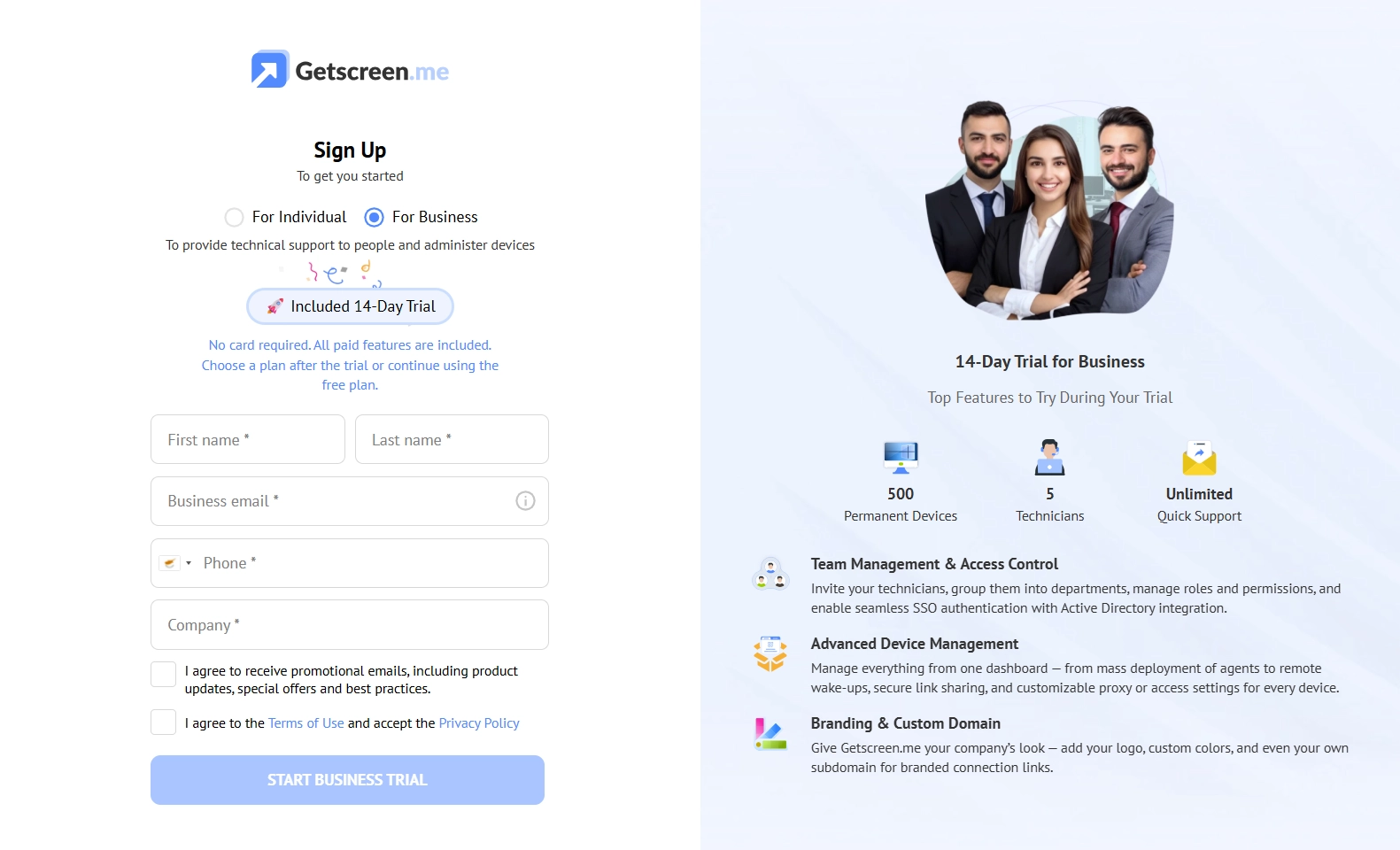
For 14 days, you get access to nearly the entire set of Business features available on the platform. Instead of exploring a limited demo, you can organize your support team, connect to remote devices, test advanced management tools, and see how Getscreen.me performs in everyday scenarios. Whether you support employees across multiple offices, manage customer devices, or provide remote assistance as an MSP, the trial gives you enough time to evaluate how the platform fits into your existing processes.
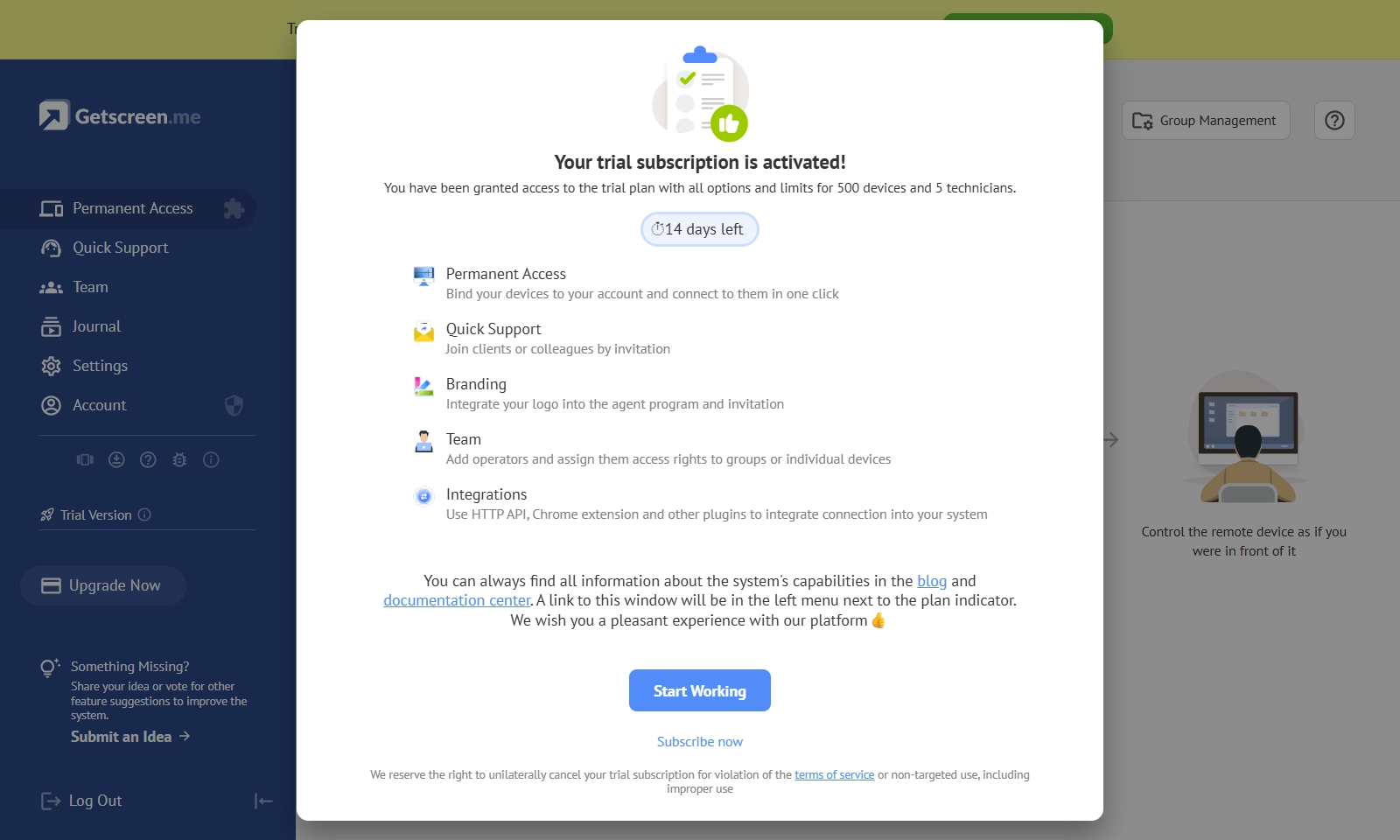
By the end of the trial, you will have a clear understanding of how Getscreen.me can simplify remote access across your organization.
In this guide, we will walk through the key Business features worth testing first. You will learn how each one helps create a faster, more organized, and more secure remote support experience.
Build an Efficient Support Team with Team Collaboration
Build an Efficient Support Team with Team Collaboration
Team Collaboration brings everyone into a single workspace where administrators can organize technicians, control access, and manage remote support more efficiently. New team members can be invited in just a few clicks, assigned to dedicated groups, and granted permissions based on their role and responsibilities. Whether someone needs full administrative privileges or access only to specific devices, every permission can be configured centrally.
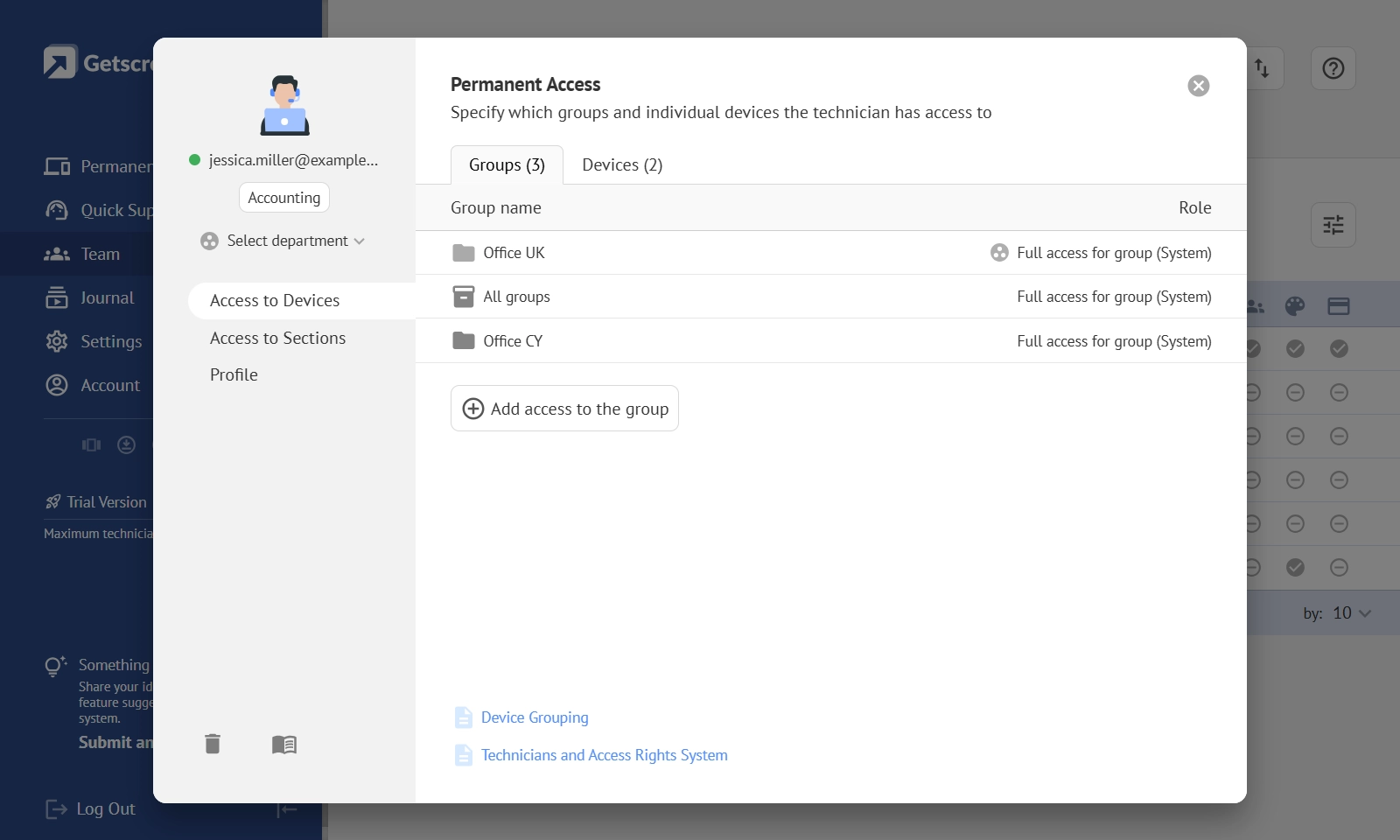
During your trial, you can explore features such as:
- Team management to invite and organize technicians in a shared workspace.
- Groups and access rights to control which devices each technician can access.
- Custom roles and permissions that match different responsibilities across your organization.
- Active Directory integration to activate existing employees and simplify user management.
- Shared device access that allows teams to collaborate without manually assigning every connection.
This centralized approach becomes especially valuable when supporting hundreds or even thousands of remote devices. Instead of manually sharing access to individual computers, teams can work within a structured environment where everyone sees only the devices and tools relevant to their role.
Managers gain better visibility into the support process, technicians spend less time on administrative tasks, and users receive assistance from the right specialist without delays.
Team Work
The trial gives a clear understanding of how Team Collaboration helps build an organized support environment where the right people always have access to the right devices, making remote support faster, more secure, and easier to scale.
Manage All Your Remote Devices with Permanent Access
Connecting to a remote device is only part of the job. As your infrastructure grows, keeping hundreds or even thousands of computers organized becomes just as important as accessing them. Without a centralized system, technicians waste valuable time searching for devices, sharing connection details, or manually configuring new endpoints.
Permanent Access creates a single workspace where every managed device is always available. Whether you are supporting office workstations, remote employees, unattended servers, or customer equipment, the entire infrastructure is displayed in one intuitive dashboard. Devices can be grouped, filtered, and accessed in just a few clicks, making daily remote administration significantly more efficient.
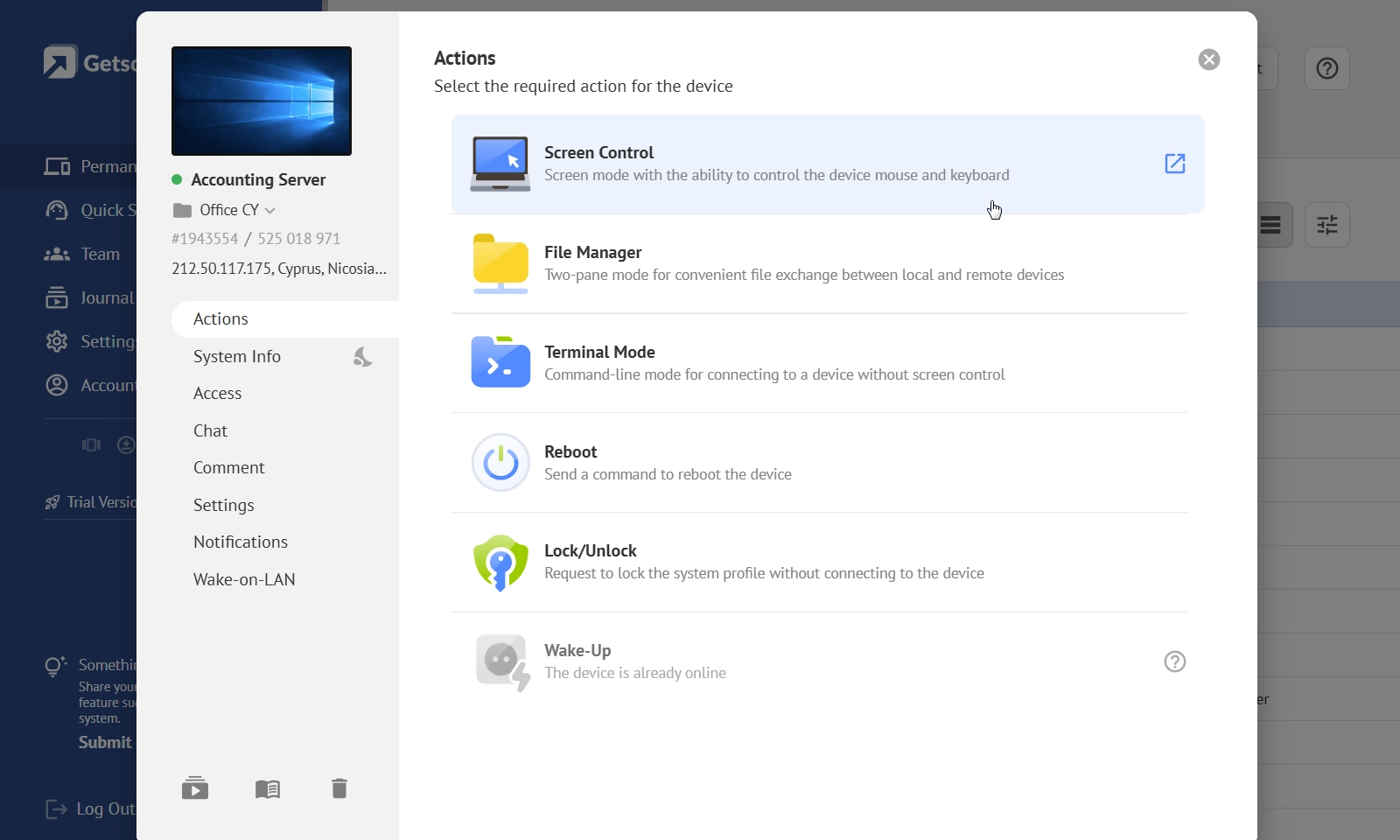
During your trial, you can explore features such as:
- Permanent unattended access to connect to devices anytime without requiring user interaction.
- Device groups and filters to organize computers by department, location, customer, or any structure that matches your business.
- Mass Deployment to install the agent on multiple devices simultaneously, saving hours of manual setup.
- Centralized device management that keeps your entire infrastructure accessible from a single dashboard.
- Flexible access settings to control how technicians connect to different devices across your organization.
As your environment expands, these tools help maintain a clear and organized remote access infrastructure. Instead of treating every connection as an isolated session, your team works with a structured inventory of devices that is always available and easy to navigate. New endpoints can be deployed quickly, existing devices remain organized, and technicians spend less time on administration and more time solving real support requests.
Permanent Access
You can explore how Permanent Access transforms remote support from occasional connections into a scalable management system that grows alongside your business.
Deliver Instant Assistance with Quick Support
Not every support request requires permanent access. Employees may need occasional assistance, customers might contact your help desk for a one-time issue, or technicians may need to connect to a device they've never seen before. In these situations, the biggest challenge is often establishing the connection itself. Explaining where to download software, how to configure it, or which settings to change can take longer than resolving the actual problem.
Quick Support eliminates unnecessary steps. Instead of walking users through a lengthy setup process, technicians can invite them to a remote session in just a few clicks. The connection starts through a secure invitation, allowing support teams to focus on solving problems rather than explaining how to establish a connection.
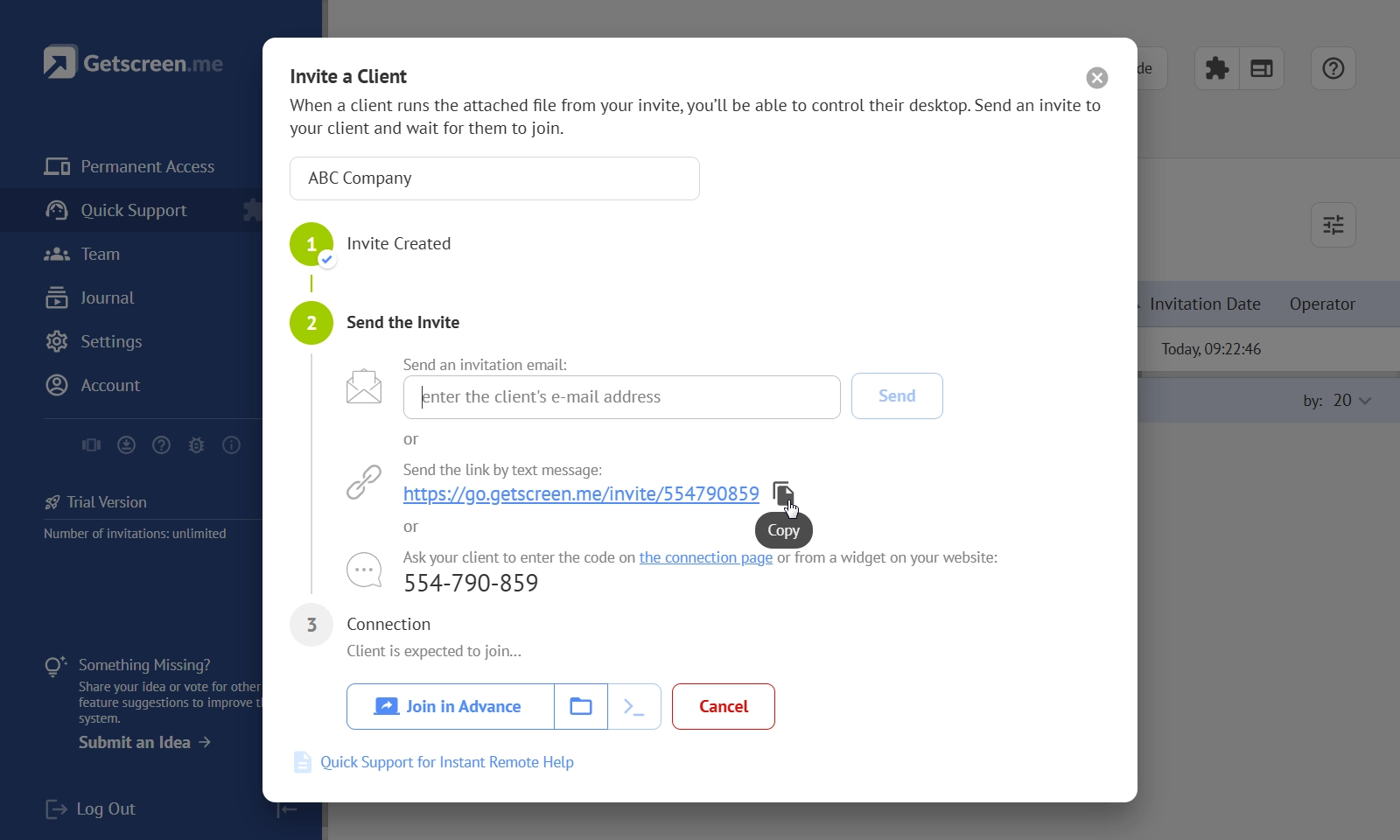
During your trial, you can test features including:
- Invitation links that can be shared via email, chat, CRM systems, help desk platforms, or any messenger.
- One-time invitation codes for situations where sending a link isn't practical, such as phone support.
- Agent-generated session codes that allow users to simply launch the application and provide a temporary code, creating a familiar workflow for clients migrating from other remote support solutions.
- Centralized invitation management where technicians can track active, pending, and completed support requests from a single dashboard.
- Chrome Extension for creating and managing invitations directly from the browser without switching between applications.
- Custom invitation widget that integrates remote support into your own website, customer portal, or internal service desk.
- Branding options that customize invitation pages, agent applications, and connection links with your company's identity to increase user trust.
- Built-in auto-translation that helps technicians communicate with users in different languages during remote support sessions.
Together, these tools create a smoother support experience for both technicians and end users. Instead of wasting time on setup instructions, users can join a remote session almost immediately while support teams manage every request from a single, organized workspace. As support volumes increase, invitation management, branding, and workflow automation help teams stay efficient without adding complexity.
Quick Support
Learn how Quick Support shortens response times, simplifies one-time remote assistance, and creates a more professional support experience from the very first interaction.
Advanced Business Features for Remote Support
Technicians often need to transfer files, execute commands, control user permissions, or integrate remote access into existing business systems. Getscreen.me includes a range of advanced tools that help support teams work more efficiently without relying on additional software.
During your trial, make sure to explore the following Business features:
Screen Control
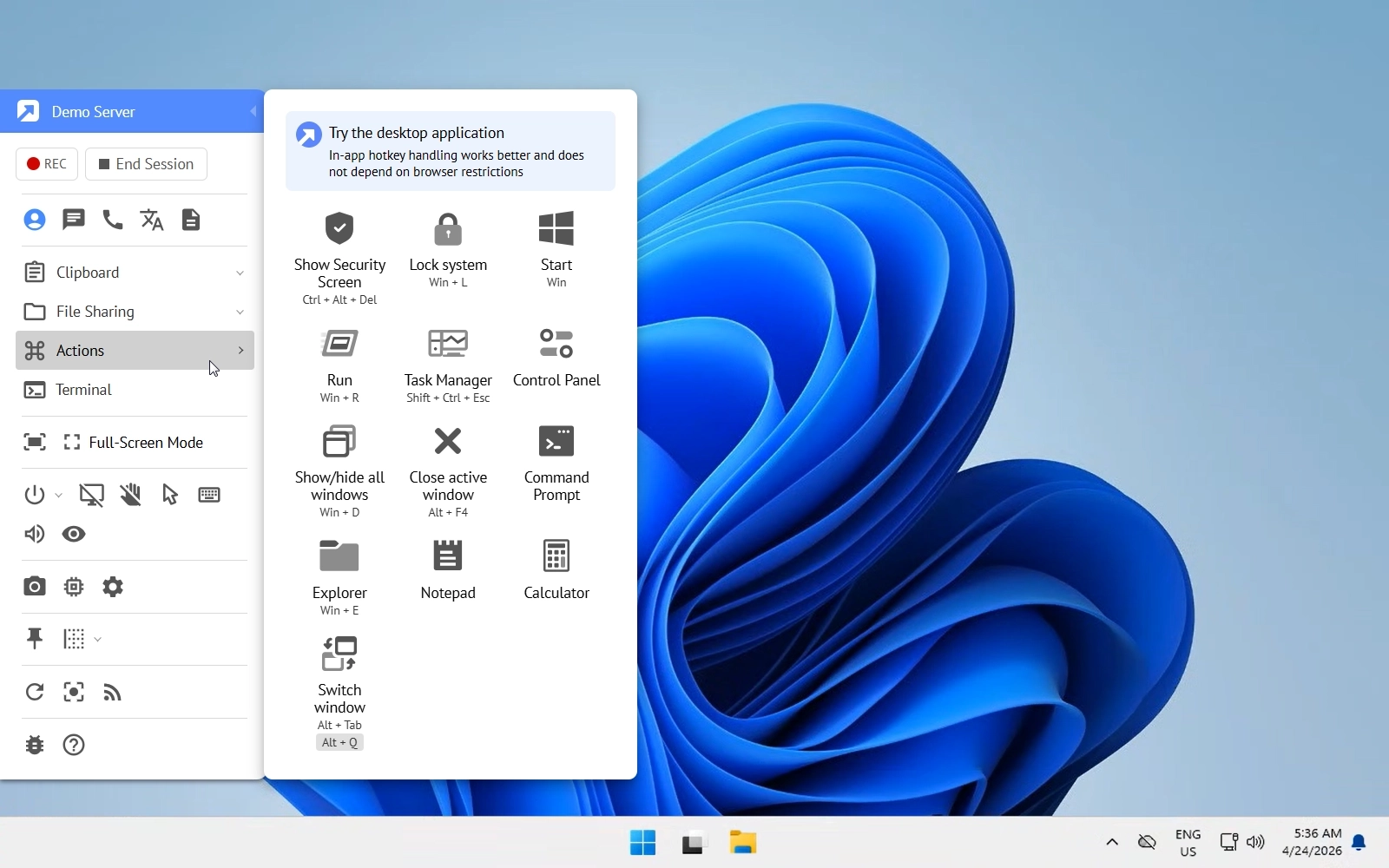
It gives administrators complete flexibility over remote sessions. You can decide who is allowed to view a screen, control a device, or manage access permissions for different users. This helps organizations maintain security while ensuring technicians always have the level of access they need.
File Manager
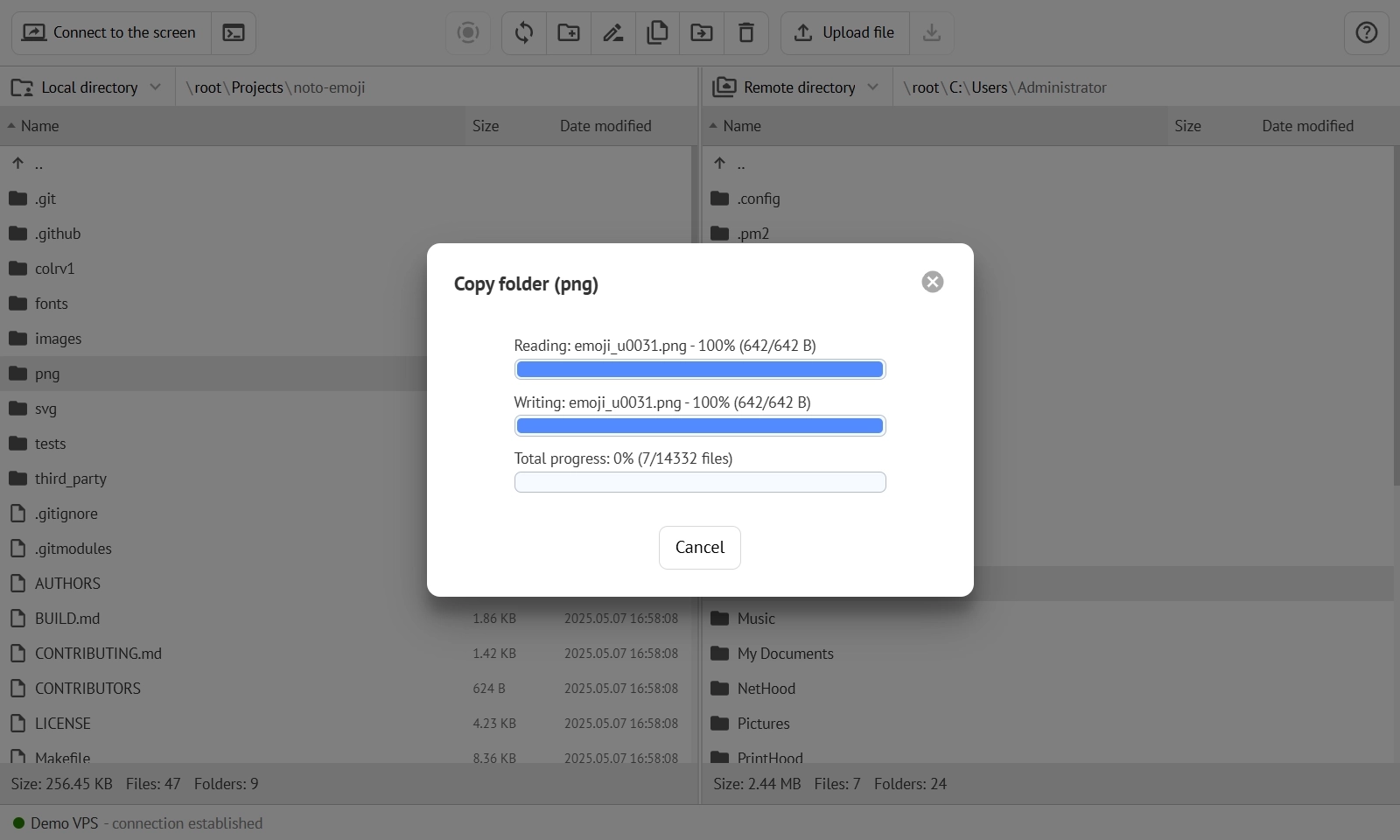
The feature allows technicians to upload, download, copy, move, rename, or delete files on remote devices through a dedicated interface. Since many routine support tasks involve replacing configuration files, collecting logs, or delivering software updates, file management becomes much faster without interrupting the remote session.
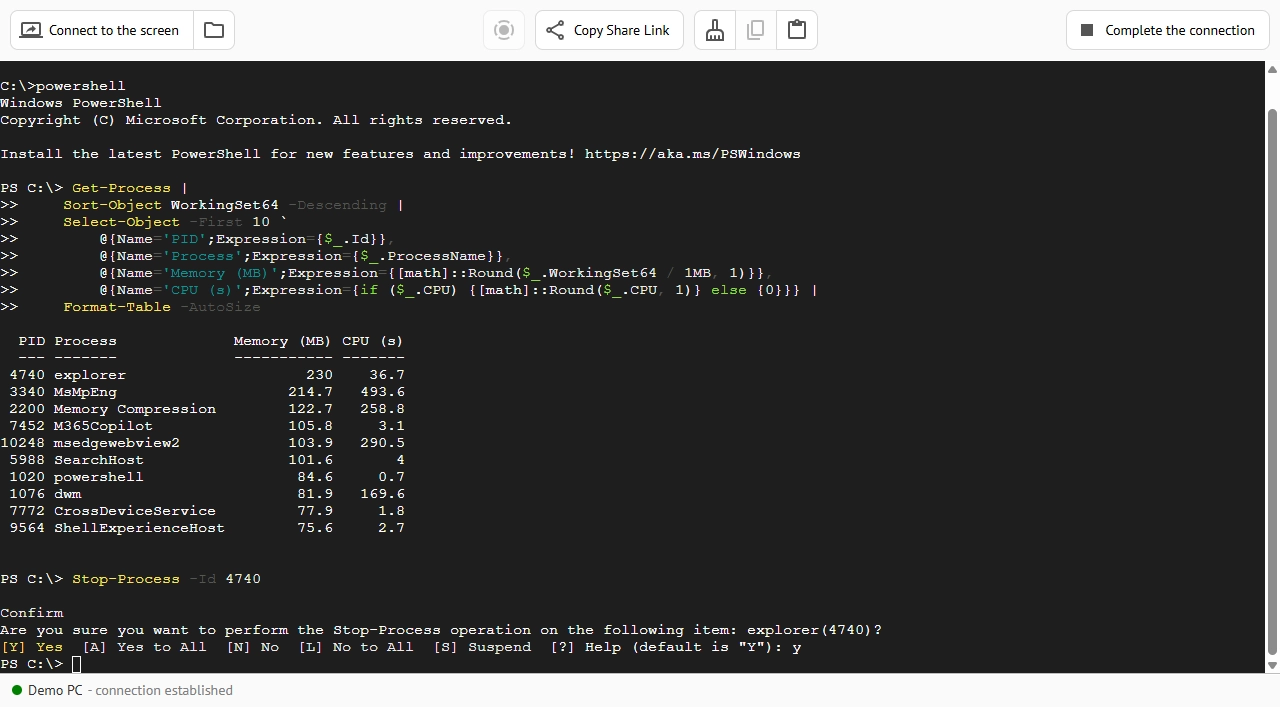
Terminal Mode
It provides direct command-line access to Windows devices without opening a full graphical desktop. It is ideal for system administrators who need to run scripts, troubleshoot services, edit configurations, or perform routine maintenance while using fewer system resources.
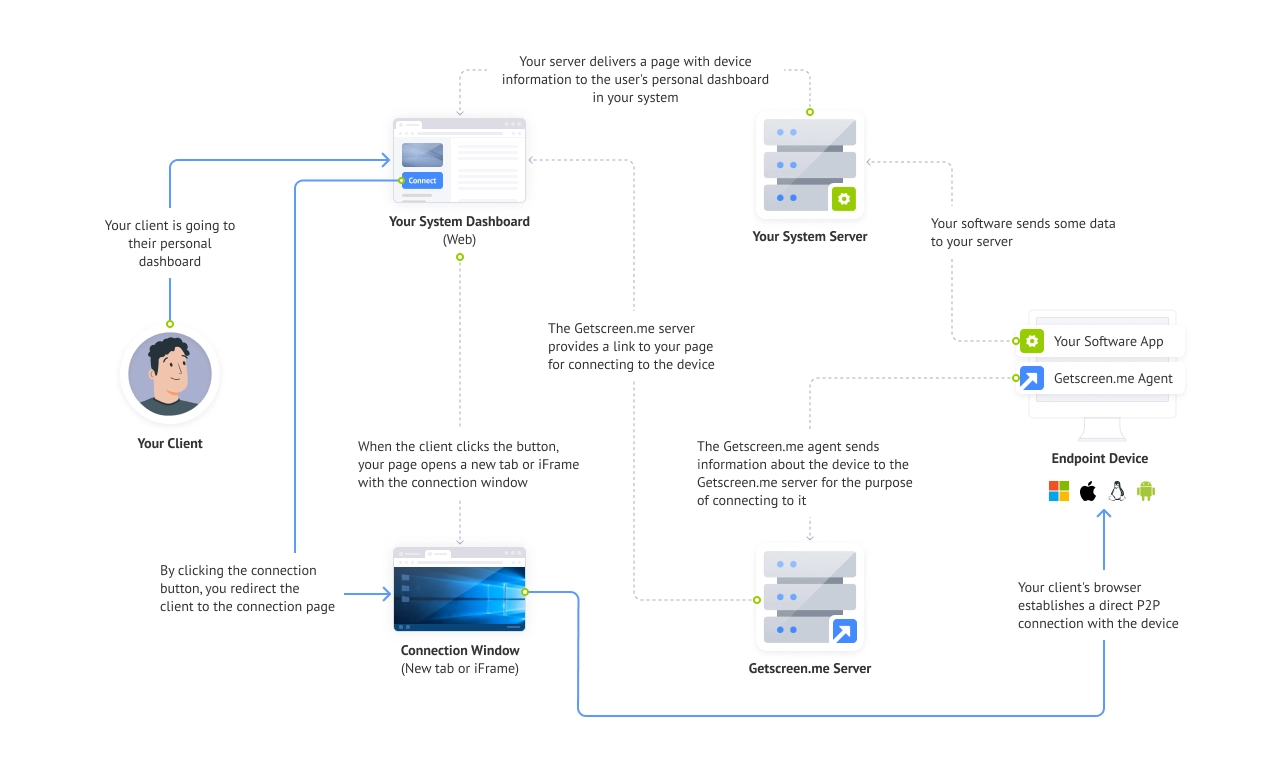
OEM Integration
Companies can embed Getscreen.me directly into their own products, customer portals, or support platforms. Instead of switching between different applications, technicians can launch remote sessions from the systems they already use, creating a seamless experience for both support teams and customers.
Each of these features addresses a different stage of the remote support process, but together they create a more efficient workflow. Technicians can resolve issues faster, reduce manual work, and adapt Getscreen.me to fit the way their organization already operates instead of changing established processes to accommodate a remote access tool.
Extra Features
By the end of your trial, you'll have explored not only how Getscreen.me connects to remote devices, but also how it helps your team diagnose, manage, and resolve issues using a complete set of professional remote support tools.
Understanding the Free Business Trial Limitations
The Getscreen.me Free Business Trial is designed to give you a realistic experience with the platform's Business features. At the same time, a few limitations are in place to ensure remote sessions remain secure while you are evaluating the service.
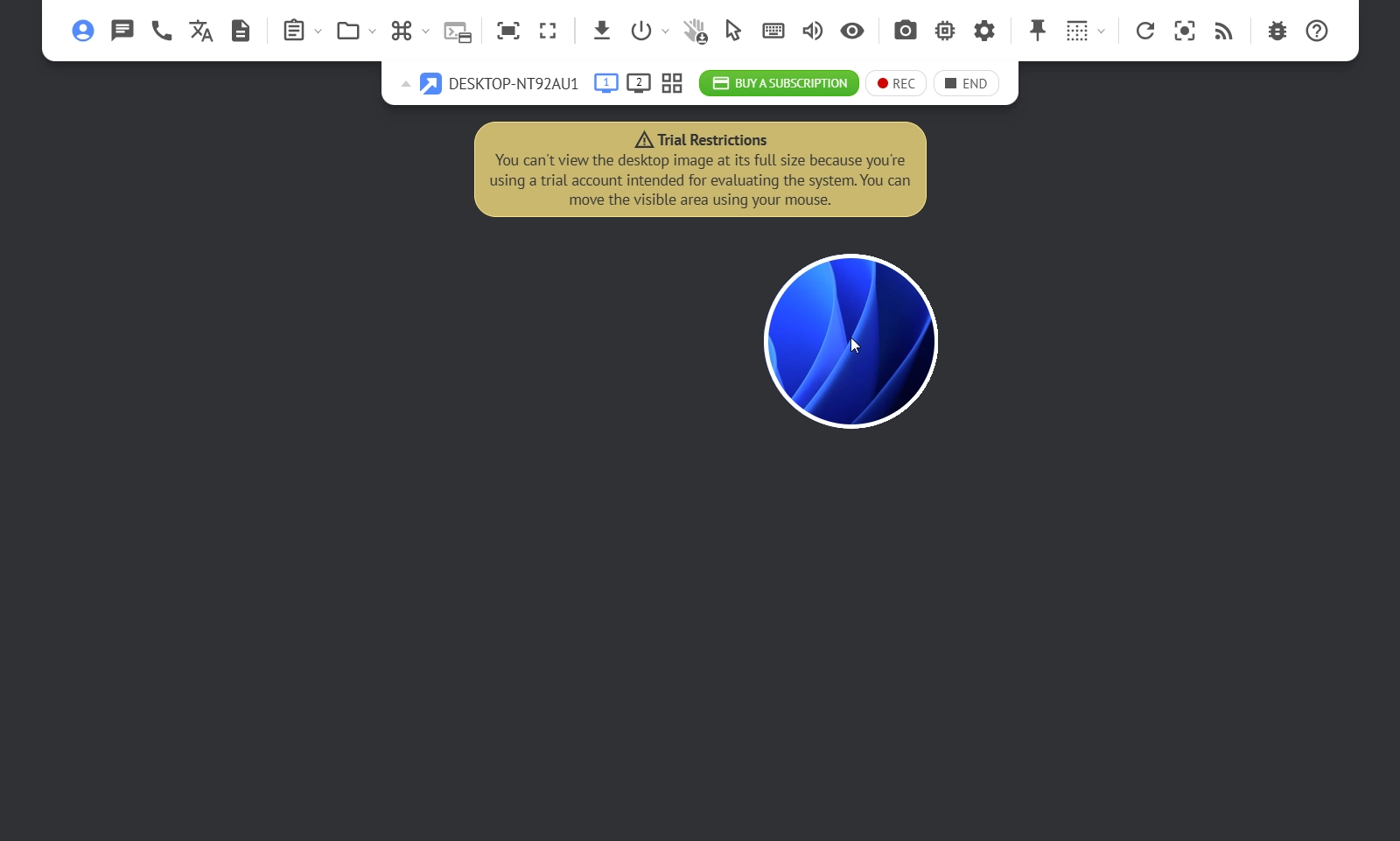
For instance, you cannot use Terminal Mode during the free trial. Additionally, a user will also see a notification in the agent saying that an operator trying to connect uses a trial version. Last but not least, a free trial limits the Quick Support feature letting you observe only a small part of the connected device's screen.
Despite limitations, you get a clear vision of how the system works and what features are on the line. The trial expires in 14 days. This gives your team enough time to build a real remote support workflow, test advanced features in everyday scenarios, and decide whether the Business plan meets your organization's needs.
You will notice that both the dashboard and the remote agent display clear notifications indicating that you're using a trial version. When a technician creates a Quick Support session, the user connecting to the device also sees a message reminding them to grant remote access only if they recognize and trust the person requesting the connection.
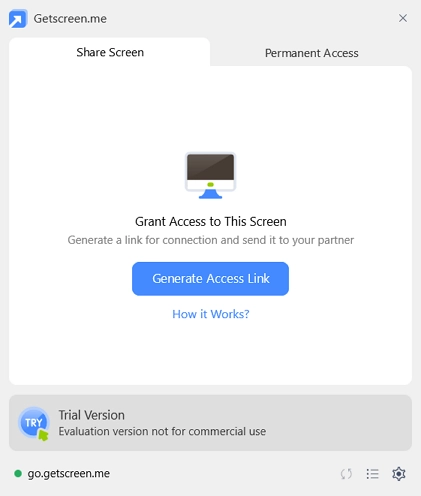
These notifications are an important part of secure remote access. During the trial, Getscreen.me has no way of verifying relationships between technicians and end users, so these warnings help reduce the risk of unauthorized connections and encourage users to confirm the identity of anyone requesting access to their device.
You will also encounter several technical limitations during Quick Support sessions. For example, only part of the remote screen is visible while using the trial. These restrictions are intentional and exist to prevent the trial from being misused while still allowing you to evaluate how the platform works, explore its interface, and test your support workflows.
Despite these safeguards, you will still be able to experience the core Business functionality, organize your support team, manage remote devices, establish secure connections, and evaluate the tools your technicians will use every day. Once you upgrade to a paid Business plan, these trial restrictions are removed, giving your team access to the complete remote support experience.