How the Getscreen.me Access Rights System Helps IT Teams Manage Remote Support
IT teams sometimes need to decide which technicians can access specific devices, which tools they can use, and how to grant temporary access to people outside the team. These requirements become more complex as the number of supported devices, departments, and technicians grows.
Getscreen.me includes an Access Rights System that helps administrators manage these scenarios from one place. They can assign permissions to individual technicians or entire departments, define available actions through roles, and provide access to external operators without requiring them to join the team.
The system supports four access methods: Team Access, Public Access, One-Time Access, and Cross-Team Access. Each serves a different purpose, from routine maintenance of company computers to a one-off troubleshooting session with an external specialist.
Team Access for Technicians and Departments
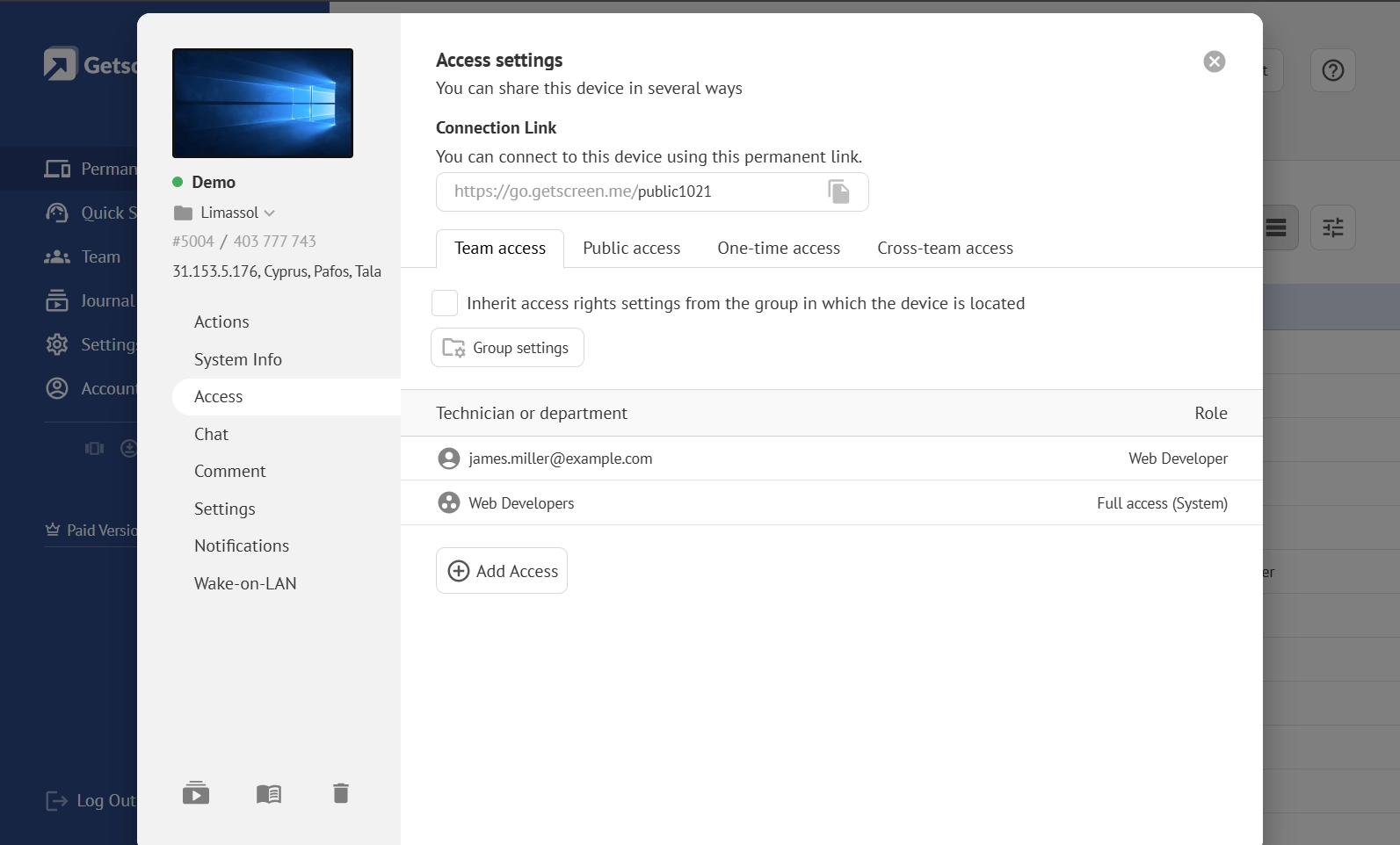
Team Access is designed for organizations that use Getscreen.me to support multiple devices and distribute work among technicians. Instead of sharing the same access with everyone, administrators can decide which devices or groups each team member can work with and what actions they can perform.
Organize Devices into Groups
Device groups help administrators structure remote infrastructure according to the organization's needs. For example, an IT department might create separate groups for office computers, point-of-sale terminals, servers, and devices at branch locations. A managed service provider could organize devices by customer.
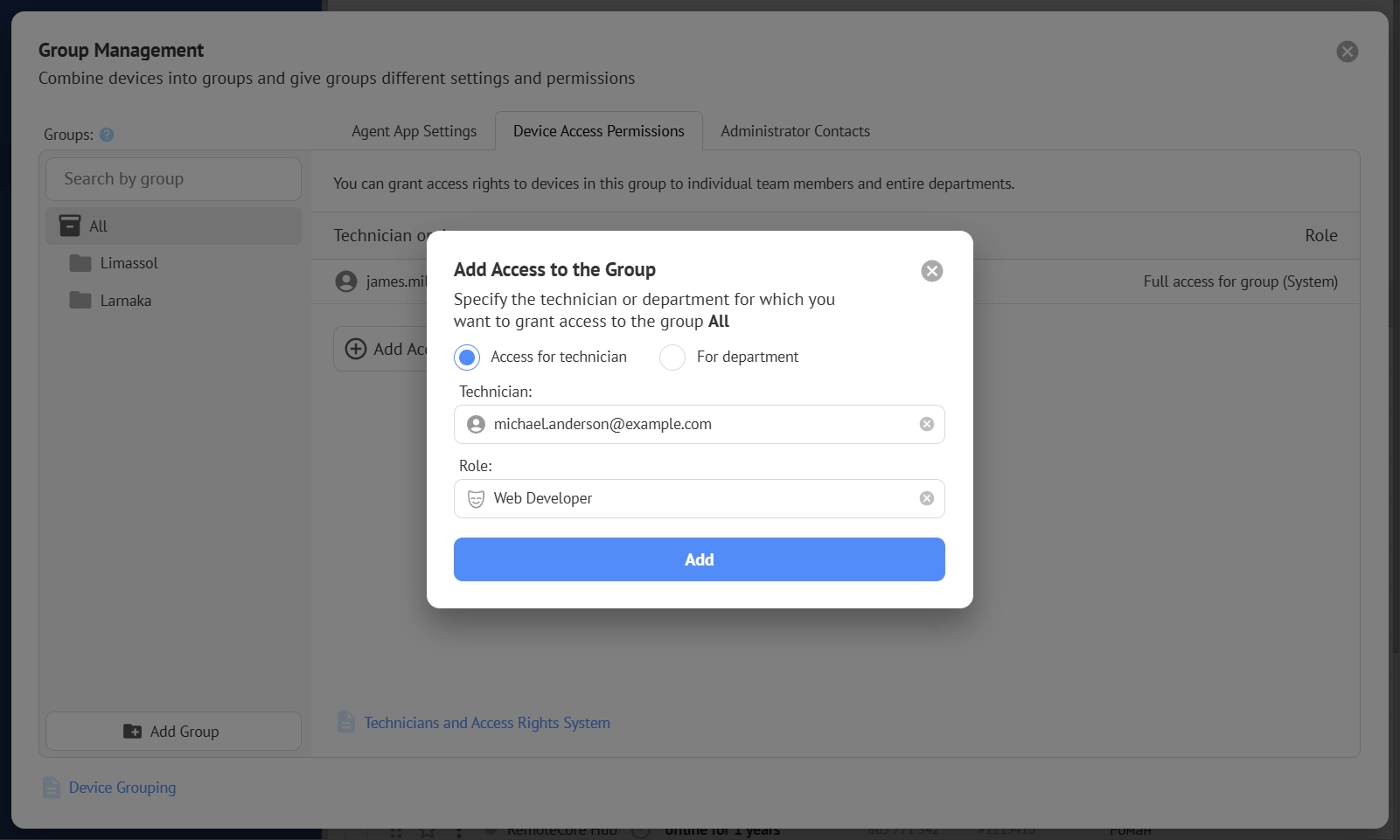
Once devices are grouped, administrators can assign access rights to the entire group or to individual devices. They can also grant permissions to a specific technician or a department, making it easier to manage access as the team grows.
Consider a retail company with computers in dozens of stores. The first-line support team may need access to employee workstations across all locations, while a smaller group of specialists handles point-of-sale systems. With Team Access, administrators can assign these responsibilities to the appropriate technicians without giving everyone access to every device.
Group Settings
Group settings can simplify ongoing administration. When access rights are inherited from a device's group, administrators can manage permissions centrally rather than configure each computer separately. If a technician changes departments, their access can be adjusted by updating the relevant assignments.
Choose What Each Technician Can Do
Getscreen.me uses roles to define the actions available to a technician. Administrators can assign an existing system role or create a custom role through Role Manager. Depending on the role's purpose, permissions can cover actions such as:
- Screen View and Screen Control: View a remote desktop or interact with it using the mouse and keyboard.
- File Manager and Terminal Mode: Access the remote file system or command line when the task requires it.
- Session tools: Use functions such as chat, calls, clipboard synchronization, or rebooting, where permitted.
- Administrative actions: Manage technicians, team settings, billing, API keys, or other administrative functions, depending on the assigned role.
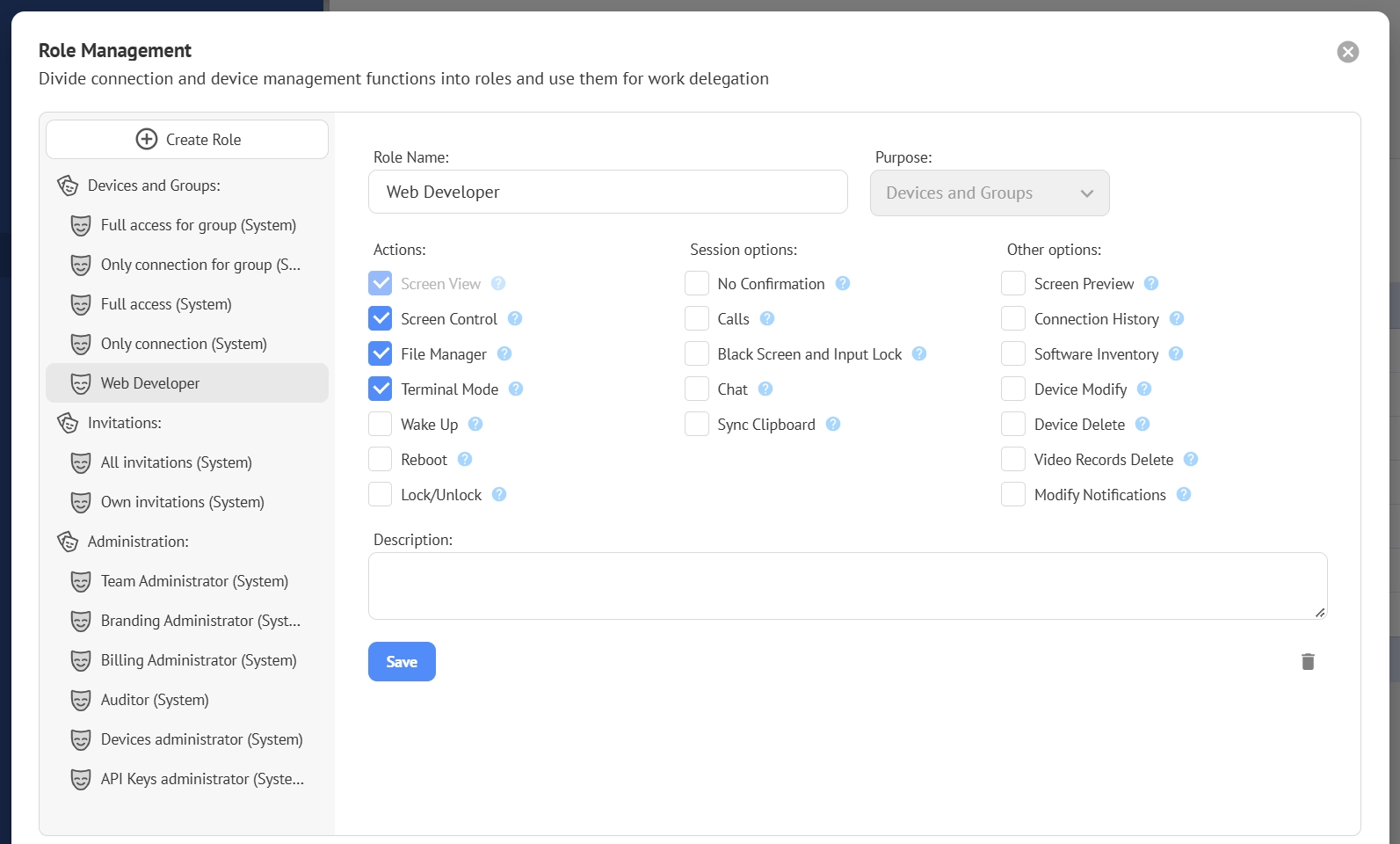
This separation is useful when different technicians have different responsibilities. A first-line operator might only need to view a user's screen and perform basic troubleshooting. A senior administrator may require terminal access, file transfer, and permission to reboot a device.
Administrators can also create roles for specific workflows. For example, a support provider could create a limited role for technicians who only need to inspect devices and another for specialists responsible for software installation and advanced troubleshooting.
Advanced Management Tools
The result is a more manageable permission structure. Technicians receive the tools they need for their work, while administrators retain control over access to devices and sensitive operations.
Public Access to Invite External Operators
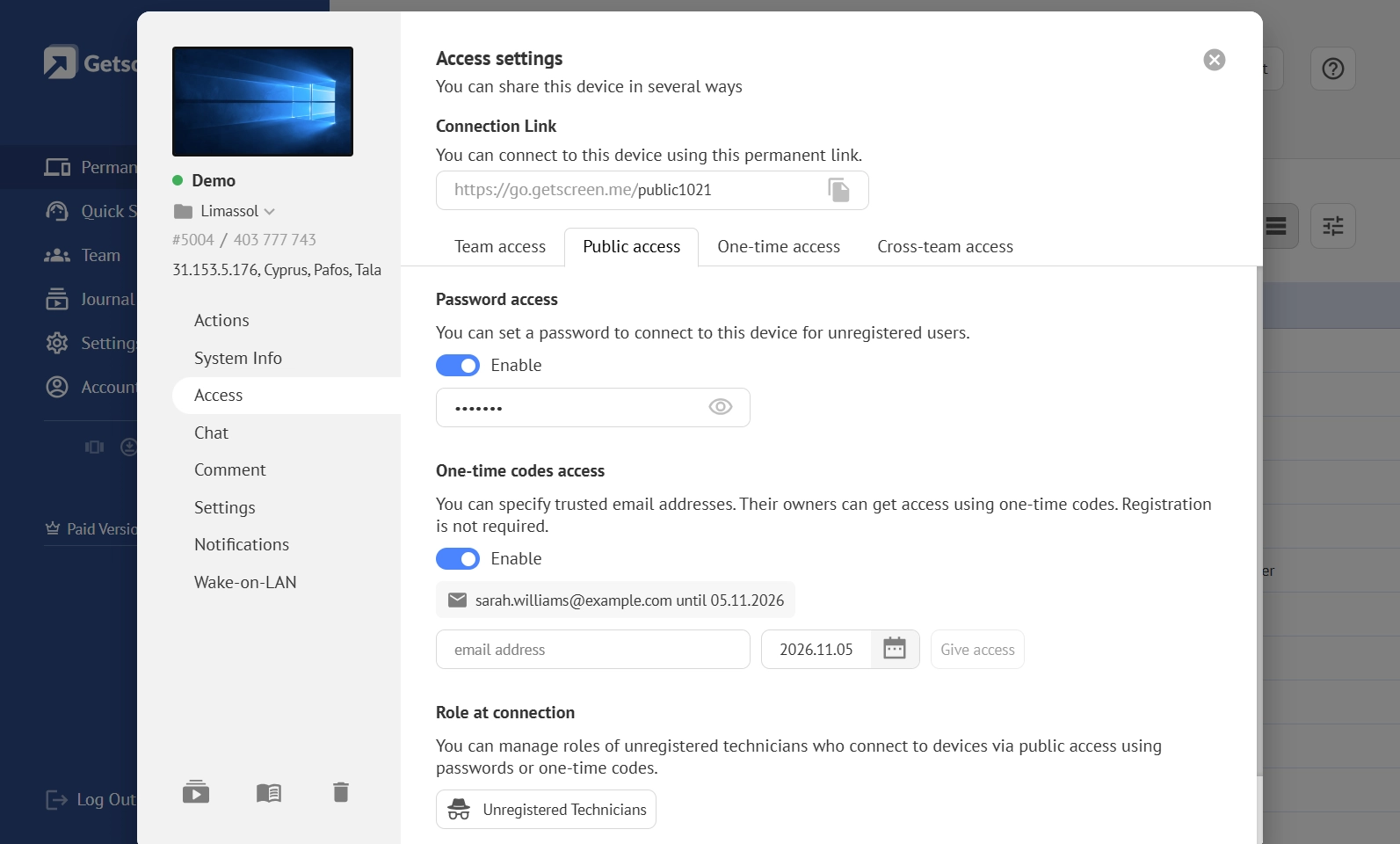
Sometimes a technician needs to connect to a computer but does not have a Getscreen.me account or not in a team. Public Access makes this possible through a device's public link.
Administrators can configure access using password protection or one-time codes sent to approved email addresses. They can also define the role available to unregistered technicians, limiting the actions they can perform during a session.
Password-Protected Access
With Password Access enabled, an external operator opens the public link and enters the configured password before connecting. This option is useful when a company needs to provide access to a trusted external specialist without creating a team account.
For example, a software vendor may need to investigate an application issue on a customer's computer. The customer can provide the connection link and password to the vendor's technician, allowing the specialist to connect without becoming a member of the customer's IT team.
Administrators should share the password through an appropriate channel and change or disable access when it is no longer needed.
One-Time Codes for Approved Email Addresses
One-Time Code access offers another way to verify external operators. The administrator specifies the email addresses allowed to connect. When an operator opens the public link, they enter an approved address and receive a code by email.
This approach is useful when a company regularly works with external specialists and wants to restrict access to known email addresses. For instance, an IT department could allow a software vendor's support engineers to connect while preventing other people with the same public link from accessing the device.
Simplified Flow
Public Access can support external troubleshooting without requiring administrators to create a separate Getscreen.me team account for every person who needs assistance. The configured role also helps keep the session within the limits established by the organization.
One-Time Access as a Temporary Solution for a Specific Task
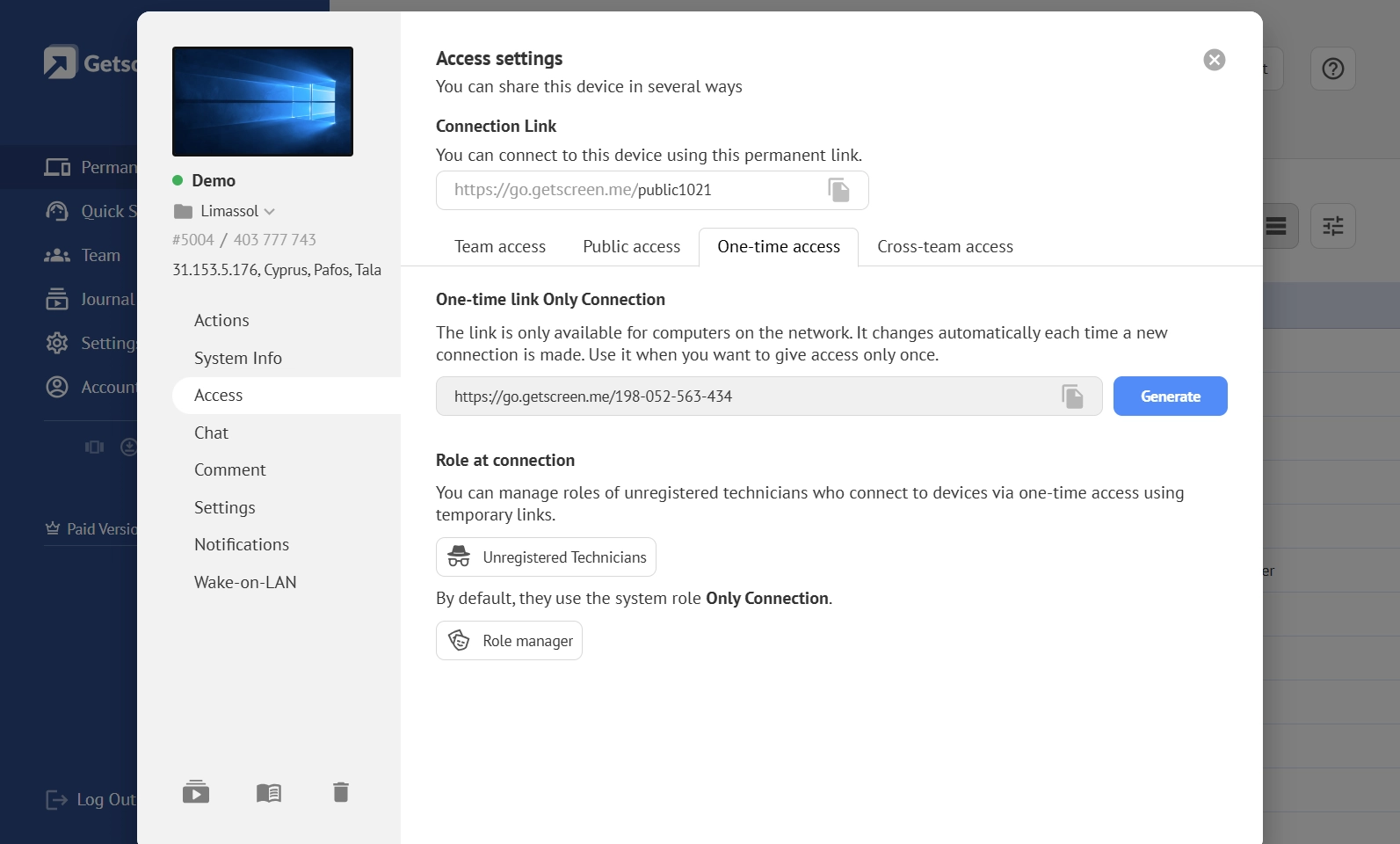
Not every support request requires a permanent connection. Sometimes a technician needs to inspect a computer once, resolve a particular problem, and leave the device without any ongoing support arrangement.
Getscreen.me offers One-Time Access for these situations. An operator can generate a temporary connection link from the agent application on the remote computer. The link is intended for a single connection and changes automatically after a new connection is made.
This makes One-Time Access suitable for short troubleshooting sessions where setting up permanent access would be unnecessary.
Imagine that an employee cannot launch a business application and asks an external IT consultant for help. The employee can generate a one-time link from the agent application and share it with the consultant. The consultant can connect to investigate the issue without being granted lasting access to the computer.
Control the Permissions of Unregistered Technicians
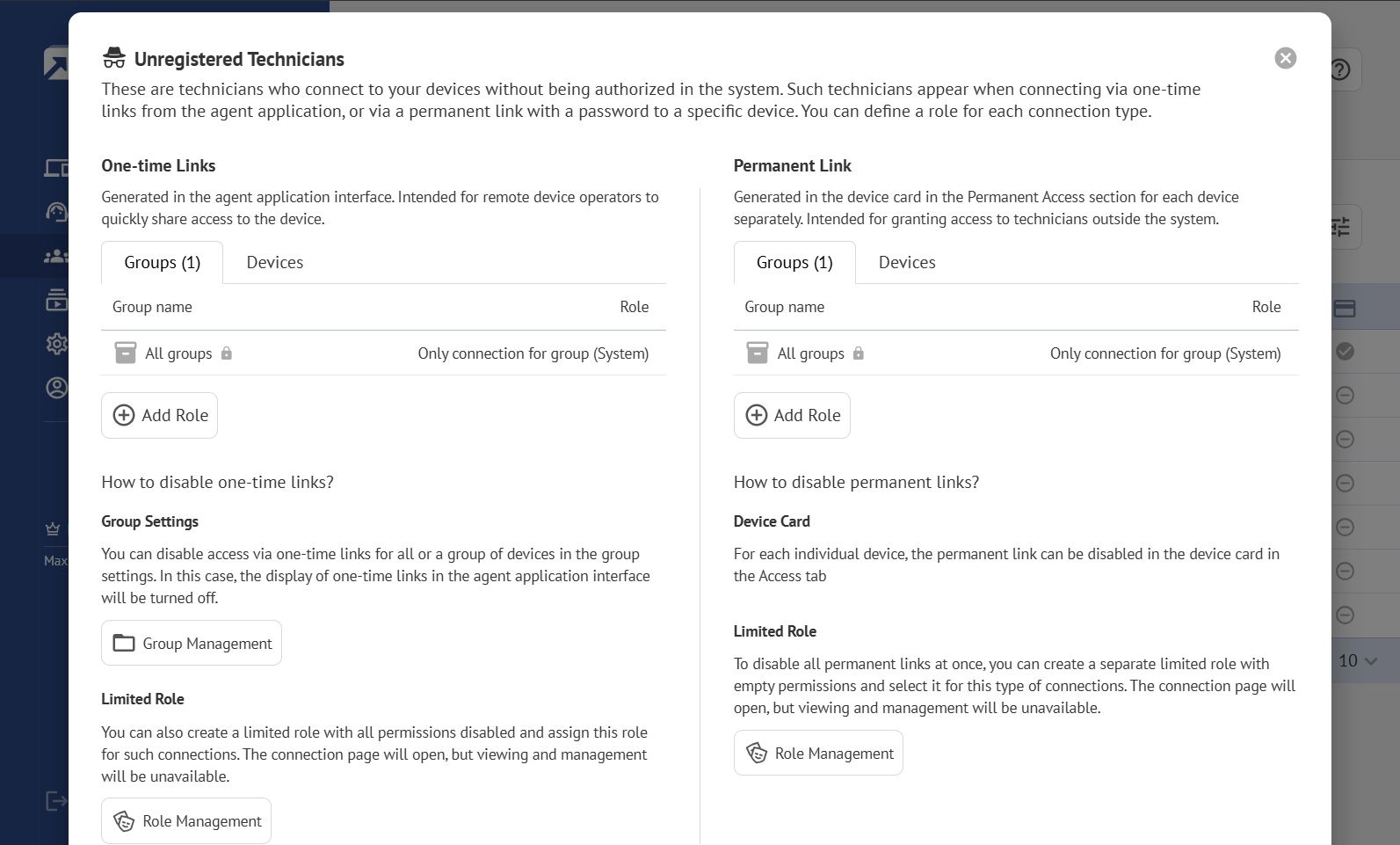
One-Time Access can also use roles to limit what an unregistered technician can do during the connection. Administrators can configure the permissions assigned to these operators for individual devices or device groups.
For example, an organization might allow an external technician to view and control the screen but restrict access to File Manager and Terminal Mode. This can be sufficient for checking application settings or guiding a user through a fix without exposing additional tools.
The distinction between One-Time Access and Public Access is important. Public Access uses a device's public link with a configured password or email-based verification. One-Time Access uses a temporary link generated from the agent application for a single connection.
Broader Support Distribution
With these tools, teams can remotely support devices and users outside their registered ecosystem. What’s more, both methods address different access scenarios.
Cross-Team Access to Collaborate with Other Teams
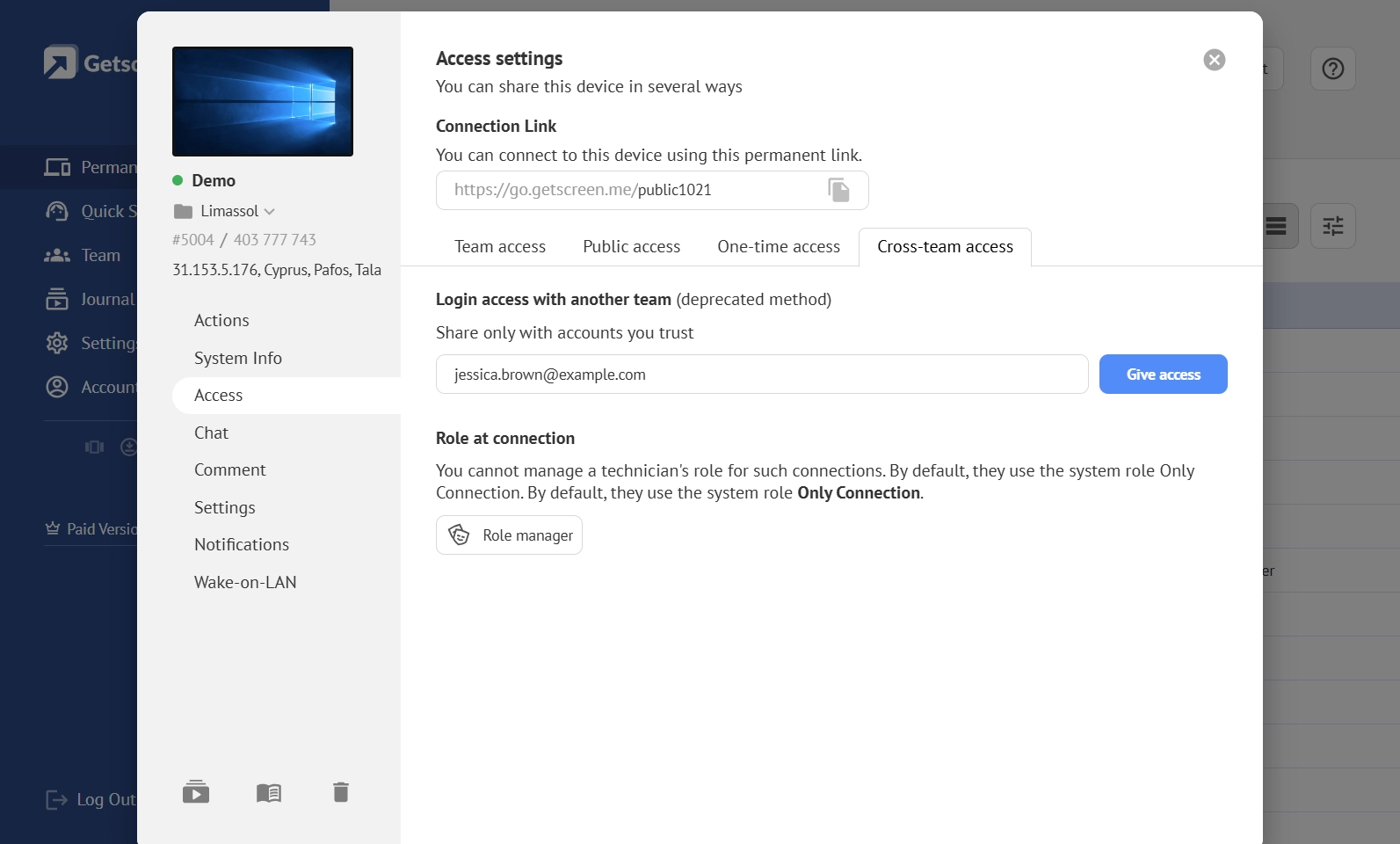
A company may rely on an external service provider, cooperate with another IT department, or need assistance from a specialist who already uses Getscreen.me under a separate account.
Cross-Team Access allows a device to be shared with a technician from another team. The administrator can grant access using the technician's email address, rather than requiring that person to join the device owner's team.
For example, a managed service provider needs to maintain a customer's computers while the customer's internal IT team remains responsible for server administration. Cross-Team Access can help the two teams collaborate by giving designated technicians access to the devices they need to support.
This arrangement can also be useful when a specialist from another organization needs to investigate a specific issue. The administrator can grant access to the relevant device and assign an appropriate role without opening the same access to every technician in the external team.
Selected Remote Access
Cross-Team Access is particularly helpful when responsibilities are shared across organizations. Each team can retain its own account structure, while access to selected devices is delegated where collaboration requires it.
Roles and Permissions Management Tools
Getscreen.me's Role Manager gives administrators a central place to create, edit, and manage roles. Each role has a defined purpose, such as working with devices and groups, handling Quick Support invitations, or administering team settings. Available permissions depend on that purpose.
The system also includes predefined roles for common scenarios, so administrators do not always have to build a permission set from scratch. Custom roles provide additional flexibility when the default options do not match an organization's support process.
When assigning access, administrators should consider both the devices a technician needs to reach and the actions required to complete their work. A technician may need access to a group of computers but only require screen control and chat. Another may need File Manager or Terminal Mode to perform more advanced maintenance.
Keeping these decisions separate makes it easier to adjust permissions as support requirements evolve. It also helps organizations maintain a consistent approach to remote access across different teams, customers, and device groups.
The Bottom Line
The Getscreen.me Access Rights System helps IT teams manage remote support without treating every connection the same way. Team Access supports routine work across devices and departments, Public Access provides verified connections for unregistered operators, One-Time Access supports single-session troubleshooting, and Cross-Team Access enables collaboration between separate Getscreen.me teams.
Roles add another layer of control. They define which tools and actions are available to each technician. Combined with device groups and permission inheritance, these features give administrators a practical way to organize access as their infrastructure and support teams grow.
For IT departments and managed service providers, this means less manual permission management, clearer responsibility boundaries, and a more flexible way to deliver remote support to employees, customers, and external partners.